

 Ugreen
.png) Devia
 Mayline
 (1).png) D-power
.png) Araree
 Apple Original
 Samsung Original
 Xiaomi
 LinQ
 JBL
.png) Belkin
 1More
 Techmade
 Benks
Clearance





Display iPhone
There are 459 products.
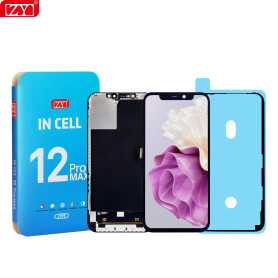
Screen iPhone 12 Pro Max (INCELL) ZY - COF - FHD1080p - Diagnosable
Use Repair Assistant to Finish an iPhone or iPad Repair
On an iPhone 12 or later running iOS 18, when a new Apple screen is installed,“Finish Repair” will appear next to Screen until you complete the repair using the Repair Assistant.
On an iPhone 12 or later running iOS 18, it is possible to reuse an original Apple screen on another iPhone of the same model.
The date of first use and the condition of the screen can be found in Settings > General > About > Parts & Service History.
How to Run Diagnostics & Finish Repair for iPhone Screen
1. Ensure your device is updated to iOS 18
2. Go to Settings > General > About > Parts & Service History
3. Tap "Restart & Finish Repair" to activate the Repair Assistant
4. Follow the on-screen instructions to complete the calibration
After completing this process, your screen will be fully functional, and there will be no pop-up warning about non-genuine parts.
Important Notes:
Your iPhone must be connected to Wi-Fi
Your battery level should be above 20%
If the process fails, restart your device and try again
If the repair is not completed, the screen may not function optimally, and some features (True Tone, Face ID) may be disabled until calibration is finalized
Out-of-Stock
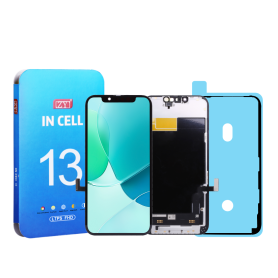
Screen iPhone 13 (INCELL) ZY - COF - FHD1080p - Diagnosable
Use Repair Assistant to Finish an iPhone or iPad Repair
On an iPhone 12 or later running iOS 18, when a new Apple screen is installed,“Finish Repair” will appear next to Screen until you complete the repair using the Repair Assistant.
On an iPhone 12 or later running iOS 18, it is possible to reuse an original Apple screen on another iPhone of the same model.
The date of first use and the condition of the screen can be found in Settings > General > About > Parts & Service History.
How to Run Diagnostics & Finish Repair for iPhone Screen
1. Ensure your device is updated to iOS 18
2. Go to Settings > General > About > Parts & Service History
3. Tap "Restart & Finish Repair" to activate the Repair Assistant
4. Follow the on-screen instructions to complete the calibration
After completing this process, your screen will be fully functional, and there will be no pop-up warning about non-genuine parts.
Important Notes:
Your iPhone must be connected to Wi-Fi
Your battery level should be above 20%
If the process fails, restart your device and try again
If the repair is not completed, the screen may not function optimally, and some features (True Tone, Face ID) may be disabled until calibration is finalized
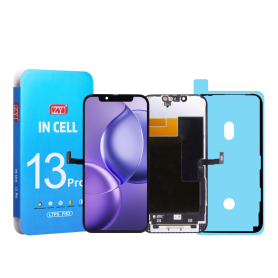
Screen iPhone 13 Pro (INCELL) ZY - COF - FHD1080p - 120Hz - Diagnosable
Use Repair Assistant to Finish an iPhone or iPad Repair
On an iPhone 12 or later running iOS 18, when a new Apple screen is installed,“Finish Repair” will appear next to Screen until you complete the repair using the Repair Assistant.
On an iPhone 12 or later running iOS 18, it is possible to reuse an original Apple screen on another iPhone of the same model.
The date of first use and the condition of the screen can be found in Settings > General > About > Parts & Service History.
How to Run Diagnostics & Finish Repair for iPhone Screen
1. Ensure your device is updated to iOS 18
2. Go to Settings > General > About > Parts & Service History
3. Tap "Restart & Finish Repair" to activate the Repair Assistant
4. Follow the on-screen instructions to complete the calibration
After completing this process, your screen will be fully functional, and there will be no pop-up warning about non-genuine parts.
Important Notes:
Your iPhone must be connected to Wi-Fi
Your battery level should be above 20%
If the process fails, restart your device and try again
If the repair is not completed, the screen may not function optimally, and some features (True Tone, Face ID) may be disabled until calibration is finalized
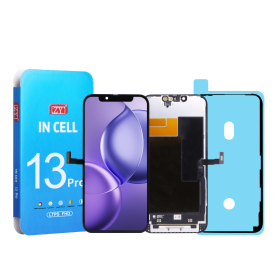
Screen iPhone 13 Pro Max (INCELL) ZY - COF - FHD1080p - 120Hz - Diagnosable
Use Repair Assistant to Finish an iPhone or iPad Repair
On an iPhone 12 or later running iOS 18, when a new Apple screen is installed,“Finish Repair” will appear next to Screen until you complete the repair using the Repair Assistant.
On an iPhone 12 or later running iOS 18, it is possible to reuse an original Apple screen on another iPhone of the same model.
The date of first use and the condition of the screen can be found in Settings > General > About > Parts & Service History.
How to Run Diagnostics & Finish Repair for iPhone Screen
1. Ensure your device is updated to iOS 18
2. Go to Settings > General > About > Parts & Service History
3. Tap "Restart & Finish Repair" to activate the Repair Assistant
4. Follow the on-screen instructions to complete the calibration
After completing this process, your screen will be fully functional, and there will be no pop-up warning about non-genuine parts.
Important Notes:
Your iPhone must be connected to Wi-Fi
Your battery level should be above 20%
If the process fails, restart your device and try again
If the repair is not completed, the screen may not function optimally, and some features (True Tone, Face ID) may be disabled until calibration is finalized
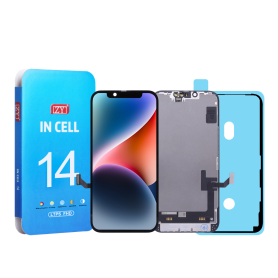
Screen iPhone 14 (INCELL) ZY - COF - FHD1080p - Diagnosable
Use Repair Assistant to Finish an iPhone or iPad Repair
On an iPhone 12 or later running iOS 18, when a new Apple screen is installed,“Finish Repair” will appear next to Screen until you complete the repair using the Repair Assistant.
On an iPhone 12 or later running iOS 18, it is possible to reuse an original Apple screen on another iPhone of the same model.
The date of first use and the condition of the screen can be found in Settings > General > About > Parts & Service History.
How to Run Diagnostics & Finish Repair for iPhone Screen
1. Ensure your device is updated to iOS 18
2. Go to Settings > General > About > Parts & Service History
3. Tap "Restart & Finish Repair" to activate the Repair Assistant
4. Follow the on-screen instructions to complete the calibration
After completing this process, your screen will be fully functional, and there will be no pop-up warning about non-genuine parts.
Important Notes:
Your iPhone must be connected to Wi-Fi
Your battery level should be above 20%
If the process fails, restart your device and try again
If the repair is not completed, the screen may not function optimally, and some features (True Tone, Face ID) may be disabled until calibration is finalized
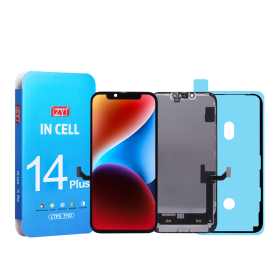
Screen iPhone 14 Plus (INCELL) ZY - COF - FHD1080p - Diagnosable
Use Repair Assistant to Finish an iPhone or iPad Repair
On an iPhone 12 or later running iOS 18, when a new Apple screen is installed,“Finish Repair” will appear next to Screen until you complete the repair using the Repair Assistant.
On an iPhone 12 or later running iOS 18, it is possible to reuse an original Apple screen on another iPhone of the same model.
The date of first use and the condition of the screen can be found in Settings > General > About > Parts & Service History.
How to Run Diagnostics & Finish Repair for iPhone Screen
1. Ensure your device is updated to iOS 18
2. Go to Settings > General > About > Parts & Service History
3. Tap "Restart & Finish Repair" to activate the Repair Assistant
4. Follow the on-screen instructions to complete the calibration
After completing this process, your screen will be fully functional, and there will be no pop-up warning about non-genuine parts.
Important Notes:
Your iPhone must be connected to Wi-Fi
Your battery level should be above 20%
If the process fails, restart your device and try again
If the repair is not completed, the screen may not function optimally, and some features (True Tone, Face ID) may be disabled until calibration is finalized
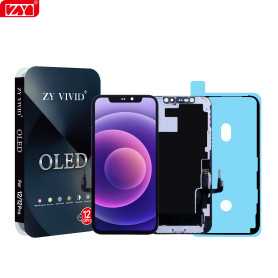
Screen iPhone 12 / 12 Pro (OLED) ZY - Diagnosable
Use Repair Assistant to Finish an iPhone or iPad Repair
On an iPhone 12 or later running iOS 18, when a new Apple screen is installed,“Finish Repair” will appear next to Screen until you complete the repair using the Repair Assistant.
On an iPhone 12 or later running iOS 18, it is possible to reuse an original Apple screen on another iPhone of the same model.
The date of first use and the condition of the screen can be found in Settings > General > About > Parts & Service History.
How to Run Diagnostics & Finish Repair for iPhone Screen
1. Ensure your device is updated to iOS 18
2. Go to Settings > General > About > Parts & Service History
3. Tap "Restart & Finish Repair" to activate the Repair Assistant
4. Follow the on-screen instructions to complete the calibration
After completing this process, your screen will be fully functional, and there will be no pop-up warning about non-genuine parts.
Important Notes:
Your iPhone must be connected to Wi-Fi
Your battery level should be above 20%
If the process fails, restart your device and try again
If the repair is not completed, the screen may not function optimally, and some features (True Tone, Face ID) may be disabled until calibration is finalized
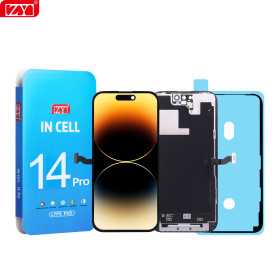
Screen iPhone 14 Pro (INCELL) ZY - COF - FHD1080p - 120Hz - Diagnosable
Use Repair Assistant to Finish an iPhone or iPad Repair
On an iPhone 12 or later running iOS 18, when a new Apple screen is installed,“Finish Repair” will appear next to Screen until you complete the repair using the Repair Assistant.
On an iPhone 12 or later running iOS 18, it is possible to reuse an original Apple screen on another iPhone of the same model.
The date of first use and the condition of the screen can be found in Settings > General > About > Parts & Service History.
How to Run Diagnostics & Finish Repair for iPhone Screen
1. Ensure your device is updated to iOS 18
2. Go to Settings > General > About > Parts & Service History
3. Tap "Restart & Finish Repair" to activate the Repair Assistant
4. Follow the on-screen instructions to complete the calibration
After completing this process, your screen will be fully functional, and there will be no pop-up warning about non-genuine parts.
Important Notes:
Your iPhone must be connected to Wi-Fi
Your battery level should be above 20%
If the process fails, restart your device and try again
If the repair is not completed, the screen may not function optimally, and some features (True Tone, Face ID) may be disabled until calibration is finalized
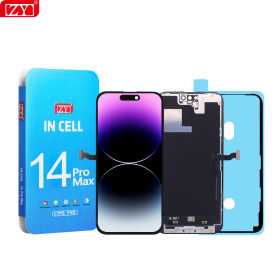
Screen iPhone 14 Pro Max (INCELL) ZY - COF - FHD1080p - 120Hz - Diagnosable
Use Repair Assistant to Finish an iPhone or iPad Repair
On an iPhone 12 or later running iOS 18, when a new Apple screen is installed,“Finish Repair” will appear next to Screen until you complete the repair using the Repair Assistant.
On an iPhone 12 or later running iOS 18, it is possible to reuse an original Apple screen on another iPhone of the same model.
The date of first use and the condition of the screen can be found in Settings > General > About > Parts & Service History.
How to Run Diagnostics & Finish Repair for iPhone Screen
1. Ensure your device is updated to iOS 18
2. Go to Settings > General > About > Parts & Service History
3. Tap "Restart & Finish Repair" to activate the Repair Assistant
4. Follow the on-screen instructions to complete the calibration
After completing this process, your screen will be fully functional, and there will be no pop-up warning about non-genuine parts.
Important Notes:
Your iPhone must be connected to Wi-Fi
Your battery level should be above 20%
If the process fails, restart your device and try again
If the repair is not completed, the screen may not function optimally, and some features (True Tone, Face ID) may be disabled until calibration is finalized
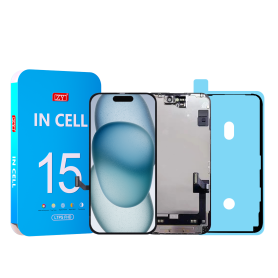
Screen iPhone 15 (INCELL) ZY - COF - FHD1080p - Diagnosable
Use Repair Assistant to Finish an iPhone or iPad Repair
On an iPhone 12 or later running iOS 18, when a new Apple screen is installed,“Finish Repair” will appear next to Screen until you complete the repair using the Repair Assistant.
On an iPhone 12 or later running iOS 18, it is possible to reuse an original Apple screen on another iPhone of the same model.
The date of first use and the condition of the screen can be found in Settings > General > About > Parts & Service History.
How to Run Diagnostics & Finish Repair for iPhone Screen
1. Ensure your device is updated to iOS 18
2. Go to Settings > General > About > Parts & Service History
3. Tap "Restart & Finish Repair" to activate the Repair Assistant
4. Follow the on-screen instructions to complete the calibration
After completing this process, your screen will be fully functional, and there will be no pop-up warning about non-genuine parts.
Important Notes:
Your iPhone must be connected to Wi-Fi
Your battery level should be above 20%
If the process fails, restart your device and try again
If the repair is not completed, the screen may not function optimally, and some features (True Tone, Face ID) may be disabled until calibration is finalized
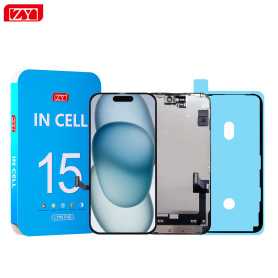
Screen iPhone 15 Plus (INCELL) ZY - COF - FHD1080p - Diagnosable
Use Repair Assistant to Finish an iPhone or iPad Repair
On an iPhone 12 or later running iOS 18, when a new Apple screen is installed,“Finish Repair” will appear next to Screen until you complete the repair using the Repair Assistant.
On an iPhone 12 or later running iOS 18, it is possible to reuse an original Apple screen on another iPhone of the same model.
The date of first use and the condition of the screen can be found in Settings > General > About > Parts & Service History.
How to Run Diagnostics & Finish Repair for iPhone Screen
1. Ensure your device is updated to iOS 18
2. Go to Settings > General > About > Parts & Service History
3. Tap "Restart & Finish Repair" to activate the Repair Assistant
4. Follow the on-screen instructions to complete the calibration
After completing this process, your screen will be fully functional, and there will be no pop-up warning about non-genuine parts.
Important Notes:
Your iPhone must be connected to Wi-Fi
Your battery level should be above 20%
If the process fails, restart your device and try again
If the repair is not completed, the screen may not function optimally, and some features (True Tone, Face ID) may be disabled until calibration is finalized
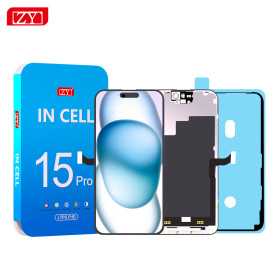
Screen iPhone 15 Pro (INCELL) ZY - COF - FHD1080p - 120Hz - Diagnosable
Use Repair Assistant to Finish an iPhone or iPad Repair
On an iPhone 12 or later running iOS 18, when a new Apple screen is installed,“Finish Repair” will appear next to Screen until you complete the repair using the Repair Assistant.
On an iPhone 12 or later running iOS 18, it is possible to reuse an original Apple screen on another iPhone of the same model.
The date of first use and the condition of the screen can be found in Settings > General > About > Parts & Service History.
How to Run Diagnostics & Finish Repair for iPhone Screen
1. Ensure your device is updated to iOS 18
2. Go to Settings > General > About > Parts & Service History
3. Tap "Restart & Finish Repair" to activate the Repair Assistant
4. Follow the on-screen instructions to complete the calibration
After completing this process, your screen will be fully functional, and there will be no pop-up warning about non-genuine parts.
Important Notes:
Your iPhone must be connected to Wi-Fi
Your battery level should be above 20%
If the process fails, restart your device and try again
If the repair is not completed, the screen may not function optimally, and some features (True Tone, Face ID) may be disabled until calibration is finalized
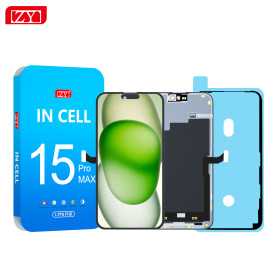
Screen iPhone 15 Pro Max (INCELL) ZY - COF - FHD1080p - 120Hz - Diagnosable
Use Repair Assistant to Finish an iPhone or iPad Repair
On an iPhone 12 or later running iOS 18, when a new Apple screen is installed,“Finish Repair” will appear next to Screen until you complete the repair using the Repair Assistant.
On an iPhone 12 or later running iOS 18, it is possible to reuse an original Apple screen on another iPhone of the same model.
The date of first use and the condition of the screen can be found in Settings > General > About > Parts & Service History.
How to Run Diagnostics & Finish Repair for iPhone Screen
1. Ensure your device is updated to iOS 18
2. Go to Settings > General > About > Parts & Service History
3. Tap "Restart & Finish Repair" to activate the Repair Assistant
4. Follow the on-screen instructions to complete the calibration
After completing this process, your screen will be fully functional, and there will be no pop-up warning about non-genuine parts.
Important Notes:
Your iPhone must be connected to Wi-Fi
Your battery level should be above 20%
If the process fails, restart your device and try again
If the repair is not completed, the screen may not function optimally, and some features (True Tone, Face ID) may be disabled until calibration is finalized
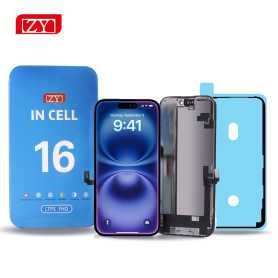
Screen iPhone 16 (INCELL) ZY - COF - FHD1080p - Diagnosable
Use Repair Assistant to Finish an iPhone or iPad Repair
On an iPhone 12 or later running iOS 18, when a new Apple screen is installed,“Finish Repair” will appear next to Screen until you complete the repair using the Repair Assistant.
On an iPhone 12 or later running iOS 18, it is possible to reuse an original Apple screen on another iPhone of the same model.
The date of first use and the condition of the screen can be found in Settings > General > About > Parts & Service History.
How to Run Diagnostics & Finish Repair for iPhone Screen
1. Ensure your device is updated to iOS 18
2. Go to Settings > General > About > Parts & Service History
3. Tap "Restart & Finish Repair" to activate the Repair Assistant
4. Follow the on-screen instructions to complete the calibration
After completing this process, your screen will be fully functional, and there will be no pop-up warning about non-genuine parts.
Important Notes:
Your iPhone must be connected to Wi-Fi
Your battery level should be above 20%
If the process fails, restart your device and try again
If the repair is not completed, the screen may not function optimally, and some features (True Tone, Face ID) may be disabled until calibration is finalized
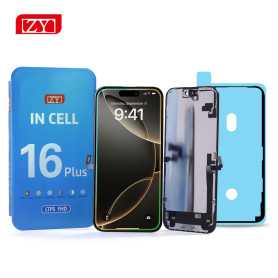
Screen iPhone 16 Plus (INCELL) ZY - COF - FHD1080p - Diagnosable
Use Repair Assistant to Finish an iPhone or iPad Repair
On an iPhone 12 or later running iOS 18, when a new Apple screen is installed,“Finish Repair” will appear next to Screen until you complete the repair using the Repair Assistant.
On an iPhone 12 or later running iOS 18, it is possible to reuse an original Apple screen on another iPhone of the same model.
The date of first use and the condition of the screen can be found in Settings > General > About > Parts & Service History.
How to Run Diagnostics & Finish Repair for iPhone Screen
1. Ensure your device is updated to iOS 18
2. Go to Settings > General > About > Parts & Service History
3. Tap "Restart & Finish Repair" to activate the Repair Assistant
4. Follow the on-screen instructions to complete the calibration
After completing this process, your screen will be fully functional, and there will be no pop-up warning about non-genuine parts.
Important Notes:
Your iPhone must be connected to Wi-Fi
Your battery level should be above 20%
If the process fails, restart your device and try again
If the repair is not completed, the screen may not function optimally, and some features (True Tone, Face ID) may be disabled until calibration is finalized
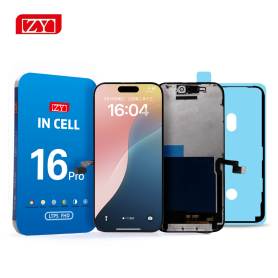
Screen iPhone 16 Pro (INCELL) ZY - COF - FHD1080p - 120Hz - Diagnosable
Use Repair Assistant to Finish an iPhone or iPad Repair
On an iPhone 12 or later running iOS 18, when a new Apple screen is installed,“Finish Repair” will appear next to Screen until you complete the repair using the Repair Assistant.
On an iPhone 12 or later running iOS 18, it is possible to reuse an original Apple screen on another iPhone of the same model.
The date of first use and the condition of the screen can be found in Settings > General > About > Parts & Service History.
How to Run Diagnostics & Finish Repair for iPhone Screen
1. Ensure your device is updated to iOS 18
2. Go to Settings > General > About > Parts & Service History
3. Tap "Restart & Finish Repair" to activate the Repair Assistant
4. Follow the on-screen instructions to complete the calibration
After completing this process, your screen will be fully functional, and there will be no pop-up warning about non-genuine parts.
Important Notes:
Your iPhone must be connected to Wi-Fi
Your battery level should be above 20%
If the process fails, restart your device and try again
If the repair is not completed, the screen may not function optimally, and some features (True Tone, Face ID) may be disabled until calibration is finalized
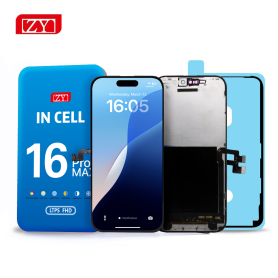
Screen iPhone 16 Pro Max (INCELL) ZY - COF - FHD1080p - 120Hz - Diagnosable
Use Repair Assistant to Finish an iPhone or iPad Repair
On an iPhone 12 or later running iOS 18, when a new Apple screen is installed,“Finish Repair” will appear next to Screen until you complete the repair using the Repair Assistant.
On an iPhone 12 or later running iOS 18, it is possible to reuse an original Apple screen on another iPhone of the same model.
The date of first use and the condition of the screen can be found in Settings > General > About > Parts & Service History.
How to Run Diagnostics & Finish Repair for iPhone Screen
1. Ensure your device is updated to iOS 18
2. Go to Settings > General > About > Parts & Service History
3. Tap "Restart & Finish Repair" to activate the Repair Assistant
4. Follow the on-screen instructions to complete the calibration
After completing this process, your screen will be fully functional, and there will be no pop-up warning about non-genuine parts.
Important Notes:
Your iPhone must be connected to Wi-Fi
Your battery level should be above 20%
If the process fails, restart your device and try again
If the repair is not completed, the screen may not function optimally, and some features (True Tone, Face ID) may be disabled until calibration is finalized
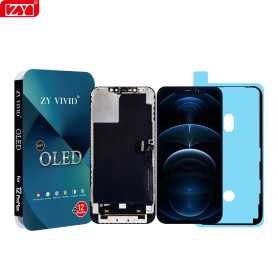
Screen iPhone 12 Pro Max (OLED) ZY - Diagnosable
Use Repair Assistant to Finish an iPhone or iPad Repair
On an iPhone 12 or later running iOS 18, when a new Apple screen is installed,“Finish Repair” will appear next to Screen until you complete the repair using the Repair Assistant.
On an iPhone 12 or later running iOS 18, it is possible to reuse an original Apple screen on another iPhone of the same model.
The date of first use and the condition of the screen can be found in Settings > General > About > Parts & Service History.
How to Run Diagnostics & Finish Repair for iPhone Screen
1. Ensure your device is updated to iOS 18
2. Go to Settings > General > About > Parts & Service History
3. Tap "Restart & Finish Repair" to activate the Repair Assistant
4. Follow the on-screen instructions to complete the calibration
After completing this process, your screen will be fully functional, and there will be no pop-up warning about non-genuine parts.
Important Notes:
Your iPhone must be connected to Wi-Fi
Your battery level should be above 20%
If the process fails, restart your device and try again
If the repair is not completed, the screen may not function optimally, and some features (True Tone, Face ID) may be disabled until calibration is finalized
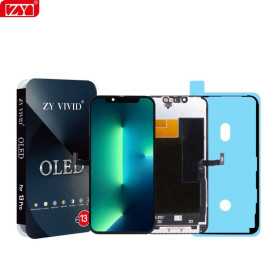
Screen iPhone 13 (OLED) ZY - Diagnosable
Use Repair Assistant to Finish an iPhone or iPad Repair
On an iPhone 12 or later running iOS 18, when a new Apple screen is installed,“Finish Repair” will appear next to Screen until you complete the repair using the Repair Assistant.
On an iPhone 12 or later running iOS 18, it is possible to reuse an original Apple screen on another iPhone of the same model.
The date of first use and the condition of the screen can be found in Settings > General > About > Parts & Service History.
How to Run Diagnostics & Finish Repair for iPhone Screen
1. Ensure your device is updated to iOS 18
2. Go to Settings > General > About > Parts & Service History
3. Tap "Restart & Finish Repair" to activate the Repair Assistant
4. Follow the on-screen instructions to complete the calibration
After completing this process, your screen will be fully functional, and there will be no pop-up warning about non-genuine parts.
Important Notes:
Your iPhone must be connected to Wi-Fi
Your battery level should be above 20%
If the process fails, restart your device and try again
If the repair is not completed, the screen may not function optimally, and some features (True Tone, Face ID) may be disabled until calibration is finalized
Out-of-Stock
Screen iPhone 13 Pro (OLED) ZY - 120Hz - Diagnosable
Use Repair Assistant to Finish an iPhone or iPad Repair
On an iPhone 12 or later running iOS 18, when a new Apple screen is installed,“Finish Repair” will appear next to Screen until you complete the repair using the Repair Assistant.
On an iPhone 12 or later running iOS 18, it is possible to reuse an original Apple screen on another iPhone of the same model.
The date of first use and the condition of the screen can be found in Settings > General > About > Parts & Service History.
How to Run Diagnostics & Finish Repair for iPhone Screen
1. Ensure your device is updated to iOS 18
2. Go to Settings > General > About > Parts & Service History
3. Tap "Restart & Finish Repair" to activate the Repair Assistant
4. Follow the on-screen instructions to complete the calibration
After completing this process, your screen will be fully functional, and there will be no pop-up warning about non-genuine parts.
Important Notes:
Your iPhone must be connected to Wi-Fi
Your battery level should be above 20%
If the process fails, restart your device and try again
If the repair is not completed, the screen may not function optimally, and some features (True Tone, Face ID) may be disabled until calibration is finalized
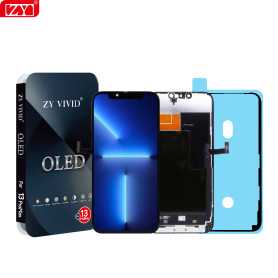
Screen iPhone 13 Pro Max (OLED) ZY - 120Hz - Diagnosable
Use Repair Assistant to Finish an iPhone or iPad Repair
On an iPhone 12 or later running iOS 18, when a new Apple screen is installed,“Finish Repair” will appear next to Screen until you complete the repair using the Repair Assistant.
On an iPhone 12 or later running iOS 18, it is possible to reuse an original Apple screen on another iPhone of the same model.
The date of first use and the condition of the screen can be found in Settings > General > About > Parts & Service History.
How to Run Diagnostics & Finish Repair for iPhone Screen
1. Ensure your device is updated to iOS 18
2. Go to Settings > General > About > Parts & Service History
3. Tap "Restart & Finish Repair" to activate the Repair Assistant
4. Follow the on-screen instructions to complete the calibration
After completing this process, your screen will be fully functional, and there will be no pop-up warning about non-genuine parts.
Important Notes:
Your iPhone must be connected to Wi-Fi
Your battery level should be above 20%
If the process fails, restart your device and try again
If the repair is not completed, the screen may not function optimally, and some features (True Tone, Face ID) may be disabled until calibration is finalized

Screen iPhone 14 (OLED) ZY - Diagnosable
Use Repair Assistant to Finish an iPhone or iPad Repair
On an iPhone 12 or later running iOS 18, when a new Apple screen is installed,“Finish Repair” will appear next to Screen until you complete the repair using the Repair Assistant.
On an iPhone 12 or later running iOS 18, it is possible to reuse an original Apple screen on another iPhone of the same model.
The date of first use and the condition of the screen can be found in Settings > General > About > Parts & Service History.
How to Run Diagnostics & Finish Repair for iPhone Screen
1. Ensure your device is updated to iOS 18
2. Go to Settings > General > About > Parts & Service History
3. Tap "Restart & Finish Repair" to activate the Repair Assistant
4. Follow the on-screen instructions to complete the calibration
After completing this process, your screen will be fully functional, and there will be no pop-up warning about non-genuine parts.
Important Notes:
Your iPhone must be connected to Wi-Fi
Your battery level should be above 20%
If the process fails, restart your device and try again
If the repair is not completed, the screen may not function optimally, and some features (True Tone, Face ID) may be disabled until calibration is finalized
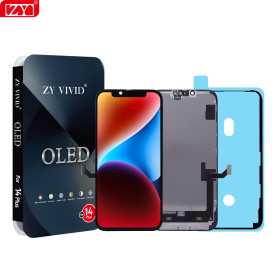
Screen iPhone 14 Plus (OLED) ZY - Diagnosable
Use Repair Assistant to Finish an iPhone or iPad Repair
On an iPhone 12 or later running iOS 18, when a new Apple screen is installed,“Finish Repair” will appear next to Screen until you complete the repair using the Repair Assistant.
On an iPhone 12 or later running iOS 18, it is possible to reuse an original Apple screen on another iPhone of the same model.
The date of first use and the condition of the screen can be found in Settings > General > About > Parts & Service History.
How to Run Diagnostics & Finish Repair for iPhone Screen
1. Ensure your device is updated to iOS 18
2. Go to Settings > General > About > Parts & Service History
3. Tap "Restart & Finish Repair" to activate the Repair Assistant
4. Follow the on-screen instructions to complete the calibration
After completing this process, your screen will be fully functional, and there will be no pop-up warning about non-genuine parts.
Important Notes:
Your iPhone must be connected to Wi-Fi
Your battery level should be above 20%
If the process fails, restart your device and try again
If the repair is not completed, the screen may not function optimally, and some features (True Tone, Face ID) may be disabled until calibration is finalized
Out-of-Stock
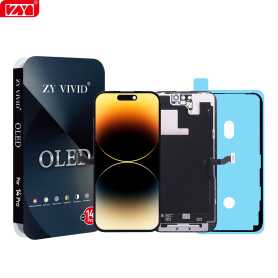
Screen iPhone 14 Pro (OLED) ZY - 120Hz - Diagnosable
Use Repair Assistant to Finish an iPhone or iPad Repair
On an iPhone 12 or later running iOS 18, when a new Apple screen is installed,“Finish Repair” will appear next to Screen until you complete the repair using the Repair Assistant.
On an iPhone 12 or later running iOS 18, it is possible to reuse an original Apple screen on another iPhone of the same model.
The date of first use and the condition of the screen can be found in Settings > General > About > Parts & Service History.
How to Run Diagnostics & Finish Repair for iPhone Screen
1. Ensure your device is updated to iOS 18
2. Go to Settings > General > About > Parts & Service History
3. Tap "Restart & Finish Repair" to activate the Repair Assistant
4. Follow the on-screen instructions to complete the calibration
After completing this process, your screen will be fully functional, and there will be no pop-up warning about non-genuine parts.
Important Notes:
Your iPhone must be connected to Wi-Fi
Your battery level should be above 20%
If the process fails, restart your device and try again
If the repair is not completed, the screen may not function optimally, and some features (True Tone, Face ID) may be disabled until calibration is finalized
Out-of-Stock
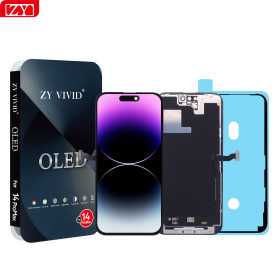
Screen iPhone 14 Pro Max (OLED) ZY - 120Hz - Diagnosable
Use Repair Assistant to Finish an iPhone or iPad Repair
On an iPhone 12 or later running iOS 18, when a new Apple screen is installed,“Finish Repair” will appear next to Screen until you complete the repair using the Repair Assistant.
On an iPhone 12 or later running iOS 18, it is possible to reuse an original Apple screen on another iPhone of the same model.
The date of first use and the condition of the screen can be found in Settings > General > About > Parts & Service History.
How to Run Diagnostics & Finish Repair for iPhone Screen
1. Ensure your device is updated to iOS 18
2. Go to Settings > General > About > Parts & Service History
3. Tap "Restart & Finish Repair" to activate the Repair Assistant
4. Follow the on-screen instructions to complete the calibration
After completing this process, your screen will be fully functional, and there will be no pop-up warning about non-genuine parts.
Important Notes:
Your iPhone must be connected to Wi-Fi
Your battery level should be above 20%
If the process fails, restart your device and try again
If the repair is not completed, the screen may not function optimally, and some features (True Tone, Face ID) may be disabled until calibration is finalized
Out-of-Stock
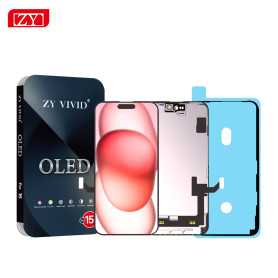
Screen iPhone 15 (OLED) ZY - Diagnosable
Use Repair Assistant to Finish an iPhone or iPad Repair
On an iPhone 12 or later running iOS 18, when a new Apple screen is installed,“Finish Repair” will appear next to Screen until you complete the repair using the Repair Assistant.
On an iPhone 12 or later running iOS 18, it is possible to reuse an original Apple screen on another iPhone of the same model.
The date of first use and the condition of the screen can be found in Settings > General > About > Parts & Service History.
How to Run Diagnostics & Finish Repair for iPhone Screen
1. Ensure your device is updated to iOS 18
2. Go to Settings > General > About > Parts & Service History
3. Tap "Restart & Finish Repair" to activate the Repair Assistant
4. Follow the on-screen instructions to complete the calibration
After completing this process, your screen will be fully functional, and there will be no pop-up warning about non-genuine parts.
Important Notes:
Your iPhone must be connected to Wi-Fi
Your battery level should be above 20%
If the process fails, restart your device and try again
If the repair is not completed, the screen may not function optimally, and some features (True Tone, Face ID) may be disabled until calibration is finalized

Screen iPhone 15 Plus (OLED) ZY - Diagnosable
Use Repair Assistant to Finish an iPhone or iPad Repair
On an iPhone 12 or later running iOS 18, when a new Apple screen is installed,“Finish Repair” will appear next to Screen until you complete the repair using the Repair Assistant.
On an iPhone 12 or later running iOS 18, it is possible to reuse an original Apple screen on another iPhone of the same model.
The date of first use and the condition of the screen can be found in Settings > General > About > Parts & Service History.
How to Run Diagnostics & Finish Repair for iPhone Screen
1. Ensure your device is updated to iOS 18
2. Go to Settings > General > About > Parts & Service History
3. Tap "Restart & Finish Repair" to activate the Repair Assistant
4. Follow the on-screen instructions to complete the calibration
After completing this process, your screen will be fully functional, and there will be no pop-up warning about non-genuine parts.
Important Notes:
Your iPhone must be connected to Wi-Fi
Your battery level should be above 20%
If the process fails, restart your device and try again
If the repair is not completed, the screen may not function optimally, and some features (True Tone, Face ID) may be disabled until calibration is finalized
Out-of-Stock
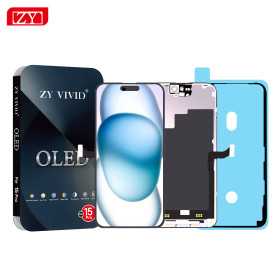
Screen iPhone 15 Pro (OLED) ZY - 120Hz - Diagnosable
Use Repair Assistant to Finish an iPhone or iPad Repair
On an iPhone 12 or later running iOS 18, when a new Apple screen is installed,“Finish Repair” will appear next to Screen until you complete the repair using the Repair Assistant.
On an iPhone 12 or later running iOS 18, it is possible to reuse an original Apple screen on another iPhone of the same model.
The date of first use and the condition of the screen can be found in Settings > General > About > Parts & Service History.
How to Run Diagnostics & Finish Repair for iPhone Screen
1. Ensure your device is updated to iOS 18
2. Go to Settings > General > About > Parts & Service History
3. Tap "Restart & Finish Repair" to activate the Repair Assistant
4. Follow the on-screen instructions to complete the calibration
After completing this process, your screen will be fully functional, and there will be no pop-up warning about non-genuine parts.
Important Notes:
Your iPhone must be connected to Wi-Fi
Your battery level should be above 20%
If the process fails, restart your device and try again
If the repair is not completed, the screen may not function optimally, and some features (True Tone, Face ID) may be disabled until calibration is finalized

Screen iPhone 15 Pro Max (OLED) ZY - Diagnosable
Use Repair Assistant to Finish an iPhone or iPad Repair
On an iPhone 12 or later running iOS 18, when a new Apple screen is installed,“Finish Repair” will appear next to Screen until you complete the repair using the Repair Assistant.
On an iPhone 12 or later running iOS 18, it is possible to reuse an original Apple screen on another iPhone of the same model.
The date of first use and the condition of the screen can be found in Settings > General > About > Parts & Service History.
How to Run Diagnostics & Finish Repair for iPhone Screen
1. Ensure your device is updated to iOS 18
2. Go to Settings > General > About > Parts & Service History
3. Tap "Restart & Finish Repair" to activate the Repair Assistant
4. Follow the on-screen instructions to complete the calibration
After completing this process, your screen will be fully functional, and there will be no pop-up warning about non-genuine parts.
Important Notes:
Your iPhone must be connected to Wi-Fi
Your battery level should be above 20%
If the process fails, restart your device and try again
If the repair is not completed, the screen may not function optimally, and some features (True Tone, Face ID) may be disabled until calibration is finalized
Out-of-Stock
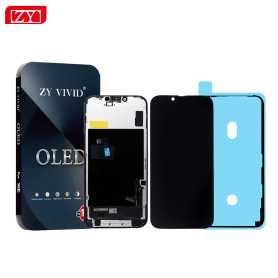
Screen iPhone 16 (OLED) ZY - Diagnosable
Use Repair Assistant to Finish an iPhone or iPad Repair
On an iPhone 12 or later running iOS 18, when a new Apple screen is installed,“Finish Repair” will appear next to Screen until you complete the repair using the Repair Assistant.
On an iPhone 12 or later running iOS 18, it is possible to reuse an original Apple screen on another iPhone of the same model.
The date of first use and the condition of the screen can be found in Settings > General > About > Parts & Service History.
How to Run Diagnostics & Finish Repair for iPhone Screen
1. Ensure your device is updated to iOS 18
2. Go to Settings > General > About > Parts & Service History
3. Tap "Restart & Finish Repair" to activate the Repair Assistant
4. Follow the on-screen instructions to complete the calibration
After completing this process, your screen will be fully functional, and there will be no pop-up warning about non-genuine parts.
Important Notes:
Your iPhone must be connected to Wi-Fi
Your battery level should be above 20%
If the process fails, restart your device and try again
If the repair is not completed, the screen may not function optimally, and some features (True Tone, Face ID) may be disabled until calibration is finalized
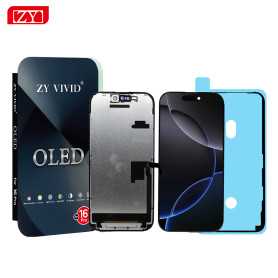
Screen iPhone 16 Plus (OLED) ZY - Diagnosable
Use Repair Assistant to Finish an iPhone or iPad Repair
On an iPhone 12 or later running iOS 18, when a new Apple screen is installed,“Finish Repair” will appear next to Screen until you complete the repair using the Repair Assistant.
On an iPhone 12 or later running iOS 18, it is possible to reuse an original Apple screen on another iPhone of the same model.
The date of first use and the condition of the screen can be found in Settings > General > About > Parts & Service History.
How to Run Diagnostics & Finish Repair for iPhone Screen
1. Ensure your device is updated to iOS 18
2. Go to Settings > General > About > Parts & Service History
3. Tap "Restart & Finish Repair" to activate the Repair Assistant
4. Follow the on-screen instructions to complete the calibration
After completing this process, your screen will be fully functional, and there will be no pop-up warning about non-genuine parts.
Important Notes:
Your iPhone must be connected to Wi-Fi
Your battery level should be above 20%
If the process fails, restart your device and try again
If the repair is not completed, the screen may not function optimally, and some features (True Tone, Face ID) may be disabled until calibration is finalized
Out-of-Stock
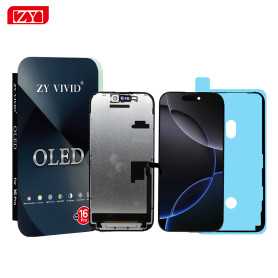
Screen iPhone 16 Pro (OLED) ZY - 120Hz - Diagnosable
Use Repair Assistant to Finish an iPhone or iPad Repair
On an iPhone 12 or later running iOS 18, when a new Apple screen is installed,“Finish Repair” will appear next to Screen until you complete the repair using the Repair Assistant.
On an iPhone 12 or later running iOS 18, it is possible to reuse an original Apple screen on another iPhone of the same model.
The date of first use and the condition of the screen can be found in Settings > General > About > Parts & Service History.
How to Run Diagnostics & Finish Repair for iPhone Screen
1. Ensure your device is updated to iOS 18
2. Go to Settings > General > About > Parts & Service History
3. Tap "Restart & Finish Repair" to activate the Repair Assistant
4. Follow the on-screen instructions to complete the calibration
After completing this process, your screen will be fully functional, and there will be no pop-up warning about non-genuine parts.
Important Notes:
Your iPhone must be connected to Wi-Fi
Your battery level should be above 20%
If the process fails, restart your device and try again
If the repair is not completed, the screen may not function optimally, and some features (True Tone, Face ID) may be disabled until calibration is finalized
Out-of-Stock
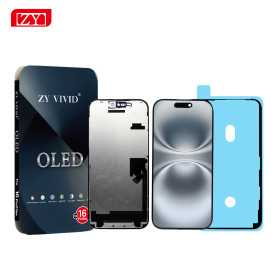
Screen iPhone 16 Pro Max (SOFT OLED) ZY - 120Hz - Diagnosable
Use Repair Assistant to Finish an iPhone or iPad Repair
On an iPhone 12 or later running iOS 18, when a new Apple screen is installed,“Finish Repair” will appear next to Screen until you complete the repair using the Repair Assistant.
On an iPhone 12 or later running iOS 18, it is possible to reuse an original Apple screen on another iPhone of the same model.
The date of first use and the condition of the screen can be found in Settings > General > About > Parts & Service History.
How to Run Diagnostics & Finish Repair for iPhone Screen
1. Ensure your device is updated to iOS 18
2. Go to Settings > General > About > Parts & Service History
3. Tap "Restart & Finish Repair" to activate the Repair Assistant
4. Follow the on-screen instructions to complete the calibration
After completing this process, your screen will be fully functional, and there will be no pop-up warning about non-genuine parts.
Important Notes:
Your iPhone must be connected to Wi-Fi
Your battery level should be above 20%
If the process fails, restart your device and try again
If the repair is not completed, the screen may not function optimally, and some features (True Tone, Face ID) may be disabled until calibration is finalized
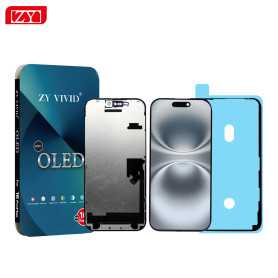
Screen iPhone 16 Pro Max (Soft OLED) ZY - 120Hz - Diagnosable
Use Repair Assistant to Finish an iPhone or iPad Repair
On an iPhone 12 or later running iOS 18, when a new Apple screen is installed,“Finish Repair” will appear next to Screen until you complete the repair using the Repair Assistant.
On an iPhone 12 or later running iOS 18, it is possible to reuse an original Apple screen on another iPhone of the same model.
The date of first use and the condition of the screen can be found in Settings > General > About > Parts & Service History.
How to Run Diagnostics & Finish Repair for iPhone Screen
1. Ensure your device is updated to iOS 18
2. Go to Settings > General > About > Parts & Service History
3. Tap "Restart & Finish Repair" to activate the Repair Assistant
4. Follow the on-screen instructions to complete the calibration
After completing this process, your screen will be fully functional, and there will be no pop-up warning about non-genuine parts.
Important Notes:
Your iPhone must be connected to Wi-Fi
Your battery level should be above 20%
If the process fails, restart your device and try again
If the repair is not completed, the screen may not function optimally, and some features (True Tone, Face ID) may be disabled until calibration is finalized

Screen iPhone X (OLED) KELAI- Support IC Change - Original Size and Thickness
Key Features of Screen iPhone X (OLED) KELAI - Support IC Change - Original Size and Thickness
Advanced OLED Display Technology: Experience superior color accuracy, brightness, and contrast with the latest OLED display, ensuring vibrant and lifelike visuals.
Original Size and Thickness: Crafted to match the original specifications of the iPhone X, this screen replacement maintains the device's sleek profile and seamless design integration.
Support IC Change: Equipped with the capability to support integrated circuit (IC) changes, this screen offers enhanced flexibility and functionality for advanced repairs and customizations.
High-Resolution Clarity: Enjoy crisp, clear images and text with the high-resolution display that enhances your media consumption and gaming experiences.
Durability and Quality: Engineered with premium materials, this screen is designed to withstand everyday wear and tear, providing long-lasting durability without compromising on quality.
Easy Installation Process: Designed for ease of installation, this screen replacement ensures a straightforward and hassle-free setup, whether you're a professional technician or a DIY enthusiast.
Touch Sensitivity and Responsiveness: Retain the original touch sensitivity and responsiveness of your iPhone X with this meticulously engineered screen replacement, ensuring smooth and efficient device operation.
Advanced OLED Display Technology: Experience superior color accuracy, brightness, and contrast with the latest OLED display, ensuring vibrant and lifelike visuals.
Original Size and Thickness: Crafted to match the original specifications of the iPhone X, this screen replacement maintains the device's sleek profile and seamless design integration.
Support IC Change: Equipped with the capability to support integrated circuit (IC) changes, this screen offers enhanced flexibility and functionality for advanced repairs and customizations.
High-Resolution Clarity: Enjoy crisp, clear images and text with the high-resolution display that enhances your media consumption and gaming experiences.
Durability and Quality: Engineered with premium materials, this screen is designed to withstand everyday wear and tear, providing long-lasting durability without compromising on quality.
Easy Installation Process: Designed for ease of installation, this screen replacement ensures a straightforward and hassle-free setup, whether you're a professional technician or a DIY enthusiast.
Touch Sensitivity and Responsiveness: Retain the original touch sensitivity and responsiveness of your iPhone X with this meticulously engineered screen replacement, ensuring smooth and efficient device operation.

Screen iPhone XS (OLED) KELAI- Support IC Change - Original Size and Thickness
Key Features of Screen iPhone XS (OLED) KELAI
OLED Display Technology: Experience superior color accuracy, vibrant visuals, and deeper blacks with the OLED panel, enhancing your iPhone XS's display quality to its optimum.
Support for IC Change: This screen supports IC changes, ensuring compatibility with your device's original display settings and maintaining functionality like true tone and auto-brightness adjustments.
Original Size and Thickness: Designed to match the original iPhone XS screen specifications, this replacement guarantees a seamless fit without any compromise on the device’s sleek aesthetics.
High-Quality Construction: Engineered for durability and resilience, this screen withstands daily wear and tear, providing a long-lasting, reliable solution to screen replacements.
Easy Installation: Comes with user-friendly instructions and is designed for straightforward installation, making it accessible even for those new to screen replacement.
Touch Sensitivity: Retains the original touch responsiveness, ensuring smooth, lag-free interactions for a superior user experience.
Upgrade your iPhone XS display with the KELAI OLED screen for an optimal visual and tactile experience, all while maintaining the integrity and design of your device.
OLED Display Technology: Experience superior color accuracy, vibrant visuals, and deeper blacks with the OLED panel, enhancing your iPhone XS's display quality to its optimum.
Support for IC Change: This screen supports IC changes, ensuring compatibility with your device's original display settings and maintaining functionality like true tone and auto-brightness adjustments.
Original Size and Thickness: Designed to match the original iPhone XS screen specifications, this replacement guarantees a seamless fit without any compromise on the device’s sleek aesthetics.
High-Quality Construction: Engineered for durability and resilience, this screen withstands daily wear and tear, providing a long-lasting, reliable solution to screen replacements.
Easy Installation: Comes with user-friendly instructions and is designed for straightforward installation, making it accessible even for those new to screen replacement.
Touch Sensitivity: Retains the original touch responsiveness, ensuring smooth, lag-free interactions for a superior user experience.
Upgrade your iPhone XS display with the KELAI OLED screen for an optimal visual and tactile experience, all while maintaining the integrity and design of your device.

Screen iPhone XS Max (OLED) KELAI - Support IC Change - Original Size and Thickness
Key Features of Screen iPhone XS Max (OLED) KELAI:
High-Quality Display: This replacement screen features an OLED display, renowned for its vibrant color accuracy, deep blacks, and excellent contrast ratios, perfectly mirroring the original screen performance of the iPhone XS Max.
Support IC Change: Designed with compatibility in mind, this screen supports integrated circuit (IC) changes, facilitating seamless repairs and ensuring the device continues to function optimally.
Original Size and Thickness: Engineered to match the original dimensions and thickness of the iPhone XS Max screen, this product ensures a perfect fit, maintaining the sleek design and feel of your device.
Durability and Reliability: Crafted from high-quality materials, this screen is built to be durable and reliable, offering long-lasting performance that withstands everyday use.
Easy Installation: The screen is designed for straightforward installation, making it an excellent choice for both professional repair technicians and DIY enthusiasts.
Touch Sensitivity: Preserves the original touch sensitivity of the device, ensuring smooth and responsive interaction for all touch and gesture controls.
Compatibility: Specifically tailored for the iPhone XS Max model, ensuring that all features such as True Tone and 3D Touch are retained fully functional.
High-Quality Display: This replacement screen features an OLED display, renowned for its vibrant color accuracy, deep blacks, and excellent contrast ratios, perfectly mirroring the original screen performance of the iPhone XS Max.
Support IC Change: Designed with compatibility in mind, this screen supports integrated circuit (IC) changes, facilitating seamless repairs and ensuring the device continues to function optimally.
Original Size and Thickness: Engineered to match the original dimensions and thickness of the iPhone XS Max screen, this product ensures a perfect fit, maintaining the sleek design and feel of your device.
Durability and Reliability: Crafted from high-quality materials, this screen is built to be durable and reliable, offering long-lasting performance that withstands everyday use.
Easy Installation: The screen is designed for straightforward installation, making it an excellent choice for both professional repair technicians and DIY enthusiasts.
Touch Sensitivity: Preserves the original touch sensitivity of the device, ensuring smooth and responsive interaction for all touch and gesture controls.
Compatibility: Specifically tailored for the iPhone XS Max model, ensuring that all features such as True Tone and 3D Touch are retained fully functional.

Out-of-Stock
Screen iPhone 11 Pro (OLED) KELAI - Support IC Change - Original Size and Thickness
Key Features of Screen iPhone 11 Pro (OLED) KELAI:
High-Quality OLED Display: Experience vibrant colors and deep blacks with this premium OLED screen, designed to mirror the original display's clarity and brilliance.
Original Size and Thickness: Meticulously crafted to match the original dimensions and thickness, ensuring a perfect fit and finish for your iPhone 11 Pro.
Support IC Change: Engineered with advanced technology to support IC changes, offering enhanced compatibility and integration with your device's hardware.
Durability and Longevity: Made from robust materials to withstand daily wear and tear, providing a long-lasting screen replacement solution.
Sensitive Touch Response: Provides smooth and responsive touch interactions, maintaining the intuitive user experience that you expect from an iPhone.
Easy Installation: Comes with user-friendly instructions and is compatible with standard replacement tools for hassle-free installation.
Cost-Effective Solution: Offers a budget-friendly alternative to OEM replacements without compromising on quality or performance.
Environmental Consideration: Manufactured with environmentally friendly processes, supporting sustainability in tech products.
This screen replacement is ideal for those seeking a premium, reliable, and precise-fit display for their iPhone 11 Pro at an accessible price point.
High-Quality OLED Display: Experience vibrant colors and deep blacks with this premium OLED screen, designed to mirror the original display's clarity and brilliance.
Original Size and Thickness: Meticulously crafted to match the original dimensions and thickness, ensuring a perfect fit and finish for your iPhone 11 Pro.
Support IC Change: Engineered with advanced technology to support IC changes, offering enhanced compatibility and integration with your device's hardware.
Durability and Longevity: Made from robust materials to withstand daily wear and tear, providing a long-lasting screen replacement solution.
Sensitive Touch Response: Provides smooth and responsive touch interactions, maintaining the intuitive user experience that you expect from an iPhone.
Easy Installation: Comes with user-friendly instructions and is compatible with standard replacement tools for hassle-free installation.
Cost-Effective Solution: Offers a budget-friendly alternative to OEM replacements without compromising on quality or performance.
Environmental Consideration: Manufactured with environmentally friendly processes, supporting sustainability in tech products.
This screen replacement is ideal for those seeking a premium, reliable, and precise-fit display for their iPhone 11 Pro at an accessible price point.

Screen iPhone 16 Pro Max (Soft OLED) KELAI - Support IC Change - 120HZ
The Screen iPhone 16 Pro Max (Soft OLED) by KELAI is engineered to deliver unparalleled performance and exceptional visual clarity. Key features include:
Soft OLED Technology: Experience vibrant colors and deep blacks with the cutting-edge Soft OLED display, ensuring your visuals are always crisp and immersive.
120Hz Refresh Rate: Enjoy ultra-smooth scrolling and seamless motion graphics with a stunning 120Hz refresh rate, perfect for gaming and multimedia enthusiasts.
Support IC Change: Designed with innovation, it supports IC change, providing enhanced durability and extended device lifespan.
Compatibility: Specifically tailored for the iPhone 16 Pro Max, ensuring a perfect fit and flawless functionality with all device features.
High-Quality Build: Manufactured with premium materials for reliability and resistance to daily wear, maintaining the integrity of your display over time.
Easy Installation: User-friendly design allows for straightforward installation, minimizing downtime and ensuring your device is up and running quickly.
Enhance your iPhone experience with the KELAI Screen iPhone 16 Pro Max and enjoy a premium viewing experience like never before.

iPhone 14 Plus Screen (Original Disassembled) - Grade A
Key Features of the iPhone 14 Plus Screen (Original Disassembled) - Grade A:
Genuine Quality: This screen is an original, disassembled component, ensuring the highest quality and compatibility with your iPhone 14 Plus. It retains the integrity and performance of the factory-installed display.
Grade A Condition: The screen undergoes rigorous quality checks and is classified as Grade A, ensuring minimal wear and tear with no visible scratches or imperfections, providing a like-new appearance and functionality.
Superior Display Technology: Enjoy vibrant colors, deep contrast, and sharp resolutions with the OLED technology, making your content appear crisp and immersive, identical to the original experience of your iPhone 14 Plus.
Perfect Fit: Engineered specifically for the iPhone 14 Plus, this screen offers a seamless fit and straightforward installation with precise cutouts and connectors, ensuring all features, including Face ID and True Tone, function perfectly.
Cost-Effective Solution: Ideal for repairs or replacements, this screen provides a cost-effective option to restore your device's functionality and aesthetics without compromising on quality or performance.
Eco-Friendly Choice: Utilizing original disassembled components promotes environmental sustainability by reducing electronic waste, aligning with eco-conscious consumer values.
Genuine Quality: This screen is an original, disassembled component, ensuring the highest quality and compatibility with your iPhone 14 Plus. It retains the integrity and performance of the factory-installed display.
Grade A Condition: The screen undergoes rigorous quality checks and is classified as Grade A, ensuring minimal wear and tear with no visible scratches or imperfections, providing a like-new appearance and functionality.
Superior Display Technology: Enjoy vibrant colors, deep contrast, and sharp resolutions with the OLED technology, making your content appear crisp and immersive, identical to the original experience of your iPhone 14 Plus.
Perfect Fit: Engineered specifically for the iPhone 14 Plus, this screen offers a seamless fit and straightforward installation with precise cutouts and connectors, ensuring all features, including Face ID and True Tone, function perfectly.
Cost-Effective Solution: Ideal for repairs or replacements, this screen provides a cost-effective option to restore your device's functionality and aesthetics without compromising on quality or performance.
Eco-Friendly Choice: Utilizing original disassembled components promotes environmental sustainability by reducing electronic waste, aligning with eco-conscious consumer values.
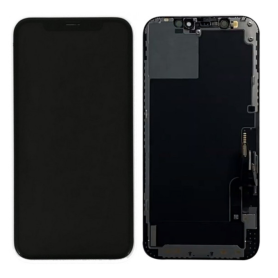
Screen iPhone 12 Pro Max (Original Disassembled) Grade A
Key Features of Screen iPhone 12 Pro Max (Original Disassembled) Grade A:
Authentic Quality: This screen is an original, disassembled unit from an iPhone 12 Pro Max, ensuring genuine Apple quality and performance.
Grade A Condition: Featuring minimal signs of prior use, this Grade A screen is rigorously inspected to meet high standards for display clarity and sensitivity.
Super Retina XDR Display: Enjoy stunning visuals with the Super Retina XDR display, offering vibrant colors, high contrast, and impressive brightness for an immersive viewing experience.
6.7-Inch OLED Technology: The large 6.7-inch OLED panel delivers exceptional clarity and energy efficiency, providing seamless integration with your device's functionalities.
True Tone and Haptic Touch: Experience advanced technology with True Tone adjustments for optimal color balance and Haptic Touch for responsive interaction.
Scratch Resistance: Designed with durable glass, this screen offers scratch resistance to maintain its pristine appearance over time.
Seamless Compatibility: Perfectly compatible with the iPhone 12 Pro Max, ensuring full functionality with Face ID, sensors, and more.
Cost-Effective Solution: Ideal for repairs, this screen offers a cost-effective solution for restoring your device's original display quality without compromising on performance.
Authentic Quality: This screen is an original, disassembled unit from an iPhone 12 Pro Max, ensuring genuine Apple quality and performance.
Grade A Condition: Featuring minimal signs of prior use, this Grade A screen is rigorously inspected to meet high standards for display clarity and sensitivity.
Super Retina XDR Display: Enjoy stunning visuals with the Super Retina XDR display, offering vibrant colors, high contrast, and impressive brightness for an immersive viewing experience.
6.7-Inch OLED Technology: The large 6.7-inch OLED panel delivers exceptional clarity and energy efficiency, providing seamless integration with your device's functionalities.
True Tone and Haptic Touch: Experience advanced technology with True Tone adjustments for optimal color balance and Haptic Touch for responsive interaction.
Scratch Resistance: Designed with durable glass, this screen offers scratch resistance to maintain its pristine appearance over time.
Seamless Compatibility: Perfectly compatible with the iPhone 12 Pro Max, ensuring full functionality with Face ID, sensors, and more.
Cost-Effective Solution: Ideal for repairs, this screen offers a cost-effective solution for restoring your device's original display quality without compromising on performance.

Screen iPhone 12 / 12 Pro (Hard OLED) ZY - Support IC Change
Key Features of Screen iPhone 12 / 12 Pro (OLED) - Support IC Change ZY
High-Quality OLED Display: This replacement screen boasts a top-grade OLED panel, ensuring vibrant colors and deep blacks. With superior brightness and contrast, it provides an immersive viewing experience on your iPhone 12 or 12 Pro.
IC Support for Enhanced Functionality: This screen supports IC change, specifically designed to maintain compatibility and ensure optimal performance. This feature supports advanced functionalities and seamless integration with your device.
Precision Touch Sensitivity: Enjoy smooth and responsive touch interactions with precision-tuned touch sensitivity. Whether you're gaming or browsing, the screen delivers quick and accurate touch responses.
Easy Installation: Designed to fit precisely into the chassis of your iPhone 12 or 12 Pro, this screen comes with a toolkit to facilitate easy installation. Whether you're a DIY enthusiast or a professional, setup is straightforward and hassle-free.
Durability and Scratch Resistance: Built using high-quality materials, the screen offers enhanced durability and is resistant to scratches, ensuring longevity even with daily use.
True Tone Support: Retain the True Tone feature of your original iPhone display for consistent color accuracy and white balance in various lighting conditions.
Compatibility: Specifically engineered for the iPhone 12 and 12 Pro, this screen replacement is a perfect match, ensuring harmony with existing hardware and software for reliable performance.
Environmentally Friendly: Manufactured with eco-friendly processes and materials, this screen replacement is designed with sustainability in mind, reducing electronic waste and promoting environmental conservation.
Enhance your iPhone experience with this high-quality screen replacement that combines performance, durability, and ease of installation in one comprehensive package.
High-Quality OLED Display: This replacement screen boasts a top-grade OLED panel, ensuring vibrant colors and deep blacks. With superior brightness and contrast, it provides an immersive viewing experience on your iPhone 12 or 12 Pro.
IC Support for Enhanced Functionality: This screen supports IC change, specifically designed to maintain compatibility and ensure optimal performance. This feature supports advanced functionalities and seamless integration with your device.
Precision Touch Sensitivity: Enjoy smooth and responsive touch interactions with precision-tuned touch sensitivity. Whether you're gaming or browsing, the screen delivers quick and accurate touch responses.
Easy Installation: Designed to fit precisely into the chassis of your iPhone 12 or 12 Pro, this screen comes with a toolkit to facilitate easy installation. Whether you're a DIY enthusiast or a professional, setup is straightforward and hassle-free.
Durability and Scratch Resistance: Built using high-quality materials, the screen offers enhanced durability and is resistant to scratches, ensuring longevity even with daily use.
True Tone Support: Retain the True Tone feature of your original iPhone display for consistent color accuracy and white balance in various lighting conditions.
Compatibility: Specifically engineered for the iPhone 12 and 12 Pro, this screen replacement is a perfect match, ensuring harmony with existing hardware and software for reliable performance.
Environmentally Friendly: Manufactured with eco-friendly processes and materials, this screen replacement is designed with sustainability in mind, reducing electronic waste and promoting environmental conservation.
Enhance your iPhone experience with this high-quality screen replacement that combines performance, durability, and ease of installation in one comprehensive package.

Screen iPhone 11 Pro Max (Hard OLED) ZY - Support IC Change
Key Features of the Screen iPhone 11 Pro Max (OLED) - Support IC Change ZY:
High-Quality OLED Display:
Enjoy unparalleled visual clarity with the iPhone 11 Pro Max screen replacement, featuring a high-resolution OLED display that offers vibrant colors, deep blacks, and excellent contrast for an immersive viewing experience.
Precision Fit:
Designed to seamlessly integrate with the iPhone 11 Pro Max, ensuring a precise fit and smooth installation process, maintaining the original aesthetic and functionality of your device.
IC Change Support:
Features advanced IC change support (ZY), offering enhanced compatibility and performance. This ensures that the screen interacts efficiently with the phone's motherboard, optimizing touch response and display functions.
Durable Construction:
Constructed with premium materials to provide a durable and resilient screen, resistant to everyday wear and tear, thereby extending the screen’s longevity.
Enhanced Touch Sensitivity:
Experience responsive touch functionality with improved sensitivity to register even the lightest touch accurately, crucial for all touch-based interactions on your smartphone.
True Tone Support:
Maintain the True Tone feature of your iPhone, allowing the screen to adjust its color temperature based on ambient light, ensuring a consistent and natural viewing experience.
Eco-Friendly Design:
Manufactured using eco-friendly processes and materials, reflecting a commitment to sustainability without compromising on quality or performance.
Comprehensive Compatibility:
Fully compatible with all features of the iPhone 11 Pro Max, including Face ID and 3D Touch, ensuring that your phone functions as intended after screen replacement.
This screen replacement is ideal for those looking to restore their iPhone 11 Pro Max to its original display quality, ensuring excellent performance and longevity.
High-Quality OLED Display:
Enjoy unparalleled visual clarity with the iPhone 11 Pro Max screen replacement, featuring a high-resolution OLED display that offers vibrant colors, deep blacks, and excellent contrast for an immersive viewing experience.
Precision Fit:
Designed to seamlessly integrate with the iPhone 11 Pro Max, ensuring a precise fit and smooth installation process, maintaining the original aesthetic and functionality of your device.
IC Change Support:
Features advanced IC change support (ZY), offering enhanced compatibility and performance. This ensures that the screen interacts efficiently with the phone's motherboard, optimizing touch response and display functions.
Durable Construction:
Constructed with premium materials to provide a durable and resilient screen, resistant to everyday wear and tear, thereby extending the screen’s longevity.
Enhanced Touch Sensitivity:
Experience responsive touch functionality with improved sensitivity to register even the lightest touch accurately, crucial for all touch-based interactions on your smartphone.
True Tone Support:
Maintain the True Tone feature of your iPhone, allowing the screen to adjust its color temperature based on ambient light, ensuring a consistent and natural viewing experience.
Eco-Friendly Design:
Manufactured using eco-friendly processes and materials, reflecting a commitment to sustainability without compromising on quality or performance.
Comprehensive Compatibility:
Fully compatible with all features of the iPhone 11 Pro Max, including Face ID and 3D Touch, ensuring that your phone functions as intended after screen replacement.
This screen replacement is ideal for those looking to restore their iPhone 11 Pro Max to its original display quality, ensuring excellent performance and longevity.

Screen iPhone 17 Pro (Original Disassembled) - Grade A
Product Name: Screen iPhone 17 Pro (Original Disassembled) - Grade A
Key Features:
Original Quality Assurance: This iPhone 17 Pro screen is an original disassembled component, ensuring authentic Apple quality and performance. Each unit is sourced directly from manufacturers aligned with Apple specifications.
Grade A Condition: Rated as Grade A, the screen is in pristine condition, meticulously tested to guarantee flawless display and touch sensitivity. Expect perfect brightness, vibrant colors, and optimal screen responsiveness.
Precision Compatibility: Specifically designed for the iPhone 17 Pro, ensuring seamless compatibility with all functions and features of the phone, including face recognition, True Tone, and haptic touch.
Retina XDR Display Technology: Experience cutting-edge visual clarity with support for HDR10 and Dolby Vision, providing an unparalleled viewing experience with deep blacks and a wide color gamut, ideal for high-definition content.
Easy Installation: Comes with detailed installation instructions and tools, making it straightforward for professionals and seasoned DIY enthusiasts to replace without technical hassle.
Sustainable Choice: Utilizing disassembled components supports environmental sustainability by promoting the recycling of high-quality parts, reducing electronic waste.
Warranty and Support: Backed by a limited warranty offering peace of mind, coupled with responsive customer service to assist with any queries post-purchase.
Upgrade your iPhone 17 Pro with assurance, knowing you’re choosing a screen that offers the best in terms of quality, sustainability, and user experience.
Key Features:
Original Quality Assurance: This iPhone 17 Pro screen is an original disassembled component, ensuring authentic Apple quality and performance. Each unit is sourced directly from manufacturers aligned with Apple specifications.
Grade A Condition: Rated as Grade A, the screen is in pristine condition, meticulously tested to guarantee flawless display and touch sensitivity. Expect perfect brightness, vibrant colors, and optimal screen responsiveness.
Precision Compatibility: Specifically designed for the iPhone 17 Pro, ensuring seamless compatibility with all functions and features of the phone, including face recognition, True Tone, and haptic touch.
Retina XDR Display Technology: Experience cutting-edge visual clarity with support for HDR10 and Dolby Vision, providing an unparalleled viewing experience with deep blacks and a wide color gamut, ideal for high-definition content.
Easy Installation: Comes with detailed installation instructions and tools, making it straightforward for professionals and seasoned DIY enthusiasts to replace without technical hassle.
Sustainable Choice: Utilizing disassembled components supports environmental sustainability by promoting the recycling of high-quality parts, reducing electronic waste.
Warranty and Support: Backed by a limited warranty offering peace of mind, coupled with responsive customer service to assist with any queries post-purchase.
Upgrade your iPhone 17 Pro with assurance, knowing you’re choosing a screen that offers the best in terms of quality, sustainability, and user experience.

Screen iPhone 11 Pro Max (OLED) KELAI - Support IC Change - Original Size and Thickness
Key Features of Screen iPhone 11 Pro Max (OLED) KELAI:
OLED Display: Boasts vibrant colors and deep blacks for an immersive viewing experience, maintaining the iPhone 11 Pro Max's original display quality.
Original Size and Thickness: Precisely crafted to match the original screen's dimensions and thickness, ensuring seamless integration with your device.
Support IC Change: Designed to support IC changes, offering enhanced compatibility and performance. Ensures optimal connectivity and functionality with your iPhone's system.
High-Resolution Clarity: Delivers crisp and clear visuals with high resolution, perfect for streaming, gaming, and everyday use.
Responsive Touch Technology: Features high-touch sensitivity and quick response times, providing smooth and accurate interaction when swiping, tapping, or typing.
Durability: Engineered with high-quality materials for long-lasting durability, resisting scratches and minor impacts to keep your screen looking pristine.
Easy Installation: Comes with the necessary tools and guidance for straightforward installation, making it convenient to replace your screen at home.
Cost-Effective Solution: Offers a budget-friendly option for restoring your iPhone 11 Pro Max's display without compromising on quality.
OLED Display: Boasts vibrant colors and deep blacks for an immersive viewing experience, maintaining the iPhone 11 Pro Max's original display quality.
Original Size and Thickness: Precisely crafted to match the original screen's dimensions and thickness, ensuring seamless integration with your device.
Support IC Change: Designed to support IC changes, offering enhanced compatibility and performance. Ensures optimal connectivity and functionality with your iPhone's system.
High-Resolution Clarity: Delivers crisp and clear visuals with high resolution, perfect for streaming, gaming, and everyday use.
Responsive Touch Technology: Features high-touch sensitivity and quick response times, providing smooth and accurate interaction when swiping, tapping, or typing.
Durability: Engineered with high-quality materials for long-lasting durability, resisting scratches and minor impacts to keep your screen looking pristine.
Easy Installation: Comes with the necessary tools and guidance for straightforward installation, making it convenient to replace your screen at home.
Cost-Effective Solution: Offers a budget-friendly option for restoring your iPhone 11 Pro Max's display without compromising on quality.

Screen iPhone XS (Hard OLED) ZY
Key Features of the Screen iPhone XS (Hard OLED) ZY:
Premium Display Quality: Experience vibrant colors and sharp image clarity with the Hard OLED technology, offering true-to-life visuals and enhanced brightness.
Seamless Touch Experience: Enjoy smooth and responsive touch interactions, engineered for precision and accuracy, enhancing user experience for both work and play.
Durability and Strength: Designed with a robust construction, this screen offers enhanced resistance to scratches and daily wear and tear, keeping your device looking new.
Easy Installation: Comes with all necessary tools and instructions for hassle-free installation, allowing you to replace your screen with minimal effort and maximum convenience.
Perfect Fit and Finish: Tailored to the specific dimensions of the iPhone XS, ensuring a precise fit that maintains the sleek design and functionality of your device.
Energy Efficient: The innovative OLED technology is optimized for energy efficiency, contributing to longer battery life while maintaining top-notch performance.
Compatibility Assurance: Fully compatible with the iPhone XS, ensuring all features such as Face ID and True Tone display work seamlessly post-installation.
Enhanced Viewing Angles: Provides excellent visibility from various angles, making it ideal for group viewing and multimedia consumption.
Invest in the Screen iPhone XS (Hard OLED) ZY for a balance of durability, visual excellence, and effortless usability, revitalizing your device with a premium touch.
Premium Display Quality: Experience vibrant colors and sharp image clarity with the Hard OLED technology, offering true-to-life visuals and enhanced brightness.
Seamless Touch Experience: Enjoy smooth and responsive touch interactions, engineered for precision and accuracy, enhancing user experience for both work and play.
Durability and Strength: Designed with a robust construction, this screen offers enhanced resistance to scratches and daily wear and tear, keeping your device looking new.
Easy Installation: Comes with all necessary tools and instructions for hassle-free installation, allowing you to replace your screen with minimal effort and maximum convenience.
Perfect Fit and Finish: Tailored to the specific dimensions of the iPhone XS, ensuring a precise fit that maintains the sleek design and functionality of your device.
Energy Efficient: The innovative OLED technology is optimized for energy efficiency, contributing to longer battery life while maintaining top-notch performance.
Compatibility Assurance: Fully compatible with the iPhone XS, ensuring all features such as Face ID and True Tone display work seamlessly post-installation.
Enhanced Viewing Angles: Provides excellent visibility from various angles, making it ideal for group viewing and multimedia consumption.
Invest in the Screen iPhone XS (Hard OLED) ZY for a balance of durability, visual excellence, and effortless usability, revitalizing your device with a premium touch.

Out-of-Stock
Screen iPhone 11 Pro (Hard OLED) ZY
Key Features of Screen iPhone 11 Pro (Hard OLED) ZY:
Premium Hard OLED Technology: Experience vibrant colors and deep blacks with the Hard OLED display, offering enhanced visual clarity and optimal contrast for an authentic viewing experience.
Durable Build: Engineered for longevity, this screen replacement is constructed with hardy materials to withstand daily wear and tear, ensuring durability without compromising on display quality.
Precision Fit: Designed specifically for the iPhone 11 Pro, the Screen ZY guarantees a seamless fit and easy installation, maintaining the sleek aesthetic and functionality of your device.
High Touch Sensitivity: Enjoy a responsive touch interface with high sensitivity levels, ensuring fluid interaction whether you're gaming, browsing, or multitasking.
True Tone & Night Shift Support: Fully compatible with True Tone technology for adaptive color balance, as well as Night Shift mode to reduce blue light, promoting enhanced comfort and usability.
Energy Efficient: The Hard OLED panel is designed to be power-efficient, optimizing battery life while delivering outstanding visual performance.
Warranty Included: Comes with a standard warranty for peace of mind and assurance of quality.
This screen replacement is an excellent choice for individuals seeking to restore their iPhone 11 Pro's display to its former glory with a product that combines durability, performance, and style.
Premium Hard OLED Technology: Experience vibrant colors and deep blacks with the Hard OLED display, offering enhanced visual clarity and optimal contrast for an authentic viewing experience.
Durable Build: Engineered for longevity, this screen replacement is constructed with hardy materials to withstand daily wear and tear, ensuring durability without compromising on display quality.
Precision Fit: Designed specifically for the iPhone 11 Pro, the Screen ZY guarantees a seamless fit and easy installation, maintaining the sleek aesthetic and functionality of your device.
High Touch Sensitivity: Enjoy a responsive touch interface with high sensitivity levels, ensuring fluid interaction whether you're gaming, browsing, or multitasking.
True Tone & Night Shift Support: Fully compatible with True Tone technology for adaptive color balance, as well as Night Shift mode to reduce blue light, promoting enhanced comfort and usability.
Energy Efficient: The Hard OLED panel is designed to be power-efficient, optimizing battery life while delivering outstanding visual performance.
Warranty Included: Comes with a standard warranty for peace of mind and assurance of quality.
This screen replacement is an excellent choice for individuals seeking to restore their iPhone 11 Pro's display to its former glory with a product that combines durability, performance, and style.

Screen iPhone X (Hard OLED) ZY
Key Features of Screen iPhone X (Hard OLED) ZY:
Superior Display Quality: Experience vibrant colors and true blacks with the Hard OLED technology, offering an impressive contrast ratio and a wide color gamut that enhances viewing clarity and detail.
Durability and Strength: Engineered with robust materials, the screen offers enhanced durability against scratches and impacts, ensuring longevity while maintaining a sleek appearance.
Precise Touch Sensitivity: Enjoy precise, smooth touch response with advanced touch sensitivity, making navigation and interaction with apps effortless and seamless.
Perfect Compatibility: Tailored exclusively for the iPhone X, this replacement screen seamlessly fits and functions just like the original, ensuring compatibility with all features, including Face ID and True Tone.
Easy Installation: Designed for hassle-free installation, complete with necessary tools and adhesive, allowing for a straightforward replacement process without professional help.
Energy Efficient: Optimized for lower power consumption, the Hard OLED technology helps in conserving battery life, allowing you to get more usage out of your device.
Upgrade your iPhone X with the Screen iPhone X (Hard OLED) ZY for a blend of resilience, performance, and indulgence in superior display technology.
Superior Display Quality: Experience vibrant colors and true blacks with the Hard OLED technology, offering an impressive contrast ratio and a wide color gamut that enhances viewing clarity and detail.
Durability and Strength: Engineered with robust materials, the screen offers enhanced durability against scratches and impacts, ensuring longevity while maintaining a sleek appearance.
Precise Touch Sensitivity: Enjoy precise, smooth touch response with advanced touch sensitivity, making navigation and interaction with apps effortless and seamless.
Perfect Compatibility: Tailored exclusively for the iPhone X, this replacement screen seamlessly fits and functions just like the original, ensuring compatibility with all features, including Face ID and True Tone.
Easy Installation: Designed for hassle-free installation, complete with necessary tools and adhesive, allowing for a straightforward replacement process without professional help.
Energy Efficient: Optimized for lower power consumption, the Hard OLED technology helps in conserving battery life, allowing you to get more usage out of your device.
Upgrade your iPhone X with the Screen iPhone X (Hard OLED) ZY for a blend of resilience, performance, and indulgence in superior display technology.

Screen iPhone 17 (INCELL) ZY - LTPS - Support IC Change - FHD1080p - 120HZ
Advantages LTPS TFT OLED Pixel resolution FHD1080p Same as original HD 720p Same as original Power consumption 10% power savings compared to TFT quality Normal power consumption 20% power savings compared to TFT quality. Response time Fast response Normal response Response same as original Image quality High image quality with vivid colors. Normal display More vivid colors, perfect blacks. Cost Excellent quality and cost. Best cost Steadily decreasing production cost. After-sales feedback After-sales service rate 0.1% After-sales service rate 0.3% After-sales service rate 0.2% Phone thickness with screen (7.65 mm original) 7.75 mm 7.80 mm 7.65 mm

Screen iPhone 17 Pro (INCELL) ZY - LTPS - Support IC Change - FHD1080p - 120HZ
Advantages LTPS TFT OLED Pixel resolution FHD1080p Same as original HD 720p Same as original Power consumption 10% power savings compared to TFT quality Normal power consumption 20% power savings compared to TFT quality. Response time Fast response Normal response Response same as original Image quality High image quality with vivid colors. Normal display More vivid colors, perfect blacks. Cost Excellent quality and cost. Best cost Steadily decreasing production cost. After-sales feedback After-sales service rate 0.1% After-sales service rate 0.3% After-sales service rate 0.2% Phone thickness with screen (7.65 mm original) 7.75 mm 7.80 mm 7.65 mm

Screen iPhone 17 Pro Max (INCELL) ZY - LTPS - Support IC Change - FHD1080p - 120HZ
Advantages LTPS TFT OLED Pixel resolution FHD1080p Same as original HD 720p Same as original Power consumption 10% power savings compared to TFT quality Normal power consumption 20% power savings compared to TFT quality. Response time Fast response Normal response Response same as original Image quality High image quality with vivid colors. Normal display More vivid colors, perfect blacks. Cost Excellent quality and cost. Best cost Steadily decreasing production cost. After-sales feedback After-sales service rate 0.1% After-sales service rate 0.3% After-sales service rate 0.2% Phone thickness with screen (7.65 mm original) 7.75 mm 7.80 mm 7.65 mm

Screen iPhone 17 (Hard Oled) DD - IC - 120hz - Original Size / Thickness
Key Features of Screen iPhone 17 (Hard OLED) DD - IC - 120Hz - Original Size / Thickness:
Hard OLED Display: Experience vibrant colors and deep blacks with the cutting-edge Hard OLED technology, delivering superior performance and longevity for your iPhone 17.
Dynamic Display (DD) Technology: Enjoy seamless visuals and fluid motion with Dynamic Display (DD) technology, offering an immersive viewing experience for gaming, streaming, and more.
Integrated Circuit (IC) Enhancement: Featuring advanced IC integration, this screen ensures optimal efficiency, enhanced responsiveness, and smart power management to maximize your device's performance.
120Hz Refresh Rate: Elevate your visual experience with a 120Hz refresh rate, providing ultra-smooth transitions and reducing lag for fast-paced activities, ensuring an exceptional user interface.
Original Size and Thickness: Designed to match the original specifications, this screen maintains the authentic look and feel of your iPhone 17 while ensuring easy installation and compatibility.
True-to-Life Color Accuracy: Experience true-to-life colors and improved viewing angles, ensuring clarity and consistency in every frame, thanks to advanced color calibration.
This screen replacement is designed for professionals seeking uncompromising quality and performance to restore their device to its original glory.
Hard OLED Display: Experience vibrant colors and deep blacks with the cutting-edge Hard OLED technology, delivering superior performance and longevity for your iPhone 17.
Dynamic Display (DD) Technology: Enjoy seamless visuals and fluid motion with Dynamic Display (DD) technology, offering an immersive viewing experience for gaming, streaming, and more.
Integrated Circuit (IC) Enhancement: Featuring advanced IC integration, this screen ensures optimal efficiency, enhanced responsiveness, and smart power management to maximize your device's performance.
120Hz Refresh Rate: Elevate your visual experience with a 120Hz refresh rate, providing ultra-smooth transitions and reducing lag for fast-paced activities, ensuring an exceptional user interface.
Original Size and Thickness: Designed to match the original specifications, this screen maintains the authentic look and feel of your iPhone 17 while ensuring easy installation and compatibility.
True-to-Life Color Accuracy: Experience true-to-life colors and improved viewing angles, ensuring clarity and consistency in every frame, thanks to advanced color calibration.
This screen replacement is designed for professionals seeking uncompromising quality and performance to restore their device to its original glory.

Out-of-Stock
Screen iPhone 17 Pro (Hard Oled) DD - IC - 120hz - Original Size / Thickness
Key Features of Screen iPhone 17 Pro (Hard OLED) DD - IC - 120Hz - Original Size / Thickness:
Hard OLED Technology: Experience stunning visuals with vibrant colors and deep contrasts, offering an immersive viewing experience perfect for multimedia and gaming.
Dynamic Display Integration (DD): Features state-of-the-art display integration for seamless performance and enhanced touch responsiveness, ensuring a fluid user interaction with your device.
Integrated Circuit (IC) Advancements: Enhanced with the latest IC technology for improved power efficiency and display processing, ensuring longevity and consistent performance.
120Hz Refresh Rate: Enjoy ultra-smooth scrolling and responsive touch with a high refresh rate of 120Hz, delivering sharp and fluid motion ideal for fast-paced content.
Original Size and Thickness: Meticulously crafted to match the original dimensions of the iPhone 17 Pro, guaranteeing a perfect fit without compromising on design or functionality.
Precision Engineering: Engineered for durability and reliability, maintaining excellent clarity and touch sensitivity to keep your device looking and functioning like new.
This screen replacement is designed for users seeking the highest quality, maintaining the original performance and aesthetic of their devices.
Hard OLED Technology: Experience stunning visuals with vibrant colors and deep contrasts, offering an immersive viewing experience perfect for multimedia and gaming.
Dynamic Display Integration (DD): Features state-of-the-art display integration for seamless performance and enhanced touch responsiveness, ensuring a fluid user interaction with your device.
Integrated Circuit (IC) Advancements: Enhanced with the latest IC technology for improved power efficiency and display processing, ensuring longevity and consistent performance.
120Hz Refresh Rate: Enjoy ultra-smooth scrolling and responsive touch with a high refresh rate of 120Hz, delivering sharp and fluid motion ideal for fast-paced content.
Original Size and Thickness: Meticulously crafted to match the original dimensions of the iPhone 17 Pro, guaranteeing a perfect fit without compromising on design or functionality.
Precision Engineering: Engineered for durability and reliability, maintaining excellent clarity and touch sensitivity to keep your device looking and functioning like new.
This screen replacement is designed for users seeking the highest quality, maintaining the original performance and aesthetic of their devices.

Screen iPhone 17 Pro Max (Soft Oled) DD - IC - 120hz - Original Size / Thickness
Soft OLED replacement screen for iPhone 17 Pro Max. DD-IC range with original size and thickness. Listed refresh rate: 120 Hz. Reference: DD17PM. Designed for professional repair. Check the device model and test the display and touch functions before closing the device. 12-month warranty.

Out-of-Stock
iPhone XS Screen (Original Disassembled) - Grade B
Key Features of iPhone XS Screen (Original Disassembled) - Grade B:
Genuine Apple Display: Experience the same quality and precision as the original screen, sourced directly from disassembled iPhone XS devices. Perfect for retaining the authentic Apple display characteristics.
Grade B Quality: Expect minor cosmetic blemishes that do not affect functionality, offering a more budget-friendly option while ensuring reliable performance.
Super Retina OLED Technology: Enjoy vibrant colors, deep blacks, and sharp images thanks to the advanced OLED technology, delivering an impressive visual experience.
Multi-Touch Capability: Retain full tactile responsiveness with accurate touch input functionality, ensuring seamless interaction with your device.
3D Touch Support: Utilize Apple's pressure-sensitive display technology for enhanced functionality and user experience.
True Tone Display: Preserve the automatic white balance adjustments to maintain natural color reproduction in varied lighting conditions.
Face ID Compatible: Designed to work seamlessly with the iPhone XS’s Face ID feature, maintaining your device's biometric security capabilities.
Easy Installation: Ideal for experienced technicians, facilitating a straightforward replacement process to restore your phone's screen to its original state.
Comprehensive Testing: Each screen undergoes rigorous testing to ensure quality and performance, offering peace of mind upon installation.
Genuine Apple Display: Experience the same quality and precision as the original screen, sourced directly from disassembled iPhone XS devices. Perfect for retaining the authentic Apple display characteristics.
Grade B Quality: Expect minor cosmetic blemishes that do not affect functionality, offering a more budget-friendly option while ensuring reliable performance.
Super Retina OLED Technology: Enjoy vibrant colors, deep blacks, and sharp images thanks to the advanced OLED technology, delivering an impressive visual experience.
Multi-Touch Capability: Retain full tactile responsiveness with accurate touch input functionality, ensuring seamless interaction with your device.
3D Touch Support: Utilize Apple's pressure-sensitive display technology for enhanced functionality and user experience.
True Tone Display: Preserve the automatic white balance adjustments to maintain natural color reproduction in varied lighting conditions.
Face ID Compatible: Designed to work seamlessly with the iPhone XS’s Face ID feature, maintaining your device's biometric security capabilities.
Easy Installation: Ideal for experienced technicians, facilitating a straightforward replacement process to restore your phone's screen to its original state.
Comprehensive Testing: Each screen undergoes rigorous testing to ensure quality and performance, offering peace of mind upon installation.

Out-of-Stock
Screen iPhone 11 (Original Disassembled) - Grade B
Key Features of Screen iPhone 11 (Original Disassembled) - Grade B:
Original Quality Assurance: This screen is an original part, carefully disassembled from an iPhone 11, ensuring authentic Apple quality and performance.
Grade B Condition: Maintains full functionality with minor cosmetic imperfections such as light scratches or slight wear, offering a balance between quality and affordability.
LCD and Touch Sensitivity: Delivers excellent visual clarity with true-to-life colors and responsive touch sensitivity, comparable to the original screen experience.
Advanced Display Technology: Supports features like True Tone, wide color (P3), and Haptic Touch, delivering an immersive user experience.
Compatibility: Specifically designed for iPhone 11, ensuring seamless integration with your device's hardware and software.
Cost-Effective Solution: Ideal for repair professionals or DIY enthusiasts looking for a budget-friendly way to restore their device's screen functionality.
Eco-Friendly Option: By opting for a disassembled original part, you're contributing to sustainable practices by reducing electronic waste.
Easy Installation: Designed for straightforward replacement, with all necessary components included for a hassle-free installation process.
Original Quality Assurance: This screen is an original part, carefully disassembled from an iPhone 11, ensuring authentic Apple quality and performance.
Grade B Condition: Maintains full functionality with minor cosmetic imperfections such as light scratches or slight wear, offering a balance between quality and affordability.
LCD and Touch Sensitivity: Delivers excellent visual clarity with true-to-life colors and responsive touch sensitivity, comparable to the original screen experience.
Advanced Display Technology: Supports features like True Tone, wide color (P3), and Haptic Touch, delivering an immersive user experience.
Compatibility: Specifically designed for iPhone 11, ensuring seamless integration with your device's hardware and software.
Cost-Effective Solution: Ideal for repair professionals or DIY enthusiasts looking for a budget-friendly way to restore their device's screen functionality.
Eco-Friendly Option: By opting for a disassembled original part, you're contributing to sustainable practices by reducing electronic waste.
Easy Installation: Designed for straightforward replacement, with all necessary components included for a hassle-free installation process.

Out-of-Stock
Screen iPhone 11 Pro Max (Original Disassembled) - Grade B
Key Features of Screen iPhone 11 Pro Max (Original Disassembled) - Grade B:
Original Quality: Sourced from authentic Apple components, ensuring compatibility and performance similar to the factory-installed screen.
Grade B Condition: Exhibits minor cosmetic imperfections such as small scratches or scuffs, but fully functional with no impact on display performance or touch responsiveness.
Super Retina XDR Display: Equipped with OLED technology for vibrant colors, deep blacks, and an impressive resolution of 2688 x 1242 pixels, delivering a stunning visual experience.
True Tone & Haptic Touch Compatible: Maintains original True Tone display capability for optimal color accuracy and environment adaptation, along with seamless Haptic Touch functionality for intuitive feedback.
Face ID Support: Preserves essential Face ID components to ensure continued biometric security and convenience.
Size & Fit: Specifically designed for the iPhone 11 Pro Max, featuring a perfect fit to ensure easy installation and a seamless look.
Professional Installation Recommended: While the screen is ready for installation, professional service is advised to avoid potential damage and ensure correct installation.
Cost-Effective Repair Solution: Offers an economical way to rejuvenate your device without compromising on quality, prolonging its lifecycle and maintaining its premium feel.
Original Quality: Sourced from authentic Apple components, ensuring compatibility and performance similar to the factory-installed screen.
Grade B Condition: Exhibits minor cosmetic imperfections such as small scratches or scuffs, but fully functional with no impact on display performance or touch responsiveness.
Super Retina XDR Display: Equipped with OLED technology for vibrant colors, deep blacks, and an impressive resolution of 2688 x 1242 pixels, delivering a stunning visual experience.
True Tone & Haptic Touch Compatible: Maintains original True Tone display capability for optimal color accuracy and environment adaptation, along with seamless Haptic Touch functionality for intuitive feedback.
Face ID Support: Preserves essential Face ID components to ensure continued biometric security and convenience.
Size & Fit: Specifically designed for the iPhone 11 Pro Max, featuring a perfect fit to ensure easy installation and a seamless look.
Professional Installation Recommended: While the screen is ready for installation, professional service is advised to avoid potential damage and ensure correct installation.
Cost-Effective Repair Solution: Offers an economical way to rejuvenate your device without compromising on quality, prolonging its lifecycle and maintaining its premium feel.

Out-of-Stock
Screen iPhone 16E /17E with Proximity Sensor Ribbon (Original Disassembled) - Grade A
Key Features of Screen iPhone 16E (Original Disassembled) - Grade A
Premium Quality: This iPhone 16E screen is an original disassembled component, graded A for its superior quality and performance, ensuring a flawless user experience akin to a brand-new device.
Perfect Compatibility: Specifically designed for the iPhone 16E, guaranteeing seamless integration with no modifications needed. It supports all functionalities of the device, including Face ID, True Tone, and Haptic Touch.
Vibrant Display: Experience striking color accuracy and brilliance with this screen’s true-to-life reproduction and excellent pixel density. It delivers sharp visuals, rich contrasts, and vivid colors, making your interactions more immersive.
Durability and Reliability: Engineered from high-grade materials, this screen is built to withstand daily wear and tear. The advanced design protects against scratches and minor impacts, extending the lifespan of the display.
Touch Sensitivity: Enjoy ultra-responsive touch performance with precision engineering that mimics the original tactile experience, enabling smooth navigation and quick responsiveness to touch gestures.
Easy Installation: Designed for easy and straightforward installation, making it a convenient replacement solution with minimal technical expertise required. Perfect for professional technicians and skilled DIY enthusiasts alike.
Cost-Effective Solution: An economical alternative to purchasing a new phone, providing an affordable path to restoring the visual and functional aspects of your device without compromising on quality.
Warranty and Support: Comes with a limited warranty and access to professional customer support, offering peace of mind and assistance should any issues arise during installation or use.
Upgrade your iPhone 16E’s display with this high-quality, original disassembled screen to restore the full splendor and functionality of your device with confidence.
Premium Quality: This iPhone 16E screen is an original disassembled component, graded A for its superior quality and performance, ensuring a flawless user experience akin to a brand-new device.
Perfect Compatibility: Specifically designed for the iPhone 16E, guaranteeing seamless integration with no modifications needed. It supports all functionalities of the device, including Face ID, True Tone, and Haptic Touch.
Vibrant Display: Experience striking color accuracy and brilliance with this screen’s true-to-life reproduction and excellent pixel density. It delivers sharp visuals, rich contrasts, and vivid colors, making your interactions more immersive.
Durability and Reliability: Engineered from high-grade materials, this screen is built to withstand daily wear and tear. The advanced design protects against scratches and minor impacts, extending the lifespan of the display.
Touch Sensitivity: Enjoy ultra-responsive touch performance with precision engineering that mimics the original tactile experience, enabling smooth navigation and quick responsiveness to touch gestures.
Easy Installation: Designed for easy and straightforward installation, making it a convenient replacement solution with minimal technical expertise required. Perfect for professional technicians and skilled DIY enthusiasts alike.
Cost-Effective Solution: An economical alternative to purchasing a new phone, providing an affordable path to restoring the visual and functional aspects of your device without compromising on quality.
Warranty and Support: Comes with a limited warranty and access to professional customer support, offering peace of mind and assistance should any issues arise during installation or use.
Upgrade your iPhone 16E’s display with this high-quality, original disassembled screen to restore the full splendor and functionality of your device with confidence.

Out-of-Stock
Screen iPhone 14 Pro Max with Proximity Sensor Ribbon (Original Disassembled) - Grade B
Key Features of the Screen iPhone 14 Pro Max with Proximity Sensor Flex (Original Disassembled) - Grade A
Premium Quality Display: Experience unparalleled clarity and vibrant visuals with the original disassembled screen, designed specifically for the iPhone 14 Pro Max. The Grade A quality promises a smooth touch experience and superior color accuracy.
Integrated Proximity Sensor Flex: Enhance functionality with the built-in proximity sensor flex, ensuring seamless communication between your device and its surroundings. Enjoy precise response during calls, conserving both battery life and screen usability with automatic dimming.
Flawless Compatibility: Tailored for the iPhone 14 Pro Max, this screen guarantees a perfect fit, preserving the sleek design and integrity of your device. Installation is simplified, offering an OEM-standard replacement that maintains the original aesthetic.
Durable Construction: Built to withstand everyday wear and tear, this screen is crafted from high-quality materials ensuring longevity. The robust design resists scratches and minor impacts, protecting your investment.
Easy Installation: Featuring a straightforward setup, the installation process is user-friendly, minimizing downtime and getting your device back to its optimal state quickly without compromising performance.
Cost-Effective Solution: Opt for this Grade A original disassembled screen for a budget-friendly solution that maintains the high standards of Apple technology, providing maximum value for your investment.
Premium Quality Display: Experience unparalleled clarity and vibrant visuals with the original disassembled screen, designed specifically for the iPhone 14 Pro Max. The Grade A quality promises a smooth touch experience and superior color accuracy.
Integrated Proximity Sensor Flex: Enhance functionality with the built-in proximity sensor flex, ensuring seamless communication between your device and its surroundings. Enjoy precise response during calls, conserving both battery life and screen usability with automatic dimming.
Flawless Compatibility: Tailored for the iPhone 14 Pro Max, this screen guarantees a perfect fit, preserving the sleek design and integrity of your device. Installation is simplified, offering an OEM-standard replacement that maintains the original aesthetic.
Durable Construction: Built to withstand everyday wear and tear, this screen is crafted from high-quality materials ensuring longevity. The robust design resists scratches and minor impacts, protecting your investment.
Easy Installation: Featuring a straightforward setup, the installation process is user-friendly, minimizing downtime and getting your device back to its optimal state quickly without compromising performance.
Cost-Effective Solution: Opt for this Grade A original disassembled screen for a budget-friendly solution that maintains the high standards of Apple technology, providing maximum value for your investment.

Screen iPhone 17 Pro Max (INCELL) ZY - COF - FHD1080p - 120Hz - Diagnosable
Use Repair Assistant to Finish an iPhone or iPad Repair
On an iPhone 12 or later running iOS 18, when a new Apple screen is installed,“Finish Repair” will appear next to Screen until you complete the repair using the Repair Assistant.
On an iPhone 12 or later running iOS 18, it is possible to reuse an original Apple screen on another iPhone of the same model.
The date of first use and the condition of the screen can be found in Settings > General > About > Parts & Service History.
How to Run Diagnostics & Finish Repair for iPhone Screen
1. Ensure your device is updated to iOS 18
2. Go to Settings > General > About > Parts & Service History
3. Tap "Restart & Finish Repair" to activate the Repair Assistant
4. Follow the on-screen instructions to complete the calibration
After completing this process, your screen will be fully functional, and there will be no pop-up warning about non-genuine parts.
Important Notes:
Your iPhone must be connected to Wi-Fi
Your battery level should be above 20%
If the process fails, restart your device and try again
If the repair is not completed, the screen may not function optimally, and some features (True Tone, Face ID) may be disabled until calibration is finalized

Screen iPhone 17 Pro (INCELL) ZY - COF - FHD1080p - 120Hz - Diagnosable
Use Repair Assistant to Finish an iPhone or iPad Repair
On an iPhone 12 or later running iOS 18, when a new Apple screen is installed,“Finish Repair” will appear next to Screen until you complete the repair using the Repair Assistant.
On an iPhone 12 or later running iOS 18, it is possible to reuse an original Apple screen on another iPhone of the same model.
The date of first use and the condition of the screen can be found in Settings > General > About > Parts & Service History.
How to Run Diagnostics & Finish Repair for iPhone Screen
1. Ensure your device is updated to iOS 18
2. Go to Settings > General > About > Parts & Service History
3. Tap "Restart & Finish Repair" to activate the Repair Assistant
4. Follow the on-screen instructions to complete the calibration
After completing this process, your screen will be fully functional, and there will be no pop-up warning about non-genuine parts.
Important Notes:
Your iPhone must be connected to Wi-Fi
Your battery level should be above 20%
If the process fails, restart your device and try again
If the repair is not completed, the screen may not function optimally, and some features (True Tone, Face ID) may be disabled until calibration is finalized
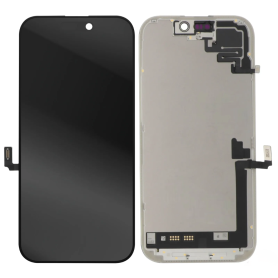
Screen iPhone 17 (Original Refurbished)
Main Features of the iPhone 17 Screen (Original Refurbished) Discover the iPhone 17 Original Refurbished Screen, an ideal choice for bringing your phone back to life with quality and reliability. This Retina LCD screen displays vivid colors and precise details for an exceptional visual experience. The 6.7-inch screen offers an impressive resolution of 2778 x 1284 pixels, ensuring unmatched clarity for watching videos, playing games, and viewing photos. Each screen has been rigorously tested and inspected to ensure it meets Apple's standards, while benefiting from a 12-month warranty for added peace of mind. The adjusted True Tone technology provides an optimal balance of brightness and colors according to the environment, reducing eye strain. Designed to be environmentally friendly, this refurbished screen helps reduce your carbon footprint. Easy installation and compatibility with all iPhone 17 models ensure a hassle-free user experience. Choose quality and durability with this certified refurbished screen.
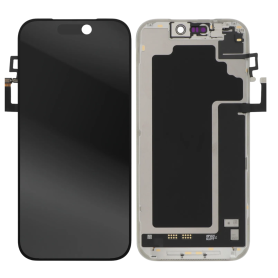
Screen iPhone 17 Pro (Original Refurbished)
Product Name: Screen iPhone 17 (Original Refurbished)
Key Features:
Premium Quality Display: Experience vibrant colors and crystal-clear visuals with our expertly refurbished original iPhone 17 screen, ensuring a seamless integration with your device.
Precision Refurbishment: Each screen undergoes rigorous testing and meticulous restoration processes, guaranteeing peak performance and reliability synonymous with the original.
Enhanced Durability: Crafted with robust materials to resist scratches and minor impacts, this screen promises longevity while maintaining the sleek aesthetic of your iPhone 17.
Touch Sensitivity: Enjoy impeccable touch responsiveness and accuracy, offering you fluid navigation and effortless interaction with apps and functions.
Eco-Friendly Choice: Opt for sustainability with our refurbished screen, contributing to reduced electronic waste and promoting environmentally friendly practices without compromising on quality.
Cost-Effective: Receive exceptional value for your investment, offering you high-quality technology without the premium price tag of new components.
Easy Installation: Designed for hassle-free installation, allowing enthusiasts and professionals alike to replace screens with confidence and ease.
Compatibility Assurance: Perfectly tailored to fit the iPhone 17, providing a seamless look and functionality without any compromise.
Upgrade your viewing experience while supporting a sustainable future with our Screen iPhone 17 (Original Refurbished).
Key Features:
Premium Quality Display: Experience vibrant colors and crystal-clear visuals with our expertly refurbished original iPhone 17 screen, ensuring a seamless integration with your device.
Precision Refurbishment: Each screen undergoes rigorous testing and meticulous restoration processes, guaranteeing peak performance and reliability synonymous with the original.
Enhanced Durability: Crafted with robust materials to resist scratches and minor impacts, this screen promises longevity while maintaining the sleek aesthetic of your iPhone 17.
Touch Sensitivity: Enjoy impeccable touch responsiveness and accuracy, offering you fluid navigation and effortless interaction with apps and functions.
Eco-Friendly Choice: Opt for sustainability with our refurbished screen, contributing to reduced electronic waste and promoting environmentally friendly practices without compromising on quality.
Cost-Effective: Receive exceptional value for your investment, offering you high-quality technology without the premium price tag of new components.
Easy Installation: Designed for hassle-free installation, allowing enthusiasts and professionals alike to replace screens with confidence and ease.
Compatibility Assurance: Perfectly tailored to fit the iPhone 17, providing a seamless look and functionality without any compromise.
Upgrade your viewing experience while supporting a sustainable future with our Screen iPhone 17 (Original Refurbished).
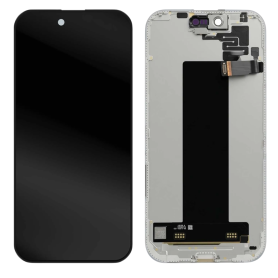
Screen iPhone 17 Air (Original Refurbished)
Key Features of Screen iPhone 17 Pro (Original Refurbished):
Premium Display Quality: Enjoy vibrant colors and sharp details with the 6.1-inch Super Retina XDR display, meticulously refurbished to ensure outstanding visual performance.
Advanced Touch Sensitivity: Experience unrivaled touch responsiveness with TrueTouch technology, ensuring seamless interaction and precision whether you're swiping, tapping, or gaming.
Ceramic Shield Protection: Safeguarded with Ceramic Shield, offering four times better drop protection, keeping your screen pristine and resistant to everyday wear and tear.
Certified Original Components: Each screen is sourced from original iPhone 17 Pro models, guaranteeing full compatibility, optimal performance, and the assurance of Apple’s engineering excellence.
Eco-Friendly Choice: Contribute to sustainability by choosing a refurbished product. Our refurbishment process emphasizes reducing electronic waste while delivering quality.
Strict Quality Checks: Undergoes rigorous testing and quality control protocols to meet the highest standards in performance and durability.
Warranty Coverage: Comes with a limited warranty to provide peace of mind and ensure you have a superior product experience.
Rediscover your iPhone’s potential with this expertly refurbished screen, merging innovation, quality, and sustainability.
Premium Display Quality: Enjoy vibrant colors and sharp details with the 6.1-inch Super Retina XDR display, meticulously refurbished to ensure outstanding visual performance.
Advanced Touch Sensitivity: Experience unrivaled touch responsiveness with TrueTouch technology, ensuring seamless interaction and precision whether you're swiping, tapping, or gaming.
Ceramic Shield Protection: Safeguarded with Ceramic Shield, offering four times better drop protection, keeping your screen pristine and resistant to everyday wear and tear.
Certified Original Components: Each screen is sourced from original iPhone 17 Pro models, guaranteeing full compatibility, optimal performance, and the assurance of Apple’s engineering excellence.
Eco-Friendly Choice: Contribute to sustainability by choosing a refurbished product. Our refurbishment process emphasizes reducing electronic waste while delivering quality.
Strict Quality Checks: Undergoes rigorous testing and quality control protocols to meet the highest standards in performance and durability.
Warranty Coverage: Comes with a limited warranty to provide peace of mind and ensure you have a superior product experience.
Rediscover your iPhone’s potential with this expertly refurbished screen, merging innovation, quality, and sustainability.
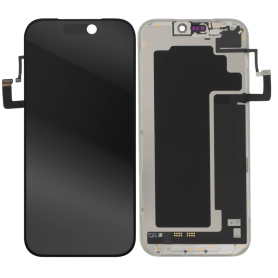
Screen iPhone 17 Pro Max (Original Reconditioned)
Key Features of Screen iPhone 17 Pro Max (Original Reconditioned):
Genuine Quality: Experience the superior clarity and vibrancy of the original Apple display, reconditioned to meet high-quality standards.
Dynamic Display: Enjoy a seamless visual experience with a 120Hz ProMotion refresh rate for ultra-smooth scrolling and responsiveness.
True Tone Technology: Adjusts the display to the ambient lighting conditions for a more natural viewing experience anywhere, anytime.
Super Retina XDR: Dive into a brilliant display offering unparalleled brightness, contrast, and color accuracy for vivid visuals.
Durability Assured: Made with toughened Ceramic Shield technology, offering enhanced resistance to scratches and accidental drops.
Face ID Compatible: Fully supports Face ID technology, maintaining secure and effortless authentication.
Environmentally Friendly: Choose a sustainable option with reconditioned parts, reducing e-waste and supporting green initiatives.
Perfect Fit: Meticulously reconditioned to ensure a flawless fit and finish, ensuring that it integrates seamlessly with your device for optimal functionality.
Genuine Quality: Experience the superior clarity and vibrancy of the original Apple display, reconditioned to meet high-quality standards.
Dynamic Display: Enjoy a seamless visual experience with a 120Hz ProMotion refresh rate for ultra-smooth scrolling and responsiveness.
True Tone Technology: Adjusts the display to the ambient lighting conditions for a more natural viewing experience anywhere, anytime.
Super Retina XDR: Dive into a brilliant display offering unparalleled brightness, contrast, and color accuracy for vivid visuals.
Durability Assured: Made with toughened Ceramic Shield technology, offering enhanced resistance to scratches and accidental drops.
Face ID Compatible: Fully supports Face ID technology, maintaining secure and effortless authentication.
Environmentally Friendly: Choose a sustainable option with reconditioned parts, reducing e-waste and supporting green initiatives.
Perfect Fit: Meticulously reconditioned to ensure a flawless fit and finish, ensuring that it integrates seamlessly with your device for optimal functionality.

Out-of-Stock
Screen iPhone 17 (Original Disassembled) - Grade B
Key Features of Screen iPhone 17 (Original Disassembled) - Grade B
Original Quality: This screen is an authentic, original component from the iPhone 17, ensuring compatibility and performance that matches the original device specifications.
Grade B Condition: The screen is in Grade B condition, meaning it may have minor cosmetic imperfections such as slight scratches or scuffs, but it is fully functional and tested for optimal performance.
High-Resolution Display: Experience vibrant colors and sharp details with the iPhone 17's high-resolution display, designed to deliver an immersive viewing experience.
Touch Sensitivity: Enjoy precise and responsive touch sensitivity, ensuring smooth navigation and interaction with your device.
Easy Installation: The disassembled screen is designed for straightforward installation, making it a convenient option for repairs or replacements.
Cost-Effective Solution: Ideal for those seeking a budget-friendly repair option without compromising on quality, offering significant savings compared to purchasing a new device.
Eco-Friendly Choice: By opting for a disassembled original screen, you contribute to reducing electronic waste and promoting sustainable practices.
Warranty Included: Comes with a limited warranty, providing peace of mind and assurance of quality and reliability.
Original Quality: This screen is an authentic, original component from the iPhone 17, ensuring compatibility and performance that matches the original device specifications.
Grade B Condition: The screen is in Grade B condition, meaning it may have minor cosmetic imperfections such as slight scratches or scuffs, but it is fully functional and tested for optimal performance.
High-Resolution Display: Experience vibrant colors and sharp details with the iPhone 17's high-resolution display, designed to deliver an immersive viewing experience.
Touch Sensitivity: Enjoy precise and responsive touch sensitivity, ensuring smooth navigation and interaction with your device.
Easy Installation: The disassembled screen is designed for straightforward installation, making it a convenient option for repairs or replacements.
Cost-Effective Solution: Ideal for those seeking a budget-friendly repair option without compromising on quality, offering significant savings compared to purchasing a new device.
Eco-Friendly Choice: By opting for a disassembled original screen, you contribute to reducing electronic waste and promoting sustainable practices.
Warranty Included: Comes with a limited warranty, providing peace of mind and assurance of quality and reliability.

Out-of-Stock
Screen iPhone 14 Pro Max (Original Disassembled) - Grade B
Key Features of Screen iPhone 14 Pro Max (Original Disassembled) - Grade B:
Original Quality: This screen is an authentic, original component from the iPhone 14 Pro Max, ensuring compatibility and performance that matches the original device specifications.
Grade B Condition: The screen is classified as Grade B, indicating it may have minor cosmetic imperfections such as small scratches or slight wear, but it remains fully functional and reliable.
OLED Display Technology: Experience vibrant colors, deep blacks, and excellent contrast with the OLED display technology, providing a premium visual experience.
Super Retina XDR Display: Enjoy a high-resolution display with sharp, detailed images and text, perfect for media consumption and everyday use.
Face ID Compatible: Maintains full compatibility with Face ID technology, ensuring secure and convenient access to your device.
True Tone and Haptic Touch: Supports True Tone for adaptive color balance and Haptic Touch for responsive feedback, enhancing user interaction.
Easy Installation: Designed for straightforward installation by professionals, making it a practical choice for repairs and replacements.
Cost-Effective Solution: Ideal for those seeking a budget-friendly option to restore their device's display functionality without compromising on quality.
This product is perfect for users looking to replace their iPhone 14 Pro Max screen while maintaining original performance and features.
Original Quality: This screen is an authentic, original component from the iPhone 14 Pro Max, ensuring compatibility and performance that matches the original device specifications.
Grade B Condition: The screen is classified as Grade B, indicating it may have minor cosmetic imperfections such as small scratches or slight wear, but it remains fully functional and reliable.
OLED Display Technology: Experience vibrant colors, deep blacks, and excellent contrast with the OLED display technology, providing a premium visual experience.
Super Retina XDR Display: Enjoy a high-resolution display with sharp, detailed images and text, perfect for media consumption and everyday use.
Face ID Compatible: Maintains full compatibility with Face ID technology, ensuring secure and convenient access to your device.
True Tone and Haptic Touch: Supports True Tone for adaptive color balance and Haptic Touch for responsive feedback, enhancing user interaction.
Easy Installation: Designed for straightforward installation by professionals, making it a practical choice for repairs and replacements.
Cost-Effective Solution: Ideal for those seeking a budget-friendly option to restore their device's display functionality without compromising on quality.
This product is perfect for users looking to replace their iPhone 14 Pro Max screen while maintaining original performance and features.

Out-of-Stock
Screen iPhone 17 Pro Max (LTPS) JK - COF - FHD1080p
Introducing the Screen for iPhone 17 Pro Max (LTPS) JK - COF - FHD1080p, a premium display replacement designed to restore your device's visual brilliance. Key features include:
Advanced LTPS Technology: Enjoy superior energy efficiency and faster response times with Low-Temperature Polycrystalline Silicon (LTPS) technology, ensuring vibrant colors and sharp images.
Full HD 1080p Resolution: Experience crystal-clear visuals with a Full High Definition display, offering exceptional clarity and detail for all your multimedia needs.
COF Integration: The Chip-on-Film (COF) design enhances durability and reliability, providing seamless integration with your device's hardware for optimal performance.
True-to-Life Color Accuracy: Benefit from a wide color gamut and precise color reproduction, making your photos, videos, and apps look more lifelike and immersive.
Enhanced Brightness and Contrast: With improved brightness levels and contrast ratios, enjoy better visibility in various lighting conditions, whether indoors or outdoors.
Touch Sensitivity: Maintain the original touch responsiveness of your device, ensuring smooth and accurate interaction with every swipe and tap.
Upgrade your iPhone 17 Pro Max with this high-quality screen replacement and enjoy a revitalized viewing experience.
Advanced LTPS Technology: Enjoy superior energy efficiency and faster response times with Low-Temperature Polycrystalline Silicon (LTPS) technology, ensuring vibrant colors and sharp images.
Full HD 1080p Resolution: Experience crystal-clear visuals with a Full High Definition display, offering exceptional clarity and detail for all your multimedia needs.
COF Integration: The Chip-on-Film (COF) design enhances durability and reliability, providing seamless integration with your device's hardware for optimal performance.
True-to-Life Color Accuracy: Benefit from a wide color gamut and precise color reproduction, making your photos, videos, and apps look more lifelike and immersive.
Enhanced Brightness and Contrast: With improved brightness levels and contrast ratios, enjoy better visibility in various lighting conditions, whether indoors or outdoors.
Touch Sensitivity: Maintain the original touch responsiveness of your device, ensuring smooth and accurate interaction with every swipe and tap.
Upgrade your iPhone 17 Pro Max with this high-quality screen replacement and enjoy a revitalized viewing experience.

Out-of-Stock
Screen iPhone 17 Pro (Original Disassembled) - Grade B
Key Features of Screen iPhone 17 Pro (Original Disassembled) - Grade B:
Original Quality: This screen is an authentic, original component specifically designed for the iPhone 17 Pro, ensuring perfect compatibility and performance.
Grade B Condition: The screen is in Grade B condition, meaning it may have minor cosmetic imperfections such as small scratches or slight wear, but it is fully functional and tested for quality assurance.
High-Resolution Display: Experience vibrant colors and sharp details with the iPhone 17 Pro's high-resolution display, providing an immersive viewing experience.
Touch Sensitivity: Enjoy precise touch responsiveness and smooth interaction, maintaining the original feel and functionality of your device.
True Tone Technology: Retains the True Tone feature, which adjusts the display's color temperature based on ambient lighting for a more natural viewing experience.
Face ID Compatible: Fully supports Face ID functionality, ensuring seamless security and convenience.
Easy Installation: Designed for straightforward installation, making it a suitable choice for professional repair technicians and DIY enthusiasts alike.
Cost-Effective Solution: An ideal option for those looking to restore their device's display quality without the expense of a brand-new screen.
Eco-Friendly Choice: By choosing a disassembled original screen, you contribute to reducing electronic waste and promoting sustainable practices.
Original Quality: This screen is an authentic, original component specifically designed for the iPhone 17 Pro, ensuring perfect compatibility and performance.
Grade B Condition: The screen is in Grade B condition, meaning it may have minor cosmetic imperfections such as small scratches or slight wear, but it is fully functional and tested for quality assurance.
High-Resolution Display: Experience vibrant colors and sharp details with the iPhone 17 Pro's high-resolution display, providing an immersive viewing experience.
Touch Sensitivity: Enjoy precise touch responsiveness and smooth interaction, maintaining the original feel and functionality of your device.
True Tone Technology: Retains the True Tone feature, which adjusts the display's color temperature based on ambient lighting for a more natural viewing experience.
Face ID Compatible: Fully supports Face ID functionality, ensuring seamless security and convenience.
Easy Installation: Designed for straightforward installation, making it a suitable choice for professional repair technicians and DIY enthusiasts alike.
Cost-Effective Solution: An ideal option for those looking to restore their device's display quality without the expense of a brand-new screen.
Eco-Friendly Choice: By choosing a disassembled original screen, you contribute to reducing electronic waste and promoting sustainable practices.

Screen iPhone 17 Pro (LTPS) JK - COF - FHD1080p
Introducing the Screen for iPhone 17 Pro (LTPS) JK - COF - FHD1080p, a premium display replacement designed to restore your device's visual brilliance. Key features include:
Advanced LTPS Technology: Enjoy superior energy efficiency and faster response times with Low-Temperature Polycrystalline Silicon (LTPS) technology, ensuring vibrant colors and sharp images.
Full HD 1080p Resolution: Experience crystal-clear visuals with a Full High Definition display, offering exceptional clarity and detail for all your multimedia needs.
COF Integration: The Chip-on-Film (COF) design enhances durability and reliability, providing seamless integration with your device's hardware for optimal performance.
True-to-Life Color Accuracy: Benefit from a wide color gamut and precise color reproduction, making your photos, videos, and apps look more lifelike and immersive.
Enhanced Brightness and Contrast: With improved brightness levels and contrast ratios, enjoy better visibility in various lighting conditions, whether indoors or outdoors.
Touch Sensitivity: Maintain the original touch responsiveness of your device, ensuring smooth and accurate interaction with every swipe and tap.
Upgrade your iPhone 17 Pro with this high-quality screen replacement and enjoy a revitalized viewing experience.
Advanced LTPS Technology: Enjoy superior energy efficiency and faster response times with Low-Temperature Polycrystalline Silicon (LTPS) technology, ensuring vibrant colors and sharp images.
Full HD 1080p Resolution: Experience crystal-clear visuals with a Full High Definition display, offering exceptional clarity and detail for all your multimedia needs.
COF Integration: The Chip-on-Film (COF) design enhances durability and reliability, providing seamless integration with your device's hardware for optimal performance.
True-to-Life Color Accuracy: Benefit from a wide color gamut and precise color reproduction, making your photos, videos, and apps look more lifelike and immersive.
Enhanced Brightness and Contrast: With improved brightness levels and contrast ratios, enjoy better visibility in various lighting conditions, whether indoors or outdoors.
Touch Sensitivity: Maintain the original touch responsiveness of your device, ensuring smooth and accurate interaction with every swipe and tap.
Upgrade your iPhone 17 Pro with this high-quality screen replacement and enjoy a revitalized viewing experience.

Out-of-Stock
Screen iPhone 17 (LTPS) JK - COF - FHD1080p
Key Features of Screen iPhone 17 (LTPS) JK - COF - FHD1080p:
Advanced LTPS Technology: Experience superior display quality with Low-Temperature Polycrystalline Silicon (LTPS) technology, offering enhanced efficiency and sharper visuals.
Full HD 1080p Resolution: Enjoy crystal-clear images and vibrant colors with a Full HD 1080p resolution, perfect for streaming, gaming, and browsing.
COF Integration: The Chip-on-Film (COF) technology ensures a slimmer design and improved durability, providing a seamless and robust user experience.
Wide Color Gamut: Delivers a broader spectrum of colors, ensuring more lifelike and vivid visuals that bring your content to life.
High Brightness and Contrast: Offers excellent visibility in various lighting conditions with high brightness and contrast ratios, making it ideal for outdoor use.
Energy Efficient: Designed to consume less power, extending battery life without compromising on performance or display quality.
Responsive Touch Interface: Features a highly responsive touch interface for smooth and accurate interaction, enhancing user engagement.
Durable Construction: Built with premium materials to withstand daily wear and tear, ensuring longevity and reliability.
Easy Installation: Designed for straightforward installation, making it convenient for users to replace or upgrade their screens.
Advanced LTPS Technology: Experience superior display quality with Low-Temperature Polycrystalline Silicon (LTPS) technology, offering enhanced efficiency and sharper visuals.
Full HD 1080p Resolution: Enjoy crystal-clear images and vibrant colors with a Full HD 1080p resolution, perfect for streaming, gaming, and browsing.
COF Integration: The Chip-on-Film (COF) technology ensures a slimmer design and improved durability, providing a seamless and robust user experience.
Wide Color Gamut: Delivers a broader spectrum of colors, ensuring more lifelike and vivid visuals that bring your content to life.
High Brightness and Contrast: Offers excellent visibility in various lighting conditions with high brightness and contrast ratios, making it ideal for outdoor use.
Energy Efficient: Designed to consume less power, extending battery life without compromising on performance or display quality.
Responsive Touch Interface: Features a highly responsive touch interface for smooth and accurate interaction, enhancing user engagement.
Durable Construction: Built with premium materials to withstand daily wear and tear, ensuring longevity and reliability.
Easy Installation: Designed for straightforward installation, making it convenient for users to replace or upgrade their screens.

Out-of-Stock
Screen iPhone 17 (Hard OLED) ZY - Support IC Change - 120Hz
Key features of Screen iPhone 17 (Hard OLED) ZY - Support IC Change - 120Hz
Hard OLED technology: vivid colors, deep blacks and precise display quality.
120Hz refresh rate: smoother navigation and animations.
IC Change support: designed for compatible repair operations.
Compatibility: made for iPhone 17.
ZY quality: a reliable solution for professional repair technicians.
Hard OLED technology: vivid colors, deep blacks and precise display quality.
120Hz refresh rate: smoother navigation and animations.
IC Change support: designed for compatible repair operations.
Compatibility: made for iPhone 17.
ZY quality: a reliable solution for professional repair technicians.

Out-of-Stock
Screen iPhone 17 Pro (Hard OLED) ZY - Support IC Change - 120Hz
Key features of Screen iPhone 17 Pro (Hard OLED) ZY - Support IC Change - 120Hz
Hard OLED technology: vivid colors, deep blacks and precise display quality.
120Hz refresh rate: smoother navigation and animations.
IC Change support: designed for compatible repair operations.
Compatibility: made for iPhone 17 Pro.
ZY quality: a reliable solution for professional repair technicians.
Hard OLED technology: vivid colors, deep blacks and precise display quality.
120Hz refresh rate: smoother navigation and animations.
IC Change support: designed for compatible repair operations.
Compatibility: made for iPhone 17 Pro.
ZY quality: a reliable solution for professional repair technicians.

Out-of-Stock
Screen iPhone 12 / 12 Pro (Soft OLED) KELAI - Diagnostic
Use Repair Assistant to Finish an iPhone or iPad Repair
On an iPhone 12 or later running iOS 18, when a new Apple screen is installed,“Finish Repair” will appear next to Screen until you complete the repair using the Repair Assistant.
On an iPhone 12 or later running iOS 18, it is possible to reuse an original Apple screen on another iPhone of the same model.
The date of first use and the condition of the screen can be found in Settings > General > About > Parts & Service History.
How to Run Diagnostics & Finish Repair for iPhone Screen
1. Ensure your device is updated to iOS 18
2. Go to Settings > General > About > Parts & Service History
3. Tap "Restart & Finish Repair" to activate the Repair Assistant
4. Follow the on-screen instructions to complete the calibration
After completing this process, your screen will be fully functional, and there will be no pop-up warning about non-genuine parts.
Important Notes:
Your iPhone must be connected to Wi-Fi
Your battery level should be above 20%
If the process fails, restart your device and try again
If the repair is not completed, the screen may not function optimally, and some features (True Tone, Face ID) may be disabled until calibration is finalized

Screen iPhone 12 Pro Max (Soft OLED) KELAI - Diagnostic
Use Repair Assistant to Finish an iPhone or iPad Repair
On an iPhone 12 or later running iOS 18, when a new Apple screen is installed,“Finish Repair” will appear next to Screen until you complete the repair using the Repair Assistant.
On an iPhone 12 or later running iOS 18, it is possible to reuse an original Apple screen on another iPhone of the same model.
The date of first use and the condition of the screen can be found in Settings > General > About > Parts & Service History.
How to Run Diagnostics & Finish Repair for iPhone Screen
1. Ensure your device is updated to iOS 18
2. Go to Settings > General > About > Parts & Service History
3. Tap "Restart & Finish Repair" to activate the Repair Assistant
4. Follow the on-screen instructions to complete the calibration
After completing this process, your screen will be fully functional, and there will be no pop-up warning about non-genuine parts.
Important Notes:
Your iPhone must be connected to Wi-Fi
Your battery level should be above 20%
If the process fails, restart your device and try again
If the repair is not completed, the screen may not function optimally, and some features (True Tone, Face ID) may be disabled until calibration is finalized

Screen iPhone 13 (Soft OLED) KELAI - Diagnostic
Use Repair Assistant to Finish an iPhone or iPad Repair
On an iPhone 12 or later running iOS 18, when a new Apple screen is installed,“Finish Repair” will appear next to Screen until you complete the repair using the Repair Assistant.
On an iPhone 12 or later running iOS 18, it is possible to reuse an original Apple screen on another iPhone of the same model.
The date of first use and the condition of the screen can be found in Settings > General > About > Parts & Service History.
How to Run Diagnostics & Finish Repair for iPhone Screen
1. Ensure your device is updated to iOS 18
2. Go to Settings > General > About > Parts & Service History
3. Tap "Restart & Finish Repair" to activate the Repair Assistant
4. Follow the on-screen instructions to complete the calibration
After completing this process, your screen will be fully functional, and there will be no pop-up warning about non-genuine parts.
Important Notes:
Your iPhone must be connected to Wi-Fi
Your battery level should be above 20%
If the process fails, restart your device and try again
If the repair is not completed, the screen may not function optimally, and some features (True Tone, Face ID) may be disabled until calibration is finalized

Screen iPhone 13 Pro (Soft OLED) KELAI - Diagnostic
Use Repair Assistant to Finish an iPhone or iPad Repair
On an iPhone 12 or later running iOS 18, when a new Apple screen is installed,“Finish Repair” will appear next to Screen until you complete the repair using the Repair Assistant.
On an iPhone 12 or later running iOS 18, it is possible to reuse an original Apple screen on another iPhone of the same model.
The date of first use and the condition of the screen can be found in Settings > General > About > Parts & Service History.
How to Run Diagnostics & Finish Repair for iPhone Screen
1. Ensure your device is updated to iOS 18
2. Go to Settings > General > About > Parts & Service History
3. Tap "Restart & Finish Repair" to activate the Repair Assistant
4. Follow the on-screen instructions to complete the calibration
After completing this process, your screen will be fully functional, and there will be no pop-up warning about non-genuine parts.
Important Notes:
Your iPhone must be connected to Wi-Fi
Your battery level should be above 20%
If the process fails, restart your device and try again
If the repair is not completed, the screen may not function optimally, and some features (True Tone, Face ID) may be disabled until calibration is finalized

Screen iPhone 13 Pro Max (Soft OLED) KELAI - Diagnostic
Use Repair Assistant to Finish an iPhone or iPad Repair
On an iPhone 12 or later running iOS 18, when a new Apple screen is installed,“Finish Repair” will appear next to Screen until you complete the repair using the Repair Assistant.
On an iPhone 12 or later running iOS 18, it is possible to reuse an original Apple screen on another iPhone of the same model.
The date of first use and the condition of the screen can be found in Settings > General > About > Parts & Service History.
How to Run Diagnostics & Finish Repair for iPhone Screen
1. Ensure your device is updated to iOS 18
2. Go to Settings > General > About > Parts & Service History
3. Tap "Restart & Finish Repair" to activate the Repair Assistant
4. Follow the on-screen instructions to complete the calibration
After completing this process, your screen will be fully functional, and there will be no pop-up warning about non-genuine parts.
Important Notes:
Your iPhone must be connected to Wi-Fi
Your battery level should be above 20%
If the process fails, restart your device and try again
If the repair is not completed, the screen may not function optimally, and some features (True Tone, Face ID) may be disabled until calibration is finalized

Screen iPhone 14 (Soft OLED) KELAI - Diagnostic
Use Repair Assistant to Finish an iPhone or iPad Repair
On an iPhone 12 or later running iOS 18, when a new Apple screen is installed,“Finish Repair” will appear next to Screen until you complete the repair using the Repair Assistant.
On an iPhone 12 or later running iOS 18, it is possible to reuse an original Apple screen on another iPhone of the same model.
The date of first use and the condition of the screen can be found in Settings > General > About > Parts & Service History.
How to Run Diagnostics & Finish Repair for iPhone Screen
1. Ensure your device is updated to iOS 18
2. Go to Settings > General > About > Parts & Service History
3. Tap "Restart & Finish Repair" to activate the Repair Assistant
4. Follow the on-screen instructions to complete the calibration
After completing this process, your screen will be fully functional, and there will be no pop-up warning about non-genuine parts.
Important Notes:
Your iPhone must be connected to Wi-Fi
Your battery level should be above 20%
If the process fails, restart your device and try again
If the repair is not completed, the screen may not function optimally, and some features (True Tone, Face ID) may be disabled until calibration is finalized

Screen iPhone 14 Plus (Soft OLED) KELAI - Diagnostic
Use Repair Assistant to Finish an iPhone or iPad Repair
On an iPhone 12 or later running iOS 18, when a new Apple screen is installed,“Finish Repair” will appear next to Screen until you complete the repair using the Repair Assistant.
On an iPhone 12 or later running iOS 18, it is possible to reuse an original Apple screen on another iPhone of the same model.
The date of first use and the condition of the screen can be found in Settings > General > About > Parts & Service History.
How to Run Diagnostics & Finish Repair for iPhone Screen
1. Ensure your device is updated to iOS 18
2. Go to Settings > General > About > Parts & Service History
3. Tap "Restart & Finish Repair" to activate the Repair Assistant
4. Follow the on-screen instructions to complete the calibration
After completing this process, your screen will be fully functional, and there will be no pop-up warning about non-genuine parts.
Important Notes:
Your iPhone must be connected to Wi-Fi
Your battery level should be above 20%
If the process fails, restart your device and try again
If the repair is not completed, the screen may not function optimally, and some features (True Tone, Face ID) may be disabled until calibration is finalized

Screen iPhone 14 Pro (Hard OLED) KELAI - Diagnostic
Use Repair Assistant to Finish an iPhone or iPad Repair
On an iPhone 12 or later running iOS 18, when a new Apple screen is installed,“Finish Repair” will appear next to Screen until you complete the repair using the Repair Assistant.
On an iPhone 12 or later running iOS 18, it is possible to reuse an original Apple screen on another iPhone of the same model.
The date of first use and the condition of the screen can be found in Settings > General > About > Parts & Service History.
How to Run Diagnostics & Finish Repair for iPhone Screen
1. Ensure your device is updated to iOS 18
2. Go to Settings > General > About > Parts & Service History
3. Tap "Restart & Finish Repair" to activate the Repair Assistant
4. Follow the on-screen instructions to complete the calibration
After completing this process, your screen will be fully functional, and there will be no pop-up warning about non-genuine parts.
Important Notes:
Your iPhone must be connected to Wi-Fi
Your battery level should be above 20%
If the process fails, restart your device and try again
If the repair is not completed, the screen may not function optimally, and some features (True Tone, Face ID) may be disabled until calibration is finalized

Screen iPhone 14 Pro Max (Soft OLED) KELAI - Diagnostic
Use Repair Assistant to Finish an iPhone or iPad Repair
On an iPhone 12 or later running iOS 18, when a new Apple screen is installed,“Finish Repair” will appear next to Screen until you complete the repair using the Repair Assistant.
On an iPhone 12 or later running iOS 18, it is possible to reuse an original Apple screen on another iPhone of the same model.
The date of first use and the condition of the screen can be found in Settings > General > About > Parts & Service History.
How to Run Diagnostics & Finish Repair for iPhone Screen
1. Ensure your device is updated to iOS 18
2. Go to Settings > General > About > Parts & Service History
3. Tap "Restart & Finish Repair" to activate the Repair Assistant
4. Follow the on-screen instructions to complete the calibration
After completing this process, your screen will be fully functional, and there will be no pop-up warning about non-genuine parts.
Important Notes:
Your iPhone must be connected to Wi-Fi
Your battery level should be above 20%
If the process fails, restart your device and try again
If the repair is not completed, the screen may not function optimally, and some features (True Tone, Face ID) may be disabled until calibration is finalized

Screen iPhone 15 (Hard OLED) KELAI - Diagnostic
Use Repair Assistant to Finish an iPhone or iPad Repair
On an iPhone 12 or later running iOS 18, when a new Apple screen is installed,“Finish Repair” will appear next to Screen until you complete the repair using the Repair Assistant.
On an iPhone 12 or later running iOS 18, it is possible to reuse an original Apple screen on another iPhone of the same model.
The date of first use and the condition of the screen can be found in Settings > General > About > Parts & Service History.
How to Run Diagnostics & Finish Repair for iPhone Screen
1. Ensure your device is updated to iOS 18
2. Go to Settings > General > About > Parts & Service History
3. Tap "Restart & Finish Repair" to activate the Repair Assistant
4. Follow the on-screen instructions to complete the calibration
After completing this process, your screen will be fully functional, and there will be no pop-up warning about non-genuine parts.
Important Notes:
Your iPhone must be connected to Wi-Fi
Your battery level should be above 20%
If the process fails, restart your device and try again
If the repair is not completed, the screen may not function optimally, and some features (True Tone, Face ID) may be disabled until calibration is finalized

Screen iPhone 15 Plus (Soft OLED) KELAI - Diagnostic
Use Repair Assistant to Finish an iPhone or iPad Repair
On an iPhone 12 or later running iOS 18, when a new Apple screen is installed,“Finish Repair” will appear next to Screen until you complete the repair using the Repair Assistant.
On an iPhone 12 or later running iOS 18, it is possible to reuse an original Apple screen on another iPhone of the same model.
The date of first use and the condition of the screen can be found in Settings > General > About > Parts & Service History.
How to Run Diagnostics & Finish Repair for iPhone Screen
1. Ensure your device is updated to iOS 18
2. Go to Settings > General > About > Parts & Service History
3. Tap "Restart & Finish Repair" to activate the Repair Assistant
4. Follow the on-screen instructions to complete the calibration
After completing this process, your screen will be fully functional, and there will be no pop-up warning about non-genuine parts.
Important Notes:
Your iPhone must be connected to Wi-Fi
Your battery level should be above 20%
If the process fails, restart your device and try again
If the repair is not completed, the screen may not function optimally, and some features (True Tone, Face ID) may be disabled until calibration is finalized

Screen iPhone 15 Pro (Hard OLED) KELAI - Diagnostic
Use Repair Assistant to Finish an iPhone or iPad Repair
On an iPhone 12 or later running iOS 18, when a new Apple screen is installed,“Finish Repair” will appear next to Screen until you complete the repair using the Repair Assistant.
On an iPhone 12 or later running iOS 18, it is possible to reuse an original Apple screen on another iPhone of the same model.
The date of first use and the condition of the screen can be found in Settings > General > About > Parts & Service History.
How to Run Diagnostics & Finish Repair for iPhone Screen
1. Ensure your device is updated to iOS 18
2. Go to Settings > General > About > Parts & Service History
3. Tap "Restart & Finish Repair" to activate the Repair Assistant
4. Follow the on-screen instructions to complete the calibration
After completing this process, your screen will be fully functional, and there will be no pop-up warning about non-genuine parts.
Important Notes:
Your iPhone must be connected to Wi-Fi
Your battery level should be above 20%
If the process fails, restart your device and try again
If the repair is not completed, the screen may not function optimally, and some features (True Tone, Face ID) may be disabled until calibration is finalized

Screen iPhone 15 Pro Max (Soft OLED) KELAI - Diagnostic
Use Repair Assistant to Finish an iPhone or iPad Repair
On an iPhone 12 or later running iOS 18, when a new Apple screen is installed,“Finish Repair” will appear next to Screen until you complete the repair using the Repair Assistant.
On an iPhone 12 or later running iOS 18, it is possible to reuse an original Apple screen on another iPhone of the same model.
The date of first use and the condition of the screen can be found in Settings > General > About > Parts & Service History.
How to Run Diagnostics & Finish Repair for iPhone Screen
1. Ensure your device is updated to iOS 18
2. Go to Settings > General > About > Parts & Service History
3. Tap "Restart & Finish Repair" to activate the Repair Assistant
4. Follow the on-screen instructions to complete the calibration
After completing this process, your screen will be fully functional, and there will be no pop-up warning about non-genuine parts.
Important Notes:
Your iPhone must be connected to Wi-Fi
Your battery level should be above 20%
If the process fails, restart your device and try again
If the repair is not completed, the screen may not function optimally, and some features (True Tone, Face ID) may be disabled until calibration is finalized

Screen iPhone 16 (Hard OLED) KELAI - Diagnostic
Use Repair Assistant to Finish an iPhone or iPad Repair
On an iPhone 12 or later running iOS 18, when a new Apple screen is installed,“Finish Repair” will appear next to Screen until you complete the repair using the Repair Assistant.
On an iPhone 12 or later running iOS 18, it is possible to reuse an original Apple screen on another iPhone of the same model.
The date of first use and the condition of the screen can be found in Settings > General > About > Parts & Service History.
How to Run Diagnostics & Finish Repair for iPhone Screen
1. Ensure your device is updated to iOS 18
2. Go to Settings > General > About > Parts & Service History
3. Tap "Restart & Finish Repair" to activate the Repair Assistant
4. Follow the on-screen instructions to complete the calibration
After completing this process, your screen will be fully functional, and there will be no pop-up warning about non-genuine parts.
Important Notes:
Your iPhone must be connected to Wi-Fi
Your battery level should be above 20%
If the process fails, restart your device and try again
If the repair is not completed, the screen may not function optimally, and some features (True Tone, Face ID) may be disabled until calibration is finalized

Screen iPhone 16 Plus (Soft OLED) KELAI - Diagnostic
Use Repair Assistant to Finish an iPhone or iPad Repair
On an iPhone 12 or later running iOS 18, when a new Apple screen is installed,“Finish Repair” will appear next to Screen until you complete the repair using the Repair Assistant.
On an iPhone 12 or later running iOS 18, it is possible to reuse an original Apple screen on another iPhone of the same model.
The date of first use and the condition of the screen can be found in Settings > General > About > Parts & Service History.
How to Run Diagnostics & Finish Repair for iPhone Screen
1. Ensure your device is updated to iOS 18
2. Go to Settings > General > About > Parts & Service History
3. Tap "Restart & Finish Repair" to activate the Repair Assistant
4. Follow the on-screen instructions to complete the calibration
After completing this process, your screen will be fully functional, and there will be no pop-up warning about non-genuine parts.
Important Notes:
Your iPhone must be connected to Wi-Fi
Your battery level should be above 20%
If the process fails, restart your device and try again
If the repair is not completed, the screen may not function optimally, and some features (True Tone, Face ID) may be disabled until calibration is finalized

Out-of-Stock
Screen iPhone 16 Pro Max (Soft OLED) KELAI - Diagnostic
Use Repair Assistant to Finish an iPhone or iPad Repair
On an iPhone 12 or later running iOS 18, when a new Apple screen is installed,“Finish Repair” will appear next to Screen until you complete the repair using the Repair Assistant.
On an iPhone 12 or later running iOS 18, it is possible to reuse an original Apple screen on another iPhone of the same model.
The date of first use and the condition of the screen can be found in Settings > General > About > Parts & Service History.
How to Run Diagnostics & Finish Repair for iPhone Screen
1. Ensure your device is updated to iOS 18
2. Go to Settings > General > About > Parts & Service History
3. Tap "Restart & Finish Repair" to activate the Repair Assistant
4. Follow the on-screen instructions to complete the calibration
After completing this process, your screen will be fully functional, and there will be no pop-up warning about non-genuine parts.
Important Notes:
Your iPhone must be connected to Wi-Fi
Your battery level should be above 20%
If the process fails, restart your device and try again
If the repair is not completed, the screen may not function optimally, and some features (True Tone, Face ID) may be disabled until calibration is finalized

Screen iPhone 17 Pro Max (Soft OLED) KELAI - Diagnostic
Use Repair Assistant to Finish an iPhone or iPad Repair
On an iPhone 12 or later running iOS 18, when a new Apple screen is installed,“Finish Repair” will appear next to Screen until you complete the repair using the Repair Assistant.
On an iPhone 12 or later running iOS 18, it is possible to reuse an original Apple screen on another iPhone of the same model.
The date of first use and the condition of the screen can be found in Settings > General > About > Parts & Service History.
How to Run Diagnostics & Finish Repair for iPhone Screen
1. Ensure your device is updated to iOS 18
2. Go to Settings > General > About > Parts & Service History
3. Tap "Restart & Finish Repair" to activate the Repair Assistant
4. Follow the on-screen instructions to complete the calibration
After completing this process, your screen will be fully functional, and there will be no pop-up warning about non-genuine parts.
Important Notes:
Your iPhone must be connected to Wi-Fi
Your battery level should be above 20%
If the process fails, restart your device and try again
If the repair is not completed, the screen may not function optimally, and some features (True Tone, Face ID) may be disabled until calibration is finalized

Out-of-Stock
Screen iPhone 16 (OEM) Soft Oled - Diagnosable - No Pop-up
Use Repair Assistant to Finish an iPhone or iPad Repair
On an iPhone 12 or later running iOS 18, when a new Apple screen is installed,“Finish Repair” will appear next to Screen until you complete the repair using the Repair Assistant.
On an iPhone 12 or later running iOS 18, it is possible to reuse an original Apple screen on another iPhone of the same model.
The date of first use and the condition of the screen can be found in Settings > General > About > Parts & Service History.
How to Run Diagnostics & Finish Repair for iPhone Screen
1. Ensure your device is updated to iOS 18
2. Go to Settings > General > About > Parts & Service History
3. Tap "Restart & Finish Repair" to activate the Repair Assistant
4. Follow the on-screen instructions to complete the calibration
After completing this process, your screen will be fully functional, and there will be no pop-up warning about non-genuine parts.
Important Notes:
Your iPhone must be connected to Wi-Fi
Your battery level should be above 20%
If the process fails, restart your device and try again
If the repair is not completed, the screen may not function optimally, and some features (True Tone, Face ID) may be disabled until calibration is finalized
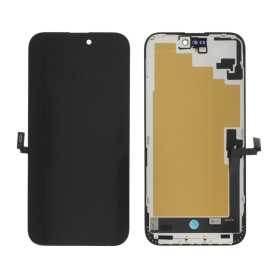
Out-of-Stock
Screen iPhone 16 Plus (OEM) Soft Oled - Diagnosable - No Pop-up
Use Repair Assistant to Finish an iPhone or iPad Repair
On an iPhone 12 or later running iOS 18, when a new Apple screen is installed,“Finish Repair” will appear next to Screen until you complete the repair using the Repair Assistant.
On an iPhone 12 or later running iOS 18, it is possible to reuse an original Apple screen on another iPhone of the same model.
The date of first use and the condition of the screen can be found in Settings > General > About > Parts & Service History.
How to Run Diagnostics & Finish Repair for iPhone Screen
1. Ensure your device is updated to iOS 18
2. Go to Settings > General > About > Parts & Service History
3. Tap "Restart & Finish Repair" to activate the Repair Assistant
4. Follow the on-screen instructions to complete the calibration
After completing this process, your screen will be fully functional, and there will be no pop-up warning about non-genuine parts.
Important Notes:
Your iPhone must be connected to Wi-Fi
Your battery level should be above 20%
If the process fails, restart your device and try again
If the repair is not completed, the screen may not function optimally, and some features (True Tone, Face ID) may be disabled until calibration is finalized
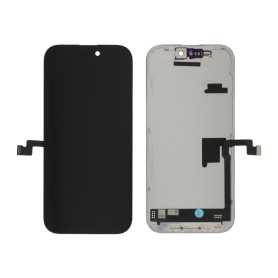
Screen iPhone 16 Pro (OEM) Hard Oled - Diagnosable - No Pop-up - 120Hz
Use Repair Assistant to Finish an iPhone or iPad Repair
On an iPhone 12 or later running iOS 18, when a new Apple screen is installed,“Finish Repair” will appear next to Screen until you complete the repair using the Repair Assistant.
On an iPhone 12 or later running iOS 18, it is possible to reuse an original Apple screen on another iPhone of the same model.
The date of first use and the condition of the screen can be found in Settings > General > About > Parts & Service History.
How to Run Diagnostics & Finish Repair for iPhone Screen
1. Ensure your device is updated to iOS 18
2. Go to Settings > General > About > Parts & Service History
3. Tap "Restart & Finish Repair" to activate the Repair Assistant
4. Follow the on-screen instructions to complete the calibration
After completing this process, your screen will be fully functional, and there will be no pop-up warning about non-genuine parts.
Important Notes:
Your iPhone must be connected to Wi-Fi
Your battery level should be above 20%
If the process fails, restart your device and try again
If the repair is not completed, the screen may not function optimally, and some features (True Tone, Face ID) may be disabled until calibration is finalized
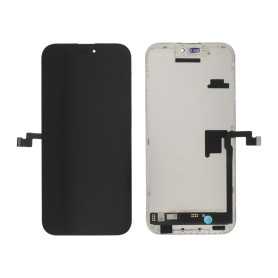
Out-of-Stock
Screen iPhone 16 Pro Max (OEM) Soft Oled - Diagnosable - No Pop-up - 120Hz
Use Repair Assistant to Finish an iPhone or iPad Repair
On an iPhone 12 or later running iOS 18, when a new Apple screen is installed,“Finish Repair” will appear next to Screen until you complete the repair using the Repair Assistant.
On an iPhone 12 or later running iOS 18, it is possible to reuse an original Apple screen on another iPhone of the same model.
The date of first use and the condition of the screen can be found in Settings > General > About > Parts & Service History.
How to Run Diagnostics & Finish Repair for iPhone Screen
1. Ensure your device is updated to iOS 18
2. Go to Settings > General > About > Parts & Service History
3. Tap "Restart & Finish Repair" to activate the Repair Assistant
4. Follow the on-screen instructions to complete the calibration
After completing this process, your screen will be fully functional, and there will be no pop-up warning about non-genuine parts.
Important Notes:
Your iPhone must be connected to Wi-Fi
Your battery level should be above 20%
If the process fails, restart your device and try again
If the repair is not completed, the screen may not function optimally, and some features (True Tone, Face ID) may be disabled until calibration is finalized
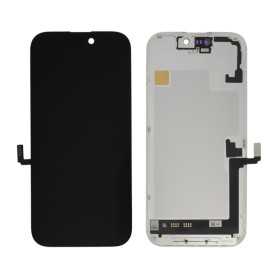
Screen iPhone 17 (OEM) Hard Oled - Diagnosable - No Pop-up - 120Hz
Use Repair Assistant to Finish an iPhone or iPad Repair
On an iPhone 12 or later running iOS 18, when a new Apple screen is installed,“Finish Repair” will appear next to Screen until you complete the repair using the Repair Assistant.
On an iPhone 12 or later running iOS 18, it is possible to reuse an original Apple screen on another iPhone of the same model.
The date of first use and the condition of the screen can be found in Settings > General > About > Parts & Service History.
How to Run Diagnostics & Finish Repair for iPhone Screen
1. Ensure your device is updated to iOS 18
2. Go to Settings > General > About > Parts & Service History
3. Tap "Restart & Finish Repair" to activate the Repair Assistant
4. Follow the on-screen instructions to complete the calibration
After completing this process, your screen will be fully functional, and there will be no pop-up warning about non-genuine parts.
Important Notes:
Your iPhone must be connected to Wi-Fi
Your battery level should be above 20%
If the process fails, restart your device and try again
If the repair is not completed, the screen may not function optimally, and some features (True Tone, Face ID) may be disabled until calibration is finalized
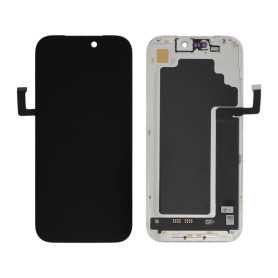
Out-of-Stock
Screen iPhone 17 Pro (OEM) Hard Oled - Diagnosable - No Pop-up - 120Hz
Use Repair Assistant to Finish an iPhone or iPad Repair
On an iPhone 12 or later running iOS 18, when a new Apple screen is installed,“Finish Repair” will appear next to Screen until you complete the repair using the Repair Assistant.
On an iPhone 12 or later running iOS 18, it is possible to reuse an original Apple screen on another iPhone of the same model.
The date of first use and the condition of the screen can be found in Settings > General > About > Parts & Service History.
How to Run Diagnostics & Finish Repair for iPhone Screen
1. Ensure your device is updated to iOS 18
2. Go to Settings > General > About > Parts & Service History
3. Tap "Restart & Finish Repair" to activate the Repair Assistant
4. Follow the on-screen instructions to complete the calibration
After completing this process, your screen will be fully functional, and there will be no pop-up warning about non-genuine parts.
Important Notes:
Your iPhone must be connected to Wi-Fi
Your battery level should be above 20%
If the process fails, restart your device and try again
If the repair is not completed, the screen may not function optimally, and some features (True Tone, Face ID) may be disabled until calibration is finalized

Screen iPhone 17 Pro Max (OEM) Soft Oled - Diagnosable - No Pop-up - 120Hz
Use Repair Assistant to Finish an iPhone or iPad Repair
On an iPhone 12 or later running iOS 18, when a new Apple screen is installed,“Finish Repair” will appear next to Screen until you complete the repair using the Repair Assistant.
On an iPhone 12 or later running iOS 18, it is possible to reuse an original Apple screen on another iPhone of the same model.
The date of first use and the condition of the screen can be found in Settings > General > About > Parts & Service History.
How to Run Diagnostics & Finish Repair for iPhone Screen
1. Ensure your device is updated to iOS 18
2. Go to Settings > General > About > Parts & Service History
3. Tap "Restart & Finish Repair" to activate the Repair Assistant
4. Follow the on-screen instructions to complete the calibration
After completing this process, your screen will be fully functional, and there will be no pop-up warning about non-genuine parts.
Important Notes:
Your iPhone must be connected to Wi-Fi
Your battery level should be above 20%
If the process fails, restart your device and try again
If the repair is not completed, the screen may not function optimally, and some features (True Tone, Face ID) may be disabled until calibration is finalized
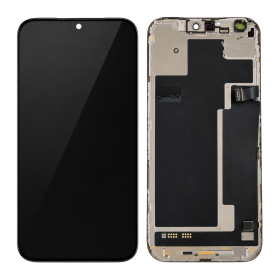
Out-of-Stock
Screen iPhone 18 Pro Max (Original Disassembled) - Grade A
The Screen iPhone 18 Pro Max (Original Disassembled) - Grade A is a premium component designed for professional repairers and resellers seeking high-quality replacement parts. This screen offers exceptional display clarity and touch sensitivity, ensuring that the device maintains its original performance standards. As a Grade A component, it guarantees minimal signs of previous use, providing a near-new appearance and functionality.
This original disassembled screen is meticulously crafted to match the specifications of the iPhone 18 Pro Max, ensuring seamless integration with the device's hardware. It supports all display features, including high-resolution visuals and accurate color reproduction, essential for maintaining the device's premium user experience.
The screen is equipped with all necessary connectors and components, facilitating a smooth and efficient installation process for skilled professionals. Its robust construction ensures durability and longevity, making it a reliable choice for repair shops and resellers aiming to deliver top-notch service to their clients.
By choosing this original disassembled screen, professionals can ensure that their repairs meet the highest standards of quality and customer satisfaction.
This original disassembled screen is meticulously crafted to match the specifications of the iPhone 18 Pro Max, ensuring seamless integration with the device's hardware. It supports all display features, including high-resolution visuals and accurate color reproduction, essential for maintaining the device's premium user experience.
The screen is equipped with all necessary connectors and components, facilitating a smooth and efficient installation process for skilled professionals. Its robust construction ensures durability and longevity, making it a reliable choice for repair shops and resellers aiming to deliver top-notch service to their clients.
By choosing this original disassembled screen, professionals can ensure that their repairs meet the highest standards of quality and customer satisfaction.
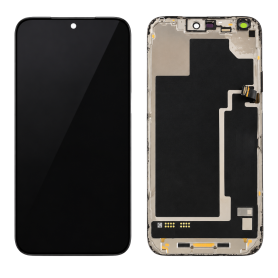
Out-of-Stock
Screen iPhone 18 Pro (Original Disassembled) - Grade A
The Screen iPhone 18 Pro (Original Disassembled) - Grade A is a premium component designed specifically for professional repairers and resellers seeking high-quality replacement parts. This screen offers exceptional clarity and touch responsiveness, ensuring that the device maintains its original performance standards. As a Grade A component, it guarantees minimal to no signs of previous use, providing a pristine appearance and functionality.
This original disassembled screen is meticulously tested to meet rigorous quality standards, ensuring compatibility and reliability with the iPhone 18 Pro. It includes the original display assembly, which encompasses the OLED panel, digitizer, and necessary connectors, ensuring seamless integration with the device's existing hardware.
Professionals will appreciate the precision engineering of this component, which facilitates a smooth installation process when performed by skilled technicians. The screen's durability and adherence to original specifications make it an ideal choice for those prioritizing quality and customer satisfaction in their repair services.
This original disassembled screen is meticulously tested to meet rigorous quality standards, ensuring compatibility and reliability with the iPhone 18 Pro. It includes the original display assembly, which encompasses the OLED panel, digitizer, and necessary connectors, ensuring seamless integration with the device's existing hardware.
Professionals will appreciate the precision engineering of this component, which facilitates a smooth installation process when performed by skilled technicians. The screen's durability and adherence to original specifications make it an ideal choice for those prioritizing quality and customer satisfaction in their repair services.