
 Ugreen
 .png) Devia
Devia  Mayline
  (1).png) D-power
D-power .png) Araree
Araree  Apple Original
  Samsung Original
 .svg.png) Xiaomi
Xiaomi  LinQ
LinQ  JBL
JBL .png) Belkin
Belkin  1More
1More  Techmade
  Benks
Benks Clearance





iPhone 14 Plus
There are 160 products.

Out-of-Stock
Screen iPhone 14 Plus (LTPS) JK - Support IC Change - FHD1080p
Advantages
LTPS
TFT
OLED
Pixel resolution
FHD1080p Same as original
HD 720p
Same as original
Power consumption
10% power savings compared to TFT quality
Normal power consumption
20% power savings compared to TFT quality.
Response time
Fast response
Normal response
Response same as original
Image quality
High image quality with vivid colors.
Normal display
More vivid colors, perfect blacks.
Cost
Excellent quality and cost.
Best cost
Production cost steadily decreasing.
After-sales feedback
After-sales rate 0.1%
After-sales rate 0.3%
After-sales rate 0.2%
Phone thickness with screen (7.65 mm original)
7.75 mm
7.80 mm
7.65 mm
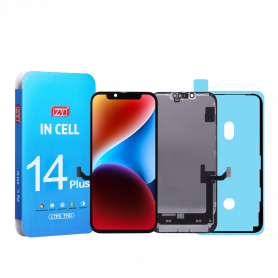
Screen iPhone 14 Plus (INCELL) ZY - LTPS - Support IC Change - FHD1080p
Advantages LTPS TFT OLED Pixel resolution FHD1080p Same as original HD 720p Same as original Power consumption 10% power savings compared to TFT quality Normal power consumption 20% power savings compared to TFT quality. Response time Fast response Normal response Response same as original Image quality High image quality with vivid colors. Normal display More vivid colors, perfect blacks. Cost Excellent quality and cost. Best cost Steadily decreasing production cost. After-sales feedback After-sales service rate 0.1% After-sales service rate 0.3% After-sales service rate 0.2% Phone thickness with screen (7.65 mm original) 7.75 mm 7.80 mm 7.65 mm
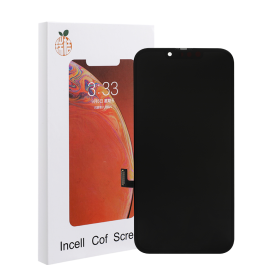
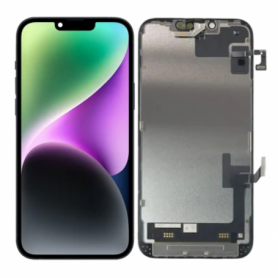
Screen iPhone 14 Plus (Original Refurbished)
This screen is indeed original, but it does not allow removing the error message. Each phone has a screen with a unique serial number, and only the Apple Store can program this serial number. However, this error message only lasts for a few weeks.
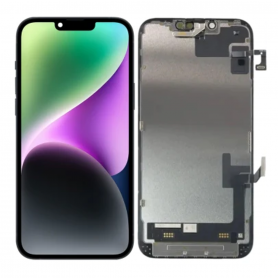
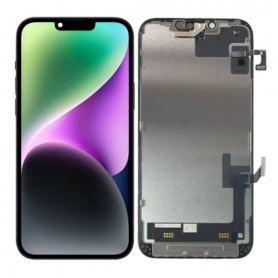
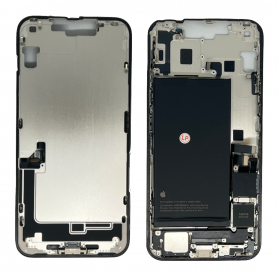
Screen iPhone 14 Plus (Original Disassembled) - Grade B
This screen is indeed original, but it does not allow removing the error message. Each phone has a screen with a unique serial number, and only the Apple Store can program this serial number. However, this error message only lasts for a few weeks.
Out-of-Stock



Out-of-Stock
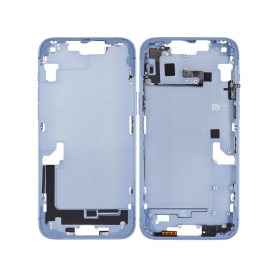
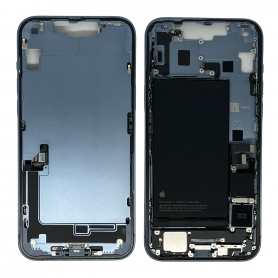
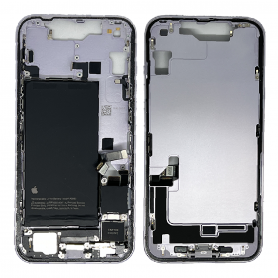
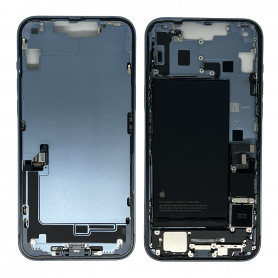
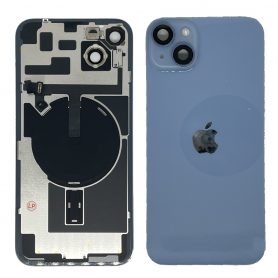
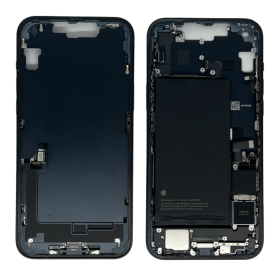
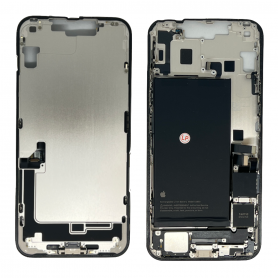
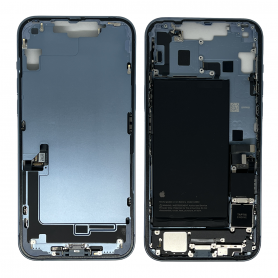
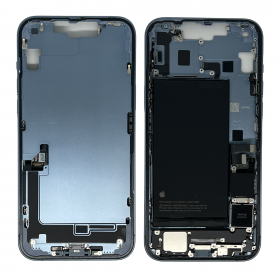
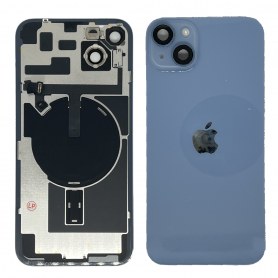
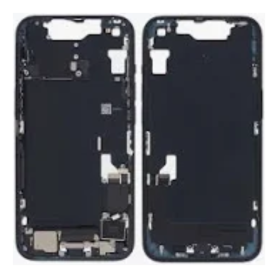
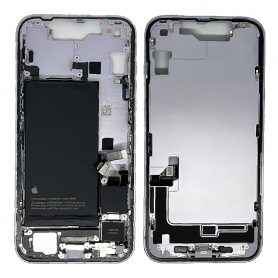
Rear Frame iPhone 14 Plus Charge Connector Without Back Glass With Battery Blue eSim US (Original Disassembled) - Grade B
Chassis compatible with iPhone 14 Plus. Color: Blue, Supplied with: Charging Connector, Supplied with: Battery.
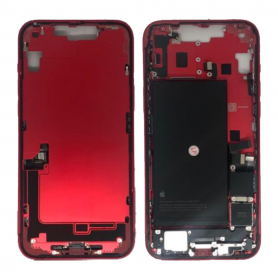
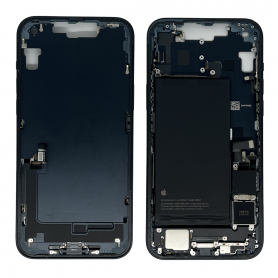
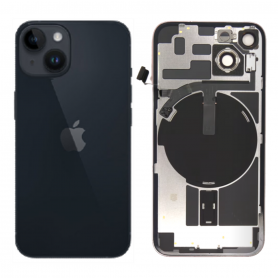

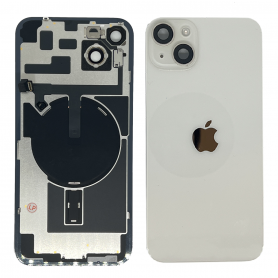
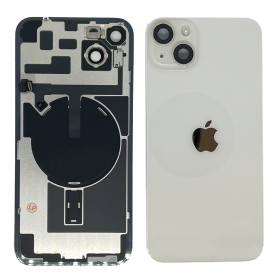
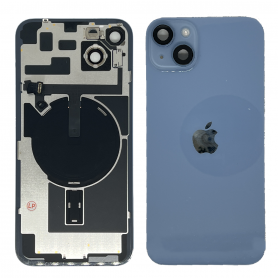
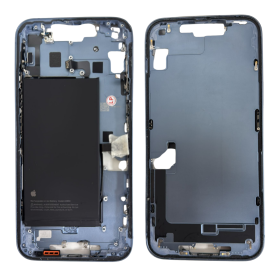
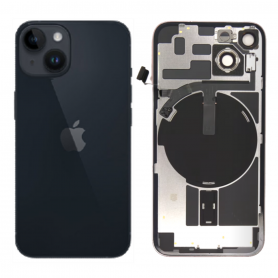
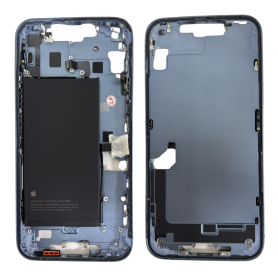
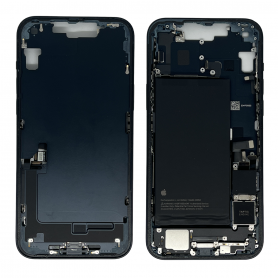
Rear Frame iPhone 14 Plus Charge Connector Without Back Glass With Battery Black (Original Disassembled) - Grade A
Replacement housing for iPhone 14 Plus. Color: Black, Supplied with: Charging connector, Supplied with: Battery.

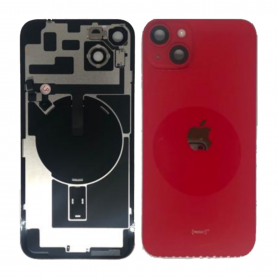

Out-of-Stock
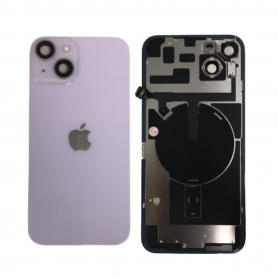
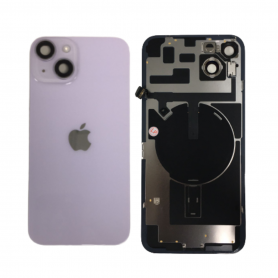
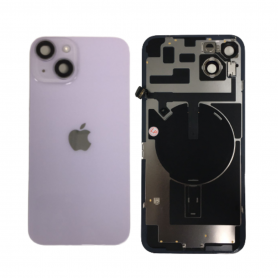
iPhone 14 Plus Purple Back Glass with MagSafe (Original Removed) - Like New
Back Glass Cover iPhone 14 Plus Purple (Origine Removed) - Like New

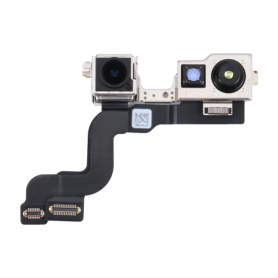
Rear Camera iPhone 14 Plus (Original Disassembled)
Rear camera for iPhone 14 Plus.Type: cameraQuality: Original DémontéSpare part intended for repair workshops and resellers. Installs as a replacement for the original part on the indicated device.
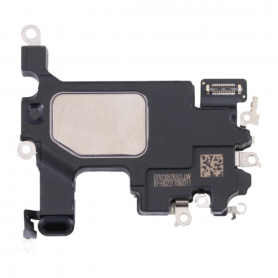
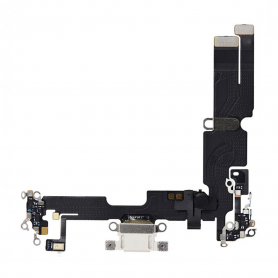
Charging Connector iPhone 14 Plus (Original Disassembled)
Connector of Charge iPhone 14 Plus (Origin Dismantled)
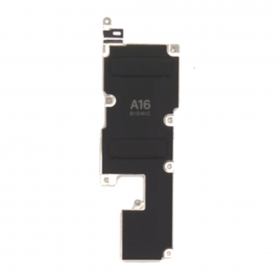
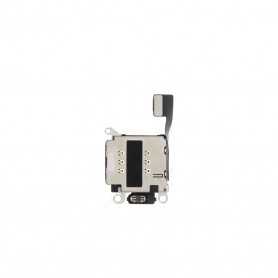

Out-of-Stock
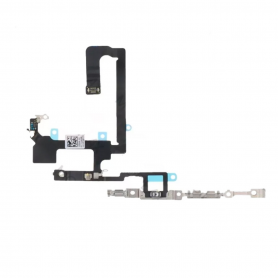
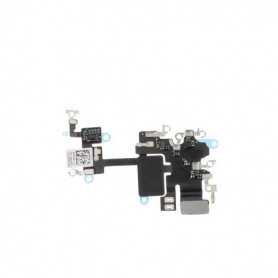
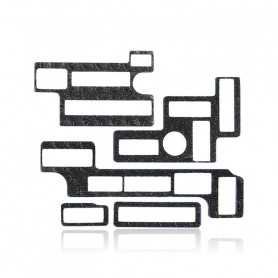
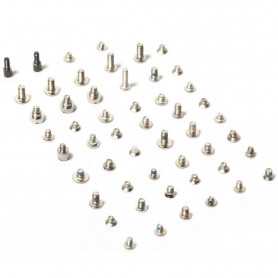
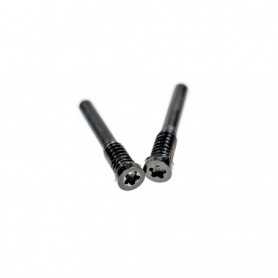
Complete screw kit for iPhone 14 Plus
Complete screw kit for iPhone 14 Plus
EAN:6938607822647
EAN:6938607822647
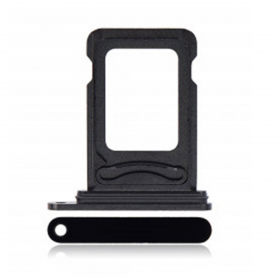
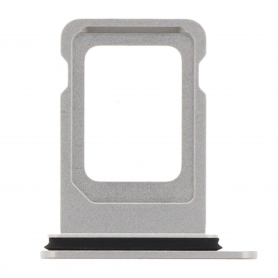


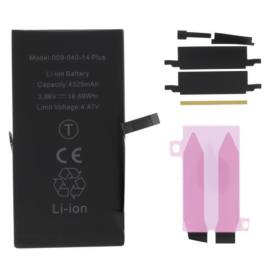
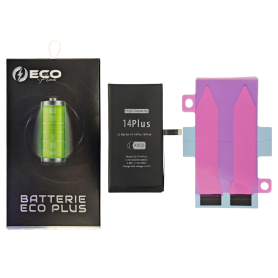
Battery A2850 4325mAh iPhone 14 Plus (No pop-up/Health 100%) Original BMS Required
ATTENTION: STATUS 100% - REQUIRES FLASHING
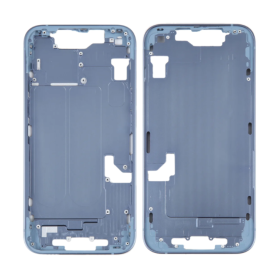

Out-of-Stock
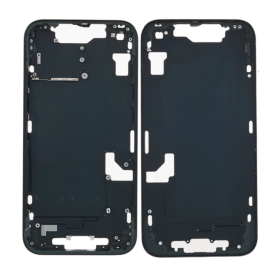
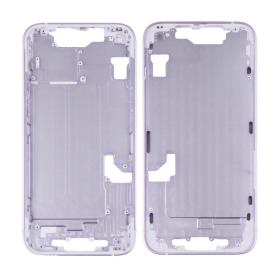
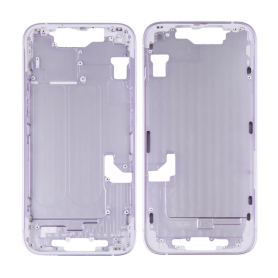
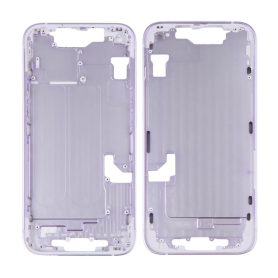
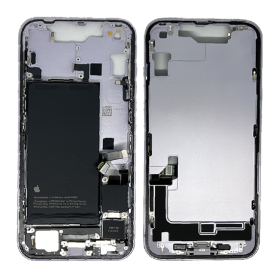
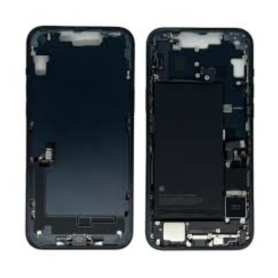
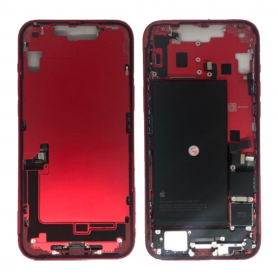
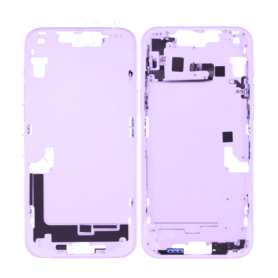
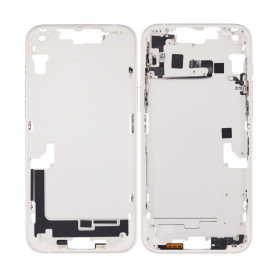
Chassis Empty iPhone 14 Plus Violet (Origin Disassembled) - Grade A
Empty frame for iPhone 14 Plus. Color: Purple.

Out-of-Stock
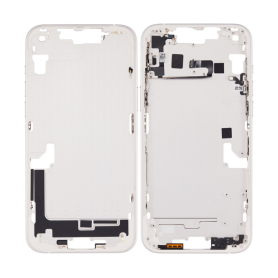
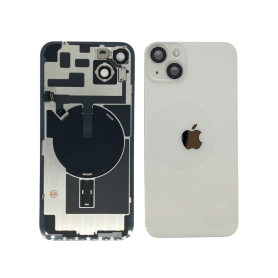
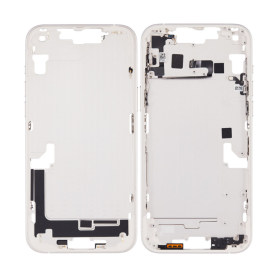
Chassis Empty iPhone 14 Plus White (Origin Disassembled) - Grade A
Empty frame for iPhone 14 Plus. Color: White.

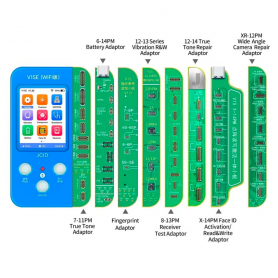
Repair Programmer JCID-V1SE for iPhone 7 - 14 Pro Max Face ID / Battery / True Tone / Camera (JCID)
Key Features of the Repair Programmer JCID-V1SE for iPhone 7 - 14 Pro Max
Comprehensive Compatibility: Supports a wide range of iPhone models from iPhone 7 to 14 Pro Max, making it a versatile tool for various repair needs.
Face ID Repair: Specially designed to address Face ID hardware issues, ensuring effective restoration of facial recognition functions.
Battery Data Reset: Allows you to reset battery data and manage battery health, helping to restore optimal device performance.
True Tone Restoration: Facilitates the recovery of True Tone functionality, ensuring that screen colors remain vivid and accurate after repairs.
Camera Module Programming: Provides the capability to fix and program camera modules, maintaining camera quality and operation.
User-Friendly Interface: Features a straightforward and intuitive interface, allowing both beginners and professionals to operate the tool with ease.
Quick and Efficient: Designed for fast operation, enabling quick repairs to minimize downtime and enhance productivity.
Durable Build: Constructed with high-quality materials to withstand regular use, ensuring longevity and reliability in various repair environments.
Portable Design: Compact size makes it easy to transport and use on the go, ideal for mobile technicians and repair shops.
Firmware Updates: Regular firmware updates ensure the tool stays current with the latest iPhone models and repair protocols.
Comprehensive Support: Comes with detailed guidance and support to help users maximize the effectiveness of the tool in various repair scenarios.
The JCID-V1SE Repair Programmer is an essential asset for any technician or repair shop involved in iPhone repairs, offering broad compatibility and efficient solutions for restoring key functions across multiple models.
Comprehensive Compatibility: Supports a wide range of iPhone models from iPhone 7 to 14 Pro Max, making it a versatile tool for various repair needs.
Face ID Repair: Specially designed to address Face ID hardware issues, ensuring effective restoration of facial recognition functions.
Battery Data Reset: Allows you to reset battery data and manage battery health, helping to restore optimal device performance.
True Tone Restoration: Facilitates the recovery of True Tone functionality, ensuring that screen colors remain vivid and accurate after repairs.
Camera Module Programming: Provides the capability to fix and program camera modules, maintaining camera quality and operation.
User-Friendly Interface: Features a straightforward and intuitive interface, allowing both beginners and professionals to operate the tool with ease.
Quick and Efficient: Designed for fast operation, enabling quick repairs to minimize downtime and enhance productivity.
Durable Build: Constructed with high-quality materials to withstand regular use, ensuring longevity and reliability in various repair environments.
Portable Design: Compact size makes it easy to transport and use on the go, ideal for mobile technicians and repair shops.
Firmware Updates: Regular firmware updates ensure the tool stays current with the latest iPhone models and repair protocols.
Comprehensive Support: Comes with detailed guidance and support to help users maximize the effectiveness of the tool in various repair scenarios.
The JCID-V1SE Repair Programmer is an essential asset for any technician or repair shop involved in iPhone repairs, offering broad compatibility and efficient solutions for restoring key functions across multiple models.
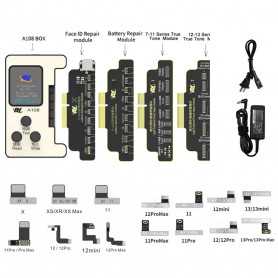
Repair Programmer AY-A108 Face ID / Battery / True Tone for iPhone 7 - 15 Pro Max (AY)
The A108 BOX restoration programmer allows you to read and write information on the iPhone battery, face ID, and other data. The battery detection board and the dot projector detection board are compatible with our phone repair programmer. Note: A108 programmer for iPhone X-12 Pro Max Face ID repair without soldering flex cables, just directly replace the matrix flex cable. Features: 1. Supports battery data reading and writing, and face ID correction. 2. The device function can be expanded via free online firmware. 3. Repairs underlying data, accessory information will not be distorted. 4. Cloud data backup to prevent data loss. 5. Easy to use, multilingual support.

Screen iPhone 14 Plus (Soft OLED) KELAI - Support IC Change
Key Features of Screen iPhone 14 Plus (Soft OLED) KELAI - Support IC Change:
Soft OLED Technology: Experience vibrant colors and deep contrasts with the Soft OLED display, offering a superior visual experience that closely mimics the original iPhone 14 Plus screen.
IC Change Support: Designed with advanced IC change support, this screen allows for seamless integration and enhanced functionality, ensuring optimal performance and compatibility with your device.
High-Resolution Display: Enjoy crystal-clear images and sharp text with the high-resolution display, perfect for streaming, gaming, and everyday use.
Durable Construction: Built with high-quality materials, this screen offers excellent durability and resistance to scratches, ensuring long-lasting performance.
Easy Installation: Comes with a user-friendly design that facilitates easy installation, making it convenient for both professionals and DIY enthusiasts.
Touch Sensitivity: Maintains the original touch sensitivity of the iPhone 14 Plus, providing a smooth and responsive user experience.
Energy Efficient: Engineered to be energy-efficient, helping to preserve battery life while delivering outstanding display quality.
Comprehensive Compatibility: Specifically designed for the iPhone 14 Plus, ensuring perfect fit and function without compromising on quality.
Soft OLED Technology: Experience vibrant colors and deep contrasts with the Soft OLED display, offering a superior visual experience that closely mimics the original iPhone 14 Plus screen.
IC Change Support: Designed with advanced IC change support, this screen allows for seamless integration and enhanced functionality, ensuring optimal performance and compatibility with your device.
High-Resolution Display: Enjoy crystal-clear images and sharp text with the high-resolution display, perfect for streaming, gaming, and everyday use.
Durable Construction: Built with high-quality materials, this screen offers excellent durability and resistance to scratches, ensuring long-lasting performance.
Easy Installation: Comes with a user-friendly design that facilitates easy installation, making it convenient for both professionals and DIY enthusiasts.
Touch Sensitivity: Maintains the original touch sensitivity of the iPhone 14 Plus, providing a smooth and responsive user experience.
Energy Efficient: Engineered to be energy-efficient, helping to preserve battery life while delivering outstanding display quality.
Comprehensive Compatibility: Specifically designed for the iPhone 14 Plus, ensuring perfect fit and function without compromising on quality.
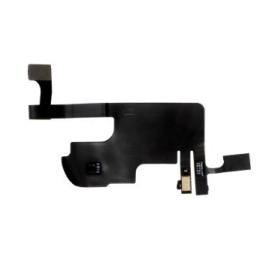
Proximity Sensor Flex Cable iPhone 14 Plus
Proximity sensor flex for iPhone 14 Plus, supplied on its own without installation tools.
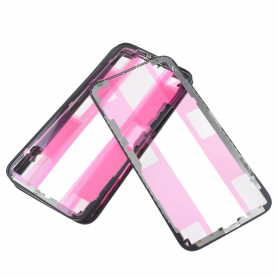
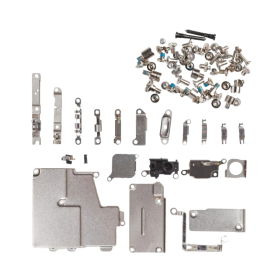
Complete Internal Support Plate Kit iPhone 14 Plus
Kit de plaque de support interne complet iPhone 12
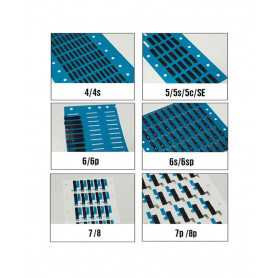
Écouteur Maille Anti-poussière Avec Support Pour iPhone - lot 5 pcs
Earpiece Dustproof Mesh with Bracket for iPhone
Out-of-Stock
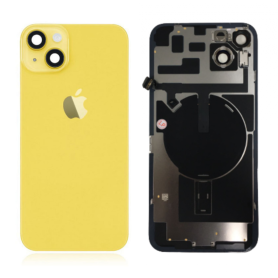
iPhone 14 Plus Yellow Back Glass with MagSafe (Original Removed) - Grade A
Back Glass Cover iPhone 14 Plus Purple (Origine Removed) - Like New
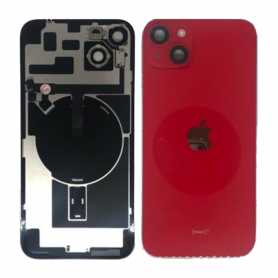

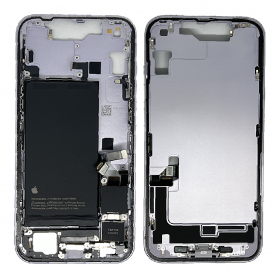
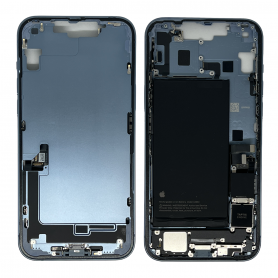
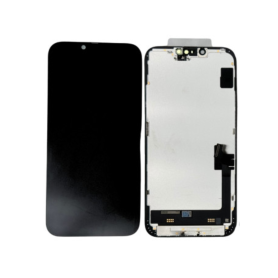
Screen iPhone 14 Plus (Service Pack) - A-058
Pour fonctionner le Face ID, veuillez utiliser votre nappa caméra originale.
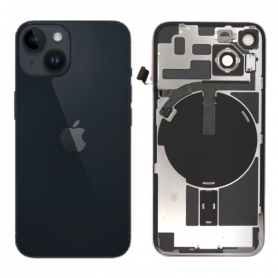
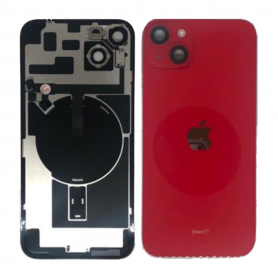
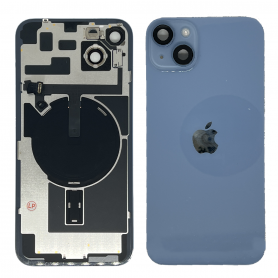
Out-of-Stock
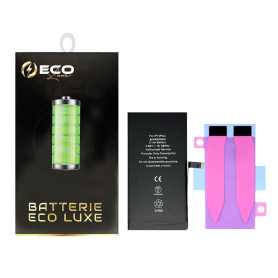
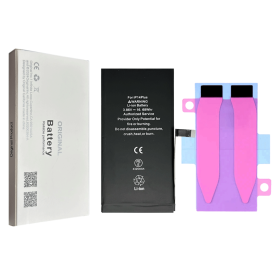
Battery A2850 4325mAh iPhone 14 Plus (OEM) Diagnostic Show Genuine
Use Repair Assistant to Finish an iPhone or iPad Repair
This Battery Without Logo
On an iPhone 12 or later running iOS 18, when a new Apple battery is installed,“Finish Repair” will appear next to Battery until you complete the repair using the Repair Assistant.
On an iPhone 12 or later running iOS 18, it is possible to reuse an original Apple battery on another iPhone of the same model.
The date of first use, capacity, and cycle count of your battery can be found in Settings > Battery > Battery Health.
How to Run Diagnostics & Finish Repair for iPhone Battery
1. Ensure your device is updated to iOS 18
2. Go to Settings > General > About > Parts & Service History
3. Tap "Restart & Finish Repair" to activate the Repair Assistant
4. Follow the on-screen instructions to complete the calibration
After completing this process, your battery will display 100% health, and there will be no pop-up warning about non-genuine parts.
Important Notes:
Your iPhone must be connected to Wi-Fi
Your battery level should be above 20%
If the process fails, restart your device and try again
If the repair is not completed, the battery may not function optimally, and some features (Face ID, Touch ID) may be disabled until calibration is finalized
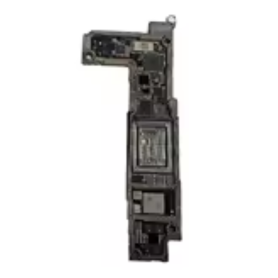
CNC Polished Upper Motherboard for iPhone 14 Plus EU
The CNC motherboard is intended for professionals with maintenance skills. Each motherboard is tested and polished. Once the soldering or repair is completed, no after-sales service will be provided. If you do not agree with these conditions, please do not place an order. Additionally, if you do not have soldering skills, we recommend that you do not order this product.
Note: This motherboard is reserved for professional repair technicians. If this does not apply to you, please do not purchase it.
Note: This motherboard is reserved for professional repair technicians. If this does not apply to you, please do not purchase it.
Out-of-Stock
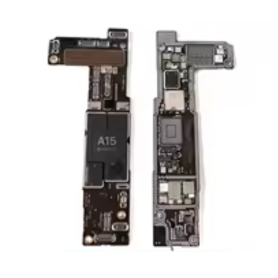
CNC Polished Lower Motherboard for iPhone 14 Plus EU
The CNC motherboard is intended for professionals with maintenance skills. Each motherboard is tested and polished. Once the soldering or repair is completed, no after-sales service will be provided. If you do not agree with these conditions, please do not place an order. Additionally, if you do not have soldering skills, we recommend that you do not order this product.
Note: This motherboard is reserved for professional repair technicians. If this does not apply to you, please do not purchase it.
Note: This motherboard is reserved for professional repair technicians. If this does not apply to you, please do not purchase it.
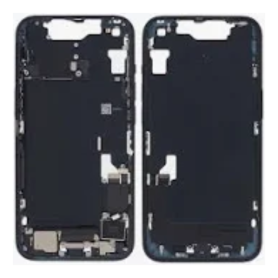
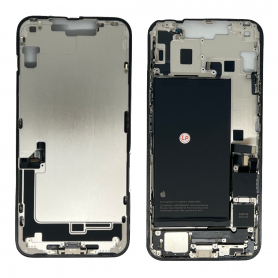
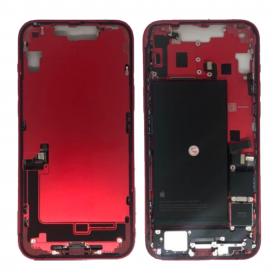
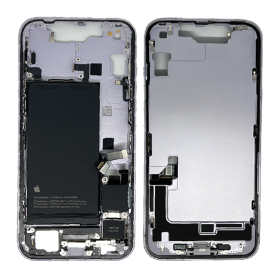
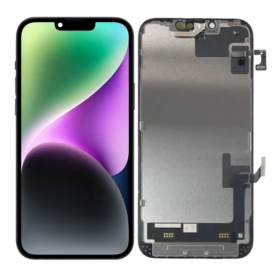
Screen iPhone 14 Plus with Proximity Sensor Flex (Original Refurbished) - Supports Configuration
Use Repair Assistant to Finish an iPhone or iPad Repair
On an iPhone 12 or later running iOS 18, when a new Apple screen is installed, “Finish Repair” will appear next to Screen until you complete the repair using the Repair Assistant.
On an iPhone 12 or later running iOS 18, it is possible to reuse an original Apple screen on another iPhone of the same model.
The date of first use and the condition of the screen can be found in Settings > General > About > Parts & Service History.
How to Run Diagnostics & Finish Repair for iPhone Screen
1. Ensure your device is updated to iOS 18
2. Go to Settings > General > About > Parts & Service History
3. Tap "Restart & Finish Repair" to activate the Repair Assistant
4. Follow the on-screen instructions to complete the calibration
After completing this process, your screen will be fully functional, and there will be no pop-up warning about non-genuine parts.
Important Notes:
Your iPhone must be connected to Wi-Fi
Your battery level should be above 20%
If the process fails, restart your device and try again
If the repair is not completed, the screen may not function optimally, and some features (True Tone, Face ID) may be disabled until calibration is finalized
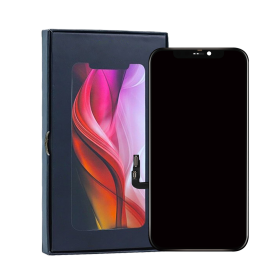
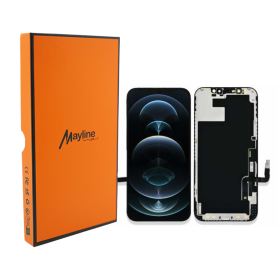
Screen iPhone 14 Plus (LTPS) - COF - FHD1080p - MaylineCare 12-Month Unconditional Warranty
More peace of mind with MaylineCare+ for your spare parts. Our MaylineCare+ service will revolutionize your warranty experience, Because you can request a replacement under any circumstances, Even if your screen has issues such as: Broken touch glass (once), Cracked, Detached frame, Oxidation, Scratches, Pixels, Thin lines, Spots, Does not turn on, Touch issues, Blurry display.

Screen iPhone 14 Plus (OEM) Soft Oled - Diagnosable - No Pop-up
Use Repair Assistant to Finish an iPhone or iPad Repair
On an iPhone 12 or later running iOS 18, when a new Apple screen is installed,“Finish Repair” will appear next to Screen until you complete the repair using the Repair Assistant.
On an iPhone 12 or later running iOS 18, it is possible to reuse an original Apple screen on another iPhone of the same model.
The date of first use and the condition of the screen can be found in Settings > General > About > Parts & Service History.
How to Run Diagnostics & Finish Repair for iPhone Screen
1. Ensure your device is updated to iOS 18
2. Go to Settings > General > About > Parts & Service History
3. Tap "Restart & Finish Repair" to activate the Repair Assistant
4. Follow the on-screen instructions to complete the calibration
After completing this process, your screen will be fully functional, and there will be no pop-up warning about non-genuine parts.
Important Notes:
Your iPhone must be connected to Wi-Fi
Your battery level should be above 20%
If the process fails, restart your device and try again
If the repair is not completed, the screen may not function optimally, and some features (True Tone, Face ID) may be disabled until calibration is finalized

Out-of-Stock
Battery A2850 4325mAh iPhone 14 Plus (ECO Fix) Direct Installation - No Pop-up / Health 100%
Use Repair Assistant to Finish an iPhone or iPad Repair
This Battery Without Logo
On an iPhone 12 or later running iOS 18, when a new Apple battery is installed,“Finish Repair” will appear next to Battery until you complete the repair using the Repair Assistant.
On an iPhone 12 or later running iOS 18, it is possible to reuse an original Apple battery on another iPhone of the same model.
The date of first use, capacity, and cycle count of your battery can be found in Settings > Battery > Battery Health.
How to Run Diagnostics & Finish Repair for iPhone Battery
1. Ensure your device is updated to iOS 18
2. Go to Settings > General > About > Parts & Service History
3. Tap "Restart & Finish Repair" to activate the Repair Assistant
4. Follow the on-screen instructions to complete the calibration
After completing this process, your battery will display 100% health, and there will be no pop-up warning about non-genuine parts.
Important Notes:
Your iPhone must be connected to Wi-Fi
Your battery level should be above 20%
If the process fails, restart your device and try again
If the repair is not completed, the battery may not function optimally, and some features (Face ID, Touch ID) may be disabled until calibration is finalized
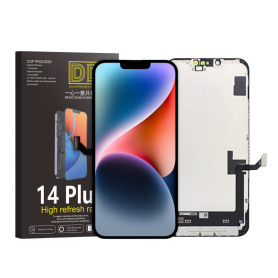
Screen iPhone 14 Plus (Soft Oled) DD - IC - Original Size / Thickness
Soft OLED replacement screen for iPhone 14 Plus. DD-IC range with original size and thickness. Reference: DD14Plus. Designed for professional repair. Check the device model and test the display and touch functions before closing the device. 12-month warranty.