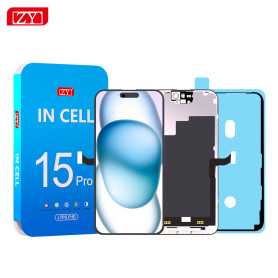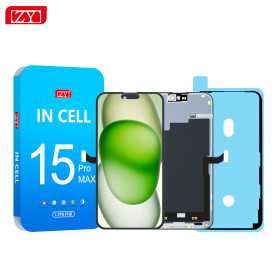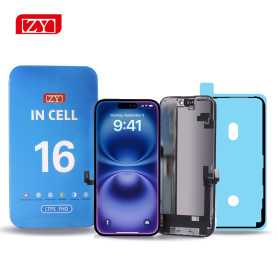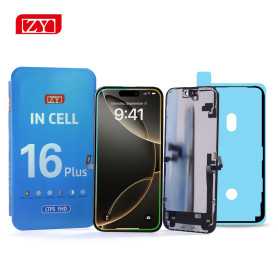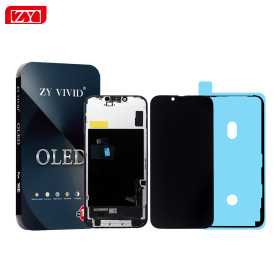
iPhone

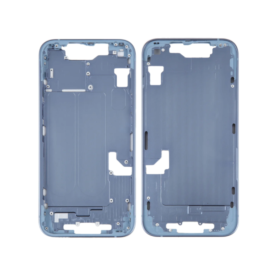
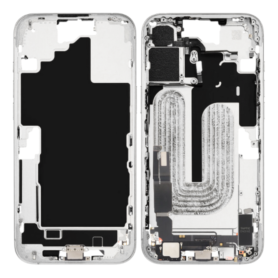
Chassis Empty iPhone 14 Blue eSIM (Origin Disassembled) - Grade A
1 Last items in stock
Key Features of the Chassis Empty iPhone 14 Blue eSIM (Origin Disassembled) - Grade A:


Authentic Apple Design: Sourced directly from disassembled original iPhone 14 units, ensuring genuine Apple quality and design.


Grade A Quality: Excellent condition with minimal signs of use, maintaining the premium aesthetic and integrity of the original device.


Vibrant Blue Finish: Features the iconic iPhone 14 blue chassis, perfect for replacing a damaged shell or customizing your current iPhone setup.


eSIM Compatibility: Designed to accommodate eSIM technology, offering seamless digital connectivity without the need for a physical SIM card slot.


Eco-Friendly Choice: Supports sustainable practices by reusing high-quality components, reducing electronic waste, and promoting a circular economy.


Perfect for DIY Enthusiasts: Ideal for tech enthusiasts or repair professionals looking to rebuild or refurbish an iPhone 14 device using authentic parts.


Precision Cutouts: Includes precise cutouts for the camera, buttons, and ports, ensuring a snug fit and full functionality of all device features.

Lightweight and Durable: Made with premium materials for enhanced durability while maintaining a lightweight profile for ease of use and carrying.
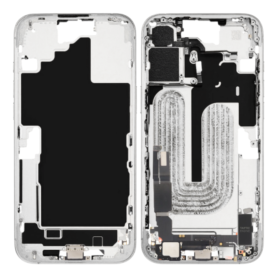

Comprehensive Support: Comes with technical support options for hassle-free installation and integration into existing systems.

€27.00
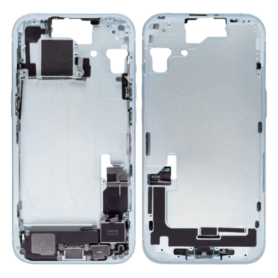
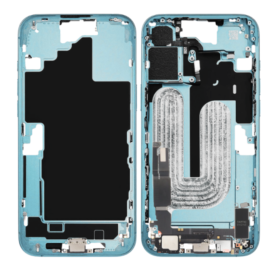
Back Cover Housing iPhone 15 eSIM without Back Glass Bleu without Battery (Original Dismantled) Grade AB
1 Last items in stock
Introducing the Back Cover Housing for iPhone 15 eSIM, a meticulously crafted original dismantled part that promises both functionality and subtle elegance. This Grade AB quality component ensures that you can restore or replace your phone's housing without compromising on style or integrity.
Key Features:


Original Dismantled Part: Sourced from genuine iPhone 15 models, offering guaranteed compatibility and perfect fit.


Grade AB Quality: Exhibits minor wear typical of Grade AB, balancing affordability with reliable performance.


Color - Bleu: A sophisticated blue finish that provides a refreshing aesthetic, enhancing the visual appeal of your smartphone.


eSIM Compatibility: Specifically designed for the iPhone 15 eSIM version, ensuring seamless integration with your device's existing features.


No Back Glass: Provides the essential core housing, allowing customization with your choice of back glass for a personalized touch.


Battery Not Included: Focused on housing replacement needs, providing a perfect solution for those not requiring a new battery.


High-Quality Material: Crafted to maintain structural integrity, protecting the internal components of your device while sustaining everyday wear.


This back cover is the ideal choice for repair enthusiasts or those looking to refresh the exterior of their iPhone 15 without the need for a full replacement.
€39.60
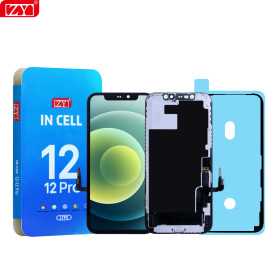
Screen iPhone 12 / 12 Pro (INCELL) ZY - COF - FHD1080p - Diagnosable
76 In-stock

Use Repair Assistant to Finish an iPhone or iPad Repair

On an iPhone 12 or later running iOS 18, when a new Apple screen is installed,“Finish Repair” will appear next to Screen until you complete the repair using the Repair Assistant.


On an iPhone 12 or later running iOS 18, it is possible to reuse an original Apple screen on another iPhone of the same model.
The date of first use and the condition of the screen can be found in Settings > General > About > Parts & Service History.


How to Run Diagnostics & Finish Repair for iPhone Screen
1. Ensure your device is updated to iOS 18
2. Go to Settings > General > About > Parts & Service History
3. Tap "Restart & Finish Repair" to activate the Repair Assistant
4. Follow the on-screen instructions to complete the calibration
After completing this process, your screen will be fully functional, and there will be no pop-up warning about non-genuine parts.


Important Notes:

Your iPhone must be connected to Wi-Fi
Your battery level should be above 20%
If the process fails, restart your device and try again
If the repair is not completed, the screen may not function optimally, and some features (True Tone, Face ID) may be disabled until calibration is finalized


€24.05
Screen iPhone 12 Pro Max (INCELL) ZY - COF - FHD1080p - Diagnosable
45 In-stock

Use Repair Assistant to Finish an iPhone or iPad Repair

On an iPhone 12 or later running iOS 18, when a new Apple screen is installed,“Finish Repair” will appear next to Screen until you complete the repair using the Repair Assistant.


On an iPhone 12 or later running iOS 18, it is possible to reuse an original Apple screen on another iPhone of the same model.
The date of first use and the condition of the screen can be found in Settings > General > About > Parts & Service History.


How to Run Diagnostics & Finish Repair for iPhone Screen
1. Ensure your device is updated to iOS 18
2. Go to Settings > General > About > Parts & Service History
3. Tap "Restart & Finish Repair" to activate the Repair Assistant
4. Follow the on-screen instructions to complete the calibration
After completing this process, your screen will be fully functional, and there will be no pop-up warning about non-genuine parts.


Important Notes:

Your iPhone must be connected to Wi-Fi
Your battery level should be above 20%
If the process fails, restart your device and try again
If the repair is not completed, the screen may not function optimally, and some features (True Tone, Face ID) may be disabled until calibration is finalized


€35.18
Out-of-Stock
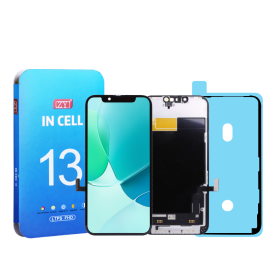
Screen iPhone 13 (INCELL) ZY - COF - FHD1080p - Diagnosable
Out-of-Stock

Use Repair Assistant to Finish an iPhone or iPad Repair

On an iPhone 12 or later running iOS 18, when a new Apple screen is installed,“Finish Repair” will appear next to Screen until you complete the repair using the Repair Assistant.


On an iPhone 12 or later running iOS 18, it is possible to reuse an original Apple screen on another iPhone of the same model.
The date of first use and the condition of the screen can be found in Settings > General > About > Parts & Service History.


How to Run Diagnostics & Finish Repair for iPhone Screen
1. Ensure your device is updated to iOS 18
2. Go to Settings > General > About > Parts & Service History
3. Tap "Restart & Finish Repair" to activate the Repair Assistant
4. Follow the on-screen instructions to complete the calibration
After completing this process, your screen will be fully functional, and there will be no pop-up warning about non-genuine parts.


Important Notes:

Your iPhone must be connected to Wi-Fi
Your battery level should be above 20%
If the process fails, restart your device and try again
If the repair is not completed, the screen may not function optimally, and some features (True Tone, Face ID) may be disabled until calibration is finalized


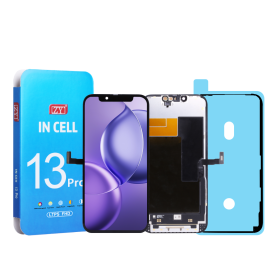
Screen iPhone 13 Pro (INCELL) ZY - COF - FHD1080p - Diagnosable
48 In-stock

Use Repair Assistant to Finish an iPhone or iPad Repair

On an iPhone 12 or later running iOS 18, when a new Apple screen is installed,“Finish Repair” will appear next to Screen until you complete the repair using the Repair Assistant.


On an iPhone 12 or later running iOS 18, it is possible to reuse an original Apple screen on another iPhone of the same model.
The date of first use and the condition of the screen can be found in Settings > General > About > Parts & Service History.


How to Run Diagnostics & Finish Repair for iPhone Screen
1. Ensure your device is updated to iOS 18
2. Go to Settings > General > About > Parts & Service History
3. Tap "Restart & Finish Repair" to activate the Repair Assistant
4. Follow the on-screen instructions to complete the calibration
After completing this process, your screen will be fully functional, and there will be no pop-up warning about non-genuine parts.


Important Notes:

Your iPhone must be connected to Wi-Fi
Your battery level should be above 20%
If the process fails, restart your device and try again
If the repair is not completed, the screen may not function optimally, and some features (True Tone, Face ID) may be disabled until calibration is finalized


€29.32
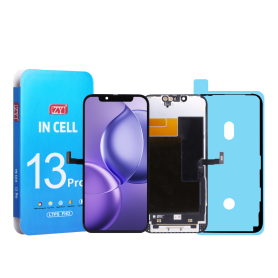
Screen iPhone 13 Pro Max (INCELL) ZY - COF - FHD1080p - Diagnosable
34 In-stock

Use Repair Assistant to Finish an iPhone or iPad Repair

On an iPhone 12 or later running iOS 18, when a new Apple screen is installed,“Finish Repair” will appear next to Screen until you complete the repair using the Repair Assistant.


On an iPhone 12 or later running iOS 18, it is possible to reuse an original Apple screen on another iPhone of the same model.
The date of first use and the condition of the screen can be found in Settings > General > About > Parts & Service History.


How to Run Diagnostics & Finish Repair for iPhone Screen
1. Ensure your device is updated to iOS 18
2. Go to Settings > General > About > Parts & Service History
3. Tap "Restart & Finish Repair" to activate the Repair Assistant
4. Follow the on-screen instructions to complete the calibration
After completing this process, your screen will be fully functional, and there will be no pop-up warning about non-genuine parts.


Important Notes:

Your iPhone must be connected to Wi-Fi
Your battery level should be above 20%
If the process fails, restart your device and try again
If the repair is not completed, the screen may not function optimally, and some features (True Tone, Face ID) may be disabled until calibration is finalized


€32.64
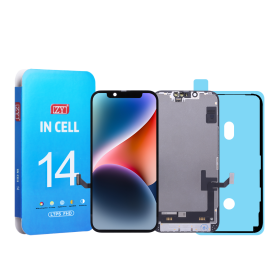
Screen iPhone 14 (INCELL) ZY - COF - FHD1080p - Diagnosable
40 In-stock

Use Repair Assistant to Finish an iPhone or iPad Repair

On an iPhone 12 or later running iOS 18, when a new Apple screen is installed,“Finish Repair” will appear next to Screen until you complete the repair using the Repair Assistant.


On an iPhone 12 or later running iOS 18, it is possible to reuse an original Apple screen on another iPhone of the same model.
The date of first use and the condition of the screen can be found in Settings > General > About > Parts & Service History.


How to Run Diagnostics & Finish Repair for iPhone Screen
1. Ensure your device is updated to iOS 18
2. Go to Settings > General > About > Parts & Service History
3. Tap "Restart & Finish Repair" to activate the Repair Assistant
4. Follow the on-screen instructions to complete the calibration
After completing this process, your screen will be fully functional, and there will be no pop-up warning about non-genuine parts.


Important Notes:

Your iPhone must be connected to Wi-Fi
Your battery level should be above 20%
If the process fails, restart your device and try again
If the repair is not completed, the screen may not function optimally, and some features (True Tone, Face ID) may be disabled until calibration is finalized


€27.56
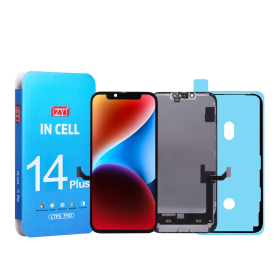
Screen iPhone 14 Plus (INCELL) ZY - COF - FHD1080p - Diagnosable
27 In-stock

Use Repair Assistant to Finish an iPhone or iPad Repair

On an iPhone 12 or later running iOS 18, when a new Apple screen is installed,“Finish Repair” will appear next to Screen until you complete the repair using the Repair Assistant.


On an iPhone 12 or later running iOS 18, it is possible to reuse an original Apple screen on another iPhone of the same model.
The date of first use and the condition of the screen can be found in Settings > General > About > Parts & Service History.


How to Run Diagnostics & Finish Repair for iPhone Screen
1. Ensure your device is updated to iOS 18
2. Go to Settings > General > About > Parts & Service History
3. Tap "Restart & Finish Repair" to activate the Repair Assistant
4. Follow the on-screen instructions to complete the calibration
After completing this process, your screen will be fully functional, and there will be no pop-up warning about non-genuine parts.


Important Notes:

Your iPhone must be connected to Wi-Fi
Your battery level should be above 20%
If the process fails, restart your device and try again
If the repair is not completed, the screen may not function optimally, and some features (True Tone, Face ID) may be disabled until calibration is finalized


€30.88
Screen iPhone 12 / 12 Pro (OLED) ZY - Diagnosable
49 In-stock

Use Repair Assistant to Finish an iPhone or iPad Repair

On an iPhone 12 or later running iOS 18, when a new Apple screen is installed,“Finish Repair” will appear next to Screen until you complete the repair using the Repair Assistant.


On an iPhone 12 or later running iOS 18, it is possible to reuse an original Apple screen on another iPhone of the same model.
The date of first use and the condition of the screen can be found in Settings > General > About > Parts & Service History.


How to Run Diagnostics & Finish Repair for iPhone Screen
1. Ensure your device is updated to iOS 18
2. Go to Settings > General > About > Parts & Service History
3. Tap "Restart & Finish Repair" to activate the Repair Assistant
4. Follow the on-screen instructions to complete the calibration
After completing this process, your screen will be fully functional, and there will be no pop-up warning about non-genuine parts.


Important Notes:

Your iPhone must be connected to Wi-Fi
Your battery level should be above 20%
If the process fails, restart your device and try again
If the repair is not completed, the screen may not function optimally, and some features (True Tone, Face ID) may be disabled until calibration is finalized


€41.04
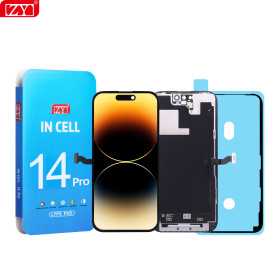
Screen iPhone 14 Pro (INCELL) ZY - COF - FHD1080p - Diagnosable
25 In-stock

Use Repair Assistant to Finish an iPhone or iPad Repair

On an iPhone 12 or later running iOS 18, when a new Apple screen is installed,“Finish Repair” will appear next to Screen until you complete the repair using the Repair Assistant.


On an iPhone 12 or later running iOS 18, it is possible to reuse an original Apple screen on another iPhone of the same model.
The date of first use and the condition of the screen can be found in Settings > General > About > Parts & Service History.


How to Run Diagnostics & Finish Repair for iPhone Screen
1. Ensure your device is updated to iOS 18
2. Go to Settings > General > About > Parts & Service History
3. Tap "Restart & Finish Repair" to activate the Repair Assistant
4. Follow the on-screen instructions to complete the calibration
After completing this process, your screen will be fully functional, and there will be no pop-up warning about non-genuine parts.


Important Notes:

Your iPhone must be connected to Wi-Fi
Your battery level should be above 20%
If the process fails, restart your device and try again
If the repair is not completed, the screen may not function optimally, and some features (True Tone, Face ID) may be disabled until calibration is finalized


€31.86
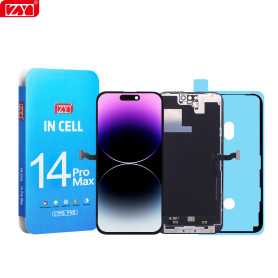
Screen iPhone 14 Pro Max (INCELL) ZY - COF - FHD1080p - Diagnosable
99 In-stock

Use Repair Assistant to Finish an iPhone or iPad Repair

On an iPhone 12 or later running iOS 18, when a new Apple screen is installed,“Finish Repair” will appear next to Screen until you complete the repair using the Repair Assistant.


On an iPhone 12 or later running iOS 18, it is possible to reuse an original Apple screen on another iPhone of the same model.
The date of first use and the condition of the screen can be found in Settings > General > About > Parts & Service History.


How to Run Diagnostics & Finish Repair for iPhone Screen
1. Ensure your device is updated to iOS 18
2. Go to Settings > General > About > Parts & Service History
3. Tap "Restart & Finish Repair" to activate the Repair Assistant
4. Follow the on-screen instructions to complete the calibration
After completing this process, your screen will be fully functional, and there will be no pop-up warning about non-genuine parts.


Important Notes:

Your iPhone must be connected to Wi-Fi
Your battery level should be above 20%
If the process fails, restart your device and try again
If the repair is not completed, the screen may not function optimally, and some features (True Tone, Face ID) may be disabled until calibration is finalized


€50.41
Out-of-Stock
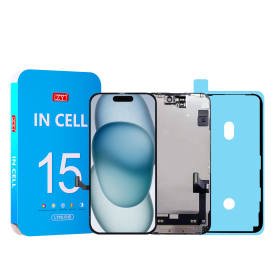
Screen iPhone 15 (INCELL) ZY - COF - FHD1080p - Diagnosable
Out-of-Stock

Use Repair Assistant to Finish an iPhone or iPad Repair

On an iPhone 12 or later running iOS 18, when a new Apple screen is installed,“Finish Repair” will appear next to Screen until you complete the repair using the Repair Assistant.


On an iPhone 12 or later running iOS 18, it is possible to reuse an original Apple screen on another iPhone of the same model.
The date of first use and the condition of the screen can be found in Settings > General > About > Parts & Service History.


How to Run Diagnostics & Finish Repair for iPhone Screen
1. Ensure your device is updated to iOS 18
2. Go to Settings > General > About > Parts & Service History
3. Tap "Restart & Finish Repair" to activate the Repair Assistant
4. Follow the on-screen instructions to complete the calibration
After completing this process, your screen will be fully functional, and there will be no pop-up warning about non-genuine parts.


Important Notes:

Your iPhone must be connected to Wi-Fi
Your battery level should be above 20%
If the process fails, restart your device and try again
If the repair is not completed, the screen may not function optimally, and some features (True Tone, Face ID) may be disabled until calibration is finalized


Out-of-Stock
Screen iPhone 15 Plus (INCELL) ZY - COF - FHD1080p - Diagnosable
Out-of-Stock

Use Repair Assistant to Finish an iPhone or iPad Repair

On an iPhone 12 or later running iOS 18, when a new Apple screen is installed,“Finish Repair” will appear next to Screen until you complete the repair using the Repair Assistant.


On an iPhone 12 or later running iOS 18, it is possible to reuse an original Apple screen on another iPhone of the same model.
The date of first use and the condition of the screen can be found in Settings > General > About > Parts & Service History.


How to Run Diagnostics & Finish Repair for iPhone Screen
1. Ensure your device is updated to iOS 18
2. Go to Settings > General > About > Parts & Service History
3. Tap "Restart & Finish Repair" to activate the Repair Assistant
4. Follow the on-screen instructions to complete the calibration
After completing this process, your screen will be fully functional, and there will be no pop-up warning about non-genuine parts.


Important Notes:

Your iPhone must be connected to Wi-Fi
Your battery level should be above 20%
If the process fails, restart your device and try again
If the repair is not completed, the screen may not function optimally, and some features (True Tone, Face ID) may be disabled until calibration is finalized


Out-of-Stock
Screen iPhone 15 Pro (INCELL) ZY - COF - FHD1080p - Diagnosable
Out-of-Stock

Use Repair Assistant to Finish an iPhone or iPad Repair

On an iPhone 12 or later running iOS 18, when a new Apple screen is installed,“Finish Repair” will appear next to Screen until you complete the repair using the Repair Assistant.


On an iPhone 12 or later running iOS 18, it is possible to reuse an original Apple screen on another iPhone of the same model.
The date of first use and the condition of the screen can be found in Settings > General > About > Parts & Service History.


How to Run Diagnostics & Finish Repair for iPhone Screen
1. Ensure your device is updated to iOS 18
2. Go to Settings > General > About > Parts & Service History
3. Tap "Restart & Finish Repair" to activate the Repair Assistant
4. Follow the on-screen instructions to complete the calibration
After completing this process, your screen will be fully functional, and there will be no pop-up warning about non-genuine parts.


Important Notes:

Your iPhone must be connected to Wi-Fi
Your battery level should be above 20%
If the process fails, restart your device and try again
If the repair is not completed, the screen may not function optimally, and some features (True Tone, Face ID) may be disabled until calibration is finalized


Out-of-Stock
Screen iPhone 15 Pro Max (INCELL) ZY - COF - FHD1080p - Diagnosable
Out-of-Stock

Use Repair Assistant to Finish an iPhone or iPad Repair

On an iPhone 12 or later running iOS 18, when a new Apple screen is installed,“Finish Repair” will appear next to Screen until you complete the repair using the Repair Assistant.


On an iPhone 12 or later running iOS 18, it is possible to reuse an original Apple screen on another iPhone of the same model.
The date of first use and the condition of the screen can be found in Settings > General > About > Parts & Service History.


How to Run Diagnostics & Finish Repair for iPhone Screen
1. Ensure your device is updated to iOS 18
2. Go to Settings > General > About > Parts & Service History
3. Tap "Restart & Finish Repair" to activate the Repair Assistant
4. Follow the on-screen instructions to complete the calibration
After completing this process, your screen will be fully functional, and there will be no pop-up warning about non-genuine parts.


Important Notes:

Your iPhone must be connected to Wi-Fi
Your battery level should be above 20%
If the process fails, restart your device and try again
If the repair is not completed, the screen may not function optimally, and some features (True Tone, Face ID) may be disabled until calibration is finalized


Out-of-Stock
Screen iPhone 16 (INCELL) ZY - COF - FHD1080p - Diagnosable
Out-of-Stock

Use Repair Assistant to Finish an iPhone or iPad Repair

On an iPhone 12 or later running iOS 18, when a new Apple screen is installed,“Finish Repair” will appear next to Screen until you complete the repair using the Repair Assistant.


On an iPhone 12 or later running iOS 18, it is possible to reuse an original Apple screen on another iPhone of the same model.
The date of first use and the condition of the screen can be found in Settings > General > About > Parts & Service History.


How to Run Diagnostics & Finish Repair for iPhone Screen
1. Ensure your device is updated to iOS 18
2. Go to Settings > General > About > Parts & Service History
3. Tap "Restart & Finish Repair" to activate the Repair Assistant
4. Follow the on-screen instructions to complete the calibration
After completing this process, your screen will be fully functional, and there will be no pop-up warning about non-genuine parts.


Important Notes:

Your iPhone must be connected to Wi-Fi
Your battery level should be above 20%
If the process fails, restart your device and try again
If the repair is not completed, the screen may not function optimally, and some features (True Tone, Face ID) may be disabled until calibration is finalized


Out-of-Stock
Screen iPhone 16 Plus (INCELL) ZY - COF - FHD1080p - Diagnosable
Out-of-Stock

Use Repair Assistant to Finish an iPhone or iPad Repair

On an iPhone 12 or later running iOS 18, when a new Apple screen is installed,“Finish Repair” will appear next to Screen until you complete the repair using the Repair Assistant.


On an iPhone 12 or later running iOS 18, it is possible to reuse an original Apple screen on another iPhone of the same model.
The date of first use and the condition of the screen can be found in Settings > General > About > Parts & Service History.


How to Run Diagnostics & Finish Repair for iPhone Screen
1. Ensure your device is updated to iOS 18
2. Go to Settings > General > About > Parts & Service History
3. Tap "Restart & Finish Repair" to activate the Repair Assistant
4. Follow the on-screen instructions to complete the calibration
After completing this process, your screen will be fully functional, and there will be no pop-up warning about non-genuine parts.


Important Notes:

Your iPhone must be connected to Wi-Fi
Your battery level should be above 20%
If the process fails, restart your device and try again
If the repair is not completed, the screen may not function optimally, and some features (True Tone, Face ID) may be disabled until calibration is finalized


Out-of-Stock
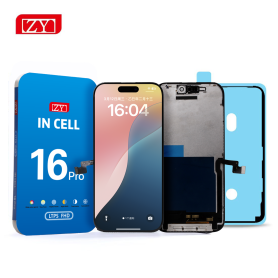
Screen iPhone 16 Pro (INCELL) ZY - COF - FHD1080p - Diagnosable
Out-of-Stock

Use Repair Assistant to Finish an iPhone or iPad Repair

On an iPhone 12 or later running iOS 18, when a new Apple screen is installed,“Finish Repair” will appear next to Screen until you complete the repair using the Repair Assistant.


On an iPhone 12 or later running iOS 18, it is possible to reuse an original Apple screen on another iPhone of the same model.
The date of first use and the condition of the screen can be found in Settings > General > About > Parts & Service History.


How to Run Diagnostics & Finish Repair for iPhone Screen
1. Ensure your device is updated to iOS 18
2. Go to Settings > General > About > Parts & Service History
3. Tap "Restart & Finish Repair" to activate the Repair Assistant
4. Follow the on-screen instructions to complete the calibration
After completing this process, your screen will be fully functional, and there will be no pop-up warning about non-genuine parts.


Important Notes:

Your iPhone must be connected to Wi-Fi
Your battery level should be above 20%
If the process fails, restart your device and try again
If the repair is not completed, the screen may not function optimally, and some features (True Tone, Face ID) may be disabled until calibration is finalized


Out-of-Stock
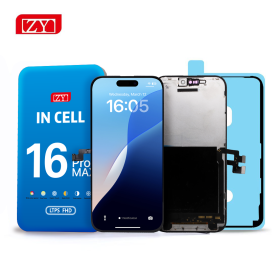
Screen iPhone 16 Pro Max (INCELL) ZY - COF - FHD1080p - Diagnosable
Out-of-Stock

Use Repair Assistant to Finish an iPhone or iPad Repair

On an iPhone 12 or later running iOS 18, when a new Apple screen is installed,“Finish Repair” will appear next to Screen until you complete the repair using the Repair Assistant.


On an iPhone 12 or later running iOS 18, it is possible to reuse an original Apple screen on another iPhone of the same model.
The date of first use and the condition of the screen can be found in Settings > General > About > Parts & Service History.


How to Run Diagnostics & Finish Repair for iPhone Screen
1. Ensure your device is updated to iOS 18
2. Go to Settings > General > About > Parts & Service History
3. Tap "Restart & Finish Repair" to activate the Repair Assistant
4. Follow the on-screen instructions to complete the calibration
After completing this process, your screen will be fully functional, and there will be no pop-up warning about non-genuine parts.


Important Notes:

Your iPhone must be connected to Wi-Fi
Your battery level should be above 20%
If the process fails, restart your device and try again
If the repair is not completed, the screen may not function optimally, and some features (True Tone, Face ID) may be disabled until calibration is finalized


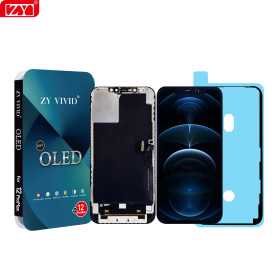
Screen iPhone 12 Pro Max (OLED) ZY - Diagnosable
26 In-stock

Use Repair Assistant to Finish an iPhone or iPad Repair

On an iPhone 12 or later running iOS 18, when a new Apple screen is installed,“Finish Repair” will appear next to Screen until you complete the repair using the Repair Assistant.


On an iPhone 12 or later running iOS 18, it is possible to reuse an original Apple screen on another iPhone of the same model.
The date of first use and the condition of the screen can be found in Settings > General > About > Parts & Service History.


How to Run Diagnostics & Finish Repair for iPhone Screen
1. Ensure your device is updated to iOS 18
2. Go to Settings > General > About > Parts & Service History
3. Tap "Restart & Finish Repair" to activate the Repair Assistant
4. Follow the on-screen instructions to complete the calibration
After completing this process, your screen will be fully functional, and there will be no pop-up warning about non-genuine parts.


Important Notes:

Your iPhone must be connected to Wi-Fi
Your battery level should be above 20%
If the process fails, restart your device and try again
If the repair is not completed, the screen may not function optimally, and some features (True Tone, Face ID) may be disabled until calibration is finalized


€46.90
Screen iPhone 13 (OLED) ZY - Diagnosable
45 In-stock

Use Repair Assistant to Finish an iPhone or iPad Repair

On an iPhone 12 or later running iOS 18, when a new Apple screen is installed,“Finish Repair” will appear next to Screen until you complete the repair using the Repair Assistant.


On an iPhone 12 or later running iOS 18, it is possible to reuse an original Apple screen on another iPhone of the same model.
The date of first use and the condition of the screen can be found in Settings > General > About > Parts & Service History.


How to Run Diagnostics & Finish Repair for iPhone Screen
1. Ensure your device is updated to iOS 18
2. Go to Settings > General > About > Parts & Service History
3. Tap "Restart & Finish Repair" to activate the Repair Assistant
4. Follow the on-screen instructions to complete the calibration
After completing this process, your screen will be fully functional, and there will be no pop-up warning about non-genuine parts.


Important Notes:

Your iPhone must be connected to Wi-Fi
Your battery level should be above 20%
If the process fails, restart your device and try again
If the repair is not completed, the screen may not function optimally, and some features (True Tone, Face ID) may be disabled until calibration is finalized


€42.02
Screen iPhone 13 Pro (OLED) ZY - 120Hz - Diagnosable
24 In-stock

Use Repair Assistant to Finish an iPhone or iPad Repair

On an iPhone 12 or later running iOS 18, when a new Apple screen is installed,“Finish Repair” will appear next to Screen until you complete the repair using the Repair Assistant.


On an iPhone 12 or later running iOS 18, it is possible to reuse an original Apple screen on another iPhone of the same model.
The date of first use and the condition of the screen can be found in Settings > General > About > Parts & Service History.


How to Run Diagnostics & Finish Repair for iPhone Screen
1. Ensure your device is updated to iOS 18
2. Go to Settings > General > About > Parts & Service History
3. Tap "Restart & Finish Repair" to activate the Repair Assistant
4. Follow the on-screen instructions to complete the calibration
After completing this process, your screen will be fully functional, and there will be no pop-up warning about non-genuine parts.


Important Notes:

Your iPhone must be connected to Wi-Fi
Your battery level should be above 20%
If the process fails, restart your device and try again
If the repair is not completed, the screen may not function optimally, and some features (True Tone, Face ID) may be disabled until calibration is finalized


€46.90
Screen iPhone 13 Pro Max (OLED) ZY - 120Hz - Diagnosable
28 In-stock

Use Repair Assistant to Finish an iPhone or iPad Repair

On an iPhone 12 or later running iOS 18, when a new Apple screen is installed,“Finish Repair” will appear next to Screen until you complete the repair using the Repair Assistant.


On an iPhone 12 or later running iOS 18, it is possible to reuse an original Apple screen on another iPhone of the same model.
The date of first use and the condition of the screen can be found in Settings > General > About > Parts & Service History.


How to Run Diagnostics & Finish Repair for iPhone Screen
1. Ensure your device is updated to iOS 18
2. Go to Settings > General > About > Parts & Service History
3. Tap "Restart & Finish Repair" to activate the Repair Assistant
4. Follow the on-screen instructions to complete the calibration
After completing this process, your screen will be fully functional, and there will be no pop-up warning about non-genuine parts.


Important Notes:

Your iPhone must be connected to Wi-Fi
Your battery level should be above 20%
If the process fails, restart your device and try again
If the repair is not completed, the screen may not function optimally, and some features (True Tone, Face ID) may be disabled until calibration is finalized


€48.46
Screen iPhone 14 (OLED) ZY - Diagnosable
26 In-stock

Use Repair Assistant to Finish an iPhone or iPad Repair

On an iPhone 12 or later running iOS 18, when a new Apple screen is installed,“Finish Repair” will appear next to Screen until you complete the repair using the Repair Assistant.


On an iPhone 12 or later running iOS 18, it is possible to reuse an original Apple screen on another iPhone of the same model.
The date of first use and the condition of the screen can be found in Settings > General > About > Parts & Service History.


How to Run Diagnostics & Finish Repair for iPhone Screen
1. Ensure your device is updated to iOS 18
2. Go to Settings > General > About > Parts & Service History
3. Tap "Restart & Finish Repair" to activate the Repair Assistant
4. Follow the on-screen instructions to complete the calibration
After completing this process, your screen will be fully functional, and there will be no pop-up warning about non-genuine parts.


Important Notes:

Your iPhone must be connected to Wi-Fi
Your battery level should be above 20%
If the process fails, restart your device and try again
If the repair is not completed, the screen may not function optimally, and some features (True Tone, Face ID) may be disabled until calibration is finalized


€43.97
Out-of-Stock
Screen iPhone 14 Plus (OLED) ZY - Diagnosable
Out-of-Stock

Use Repair Assistant to Finish an iPhone or iPad Repair

On an iPhone 12 or later running iOS 18, when a new Apple screen is installed,“Finish Repair” will appear next to Screen until you complete the repair using the Repair Assistant.


On an iPhone 12 or later running iOS 18, it is possible to reuse an original Apple screen on another iPhone of the same model.
The date of first use and the condition of the screen can be found in Settings > General > About > Parts & Service History.


How to Run Diagnostics & Finish Repair for iPhone Screen
1. Ensure your device is updated to iOS 18
2. Go to Settings > General > About > Parts & Service History
3. Tap "Restart & Finish Repair" to activate the Repair Assistant
4. Follow the on-screen instructions to complete the calibration
After completing this process, your screen will be fully functional, and there will be no pop-up warning about non-genuine parts.


Important Notes:

Your iPhone must be connected to Wi-Fi
Your battery level should be above 20%
If the process fails, restart your device and try again
If the repair is not completed, the screen may not function optimally, and some features (True Tone, Face ID) may be disabled until calibration is finalized


Out-of-Stock
Screen iPhone 14 Pro (OLED) ZY - 120Hz - Diagnosable
Out-of-Stock

Use Repair Assistant to Finish an iPhone or iPad Repair

On an iPhone 12 or later running iOS 18, when a new Apple screen is installed,“Finish Repair” will appear next to Screen until you complete the repair using the Repair Assistant.


On an iPhone 12 or later running iOS 18, it is possible to reuse an original Apple screen on another iPhone of the same model.
The date of first use and the condition of the screen can be found in Settings > General > About > Parts & Service History.


How to Run Diagnostics & Finish Repair for iPhone Screen
1. Ensure your device is updated to iOS 18
2. Go to Settings > General > About > Parts & Service History
3. Tap "Restart & Finish Repair" to activate the Repair Assistant
4. Follow the on-screen instructions to complete the calibration
After completing this process, your screen will be fully functional, and there will be no pop-up warning about non-genuine parts.


Important Notes:

Your iPhone must be connected to Wi-Fi
Your battery level should be above 20%
If the process fails, restart your device and try again
If the repair is not completed, the screen may not function optimally, and some features (True Tone, Face ID) may be disabled until calibration is finalized


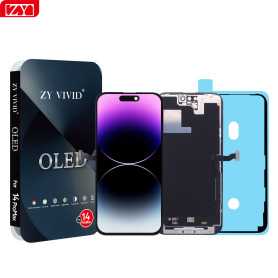
Screen iPhone 14 Pro Max (OLED) ZY - 120Hz - Diagnosable
46 In-stock

Use Repair Assistant to Finish an iPhone or iPad Repair

On an iPhone 12 or later running iOS 18, when a new Apple screen is installed,“Finish Repair” will appear next to Screen until you complete the repair using the Repair Assistant.


On an iPhone 12 or later running iOS 18, it is possible to reuse an original Apple screen on another iPhone of the same model.
The date of first use and the condition of the screen can be found in Settings > General > About > Parts & Service History.


How to Run Diagnostics & Finish Repair for iPhone Screen
1. Ensure your device is updated to iOS 18
2. Go to Settings > General > About > Parts & Service History
3. Tap "Restart & Finish Repair" to activate the Repair Assistant
4. Follow the on-screen instructions to complete the calibration
After completing this process, your screen will be fully functional, and there will be no pop-up warning about non-genuine parts.


Important Notes:

Your iPhone must be connected to Wi-Fi
Your battery level should be above 20%
If the process fails, restart your device and try again
If the repair is not completed, the screen may not function optimally, and some features (True Tone, Face ID) may be disabled until calibration is finalized


€53.73
Out-of-Stock
Screen iPhone 15 (OLED) ZY - Diagnosable
Out-of-Stock

Use Repair Assistant to Finish an iPhone or iPad Repair

On an iPhone 12 or later running iOS 18, when a new Apple screen is installed,“Finish Repair” will appear next to Screen until you complete the repair using the Repair Assistant.


On an iPhone 12 or later running iOS 18, it is possible to reuse an original Apple screen on another iPhone of the same model.
The date of first use and the condition of the screen can be found in Settings > General > About > Parts & Service History.


How to Run Diagnostics & Finish Repair for iPhone Screen
1. Ensure your device is updated to iOS 18
2. Go to Settings > General > About > Parts & Service History
3. Tap "Restart & Finish Repair" to activate the Repair Assistant
4. Follow the on-screen instructions to complete the calibration
After completing this process, your screen will be fully functional, and there will be no pop-up warning about non-genuine parts.


Important Notes:

Your iPhone must be connected to Wi-Fi
Your battery level should be above 20%
If the process fails, restart your device and try again
If the repair is not completed, the screen may not function optimally, and some features (True Tone, Face ID) may be disabled until calibration is finalized


Out-of-Stock
Screen iPhone 15 Plus (OLED) ZY - Diagnosable
Out-of-Stock

Use Repair Assistant to Finish an iPhone or iPad Repair

On an iPhone 12 or later running iOS 18, when a new Apple screen is installed,“Finish Repair” will appear next to Screen until you complete the repair using the Repair Assistant.


On an iPhone 12 or later running iOS 18, it is possible to reuse an original Apple screen on another iPhone of the same model.
The date of first use and the condition of the screen can be found in Settings > General > About > Parts & Service History.


How to Run Diagnostics & Finish Repair for iPhone Screen
1. Ensure your device is updated to iOS 18
2. Go to Settings > General > About > Parts & Service History
3. Tap "Restart & Finish Repair" to activate the Repair Assistant
4. Follow the on-screen instructions to complete the calibration
After completing this process, your screen will be fully functional, and there will be no pop-up warning about non-genuine parts.


Important Notes:

Your iPhone must be connected to Wi-Fi
Your battery level should be above 20%
If the process fails, restart your device and try again
If the repair is not completed, the screen may not function optimally, and some features (True Tone, Face ID) may be disabled until calibration is finalized


Out-of-Stock
Screen iPhone 15 Pro (OLED) ZY - 120Hz - Diagnosable
Out-of-Stock

Use Repair Assistant to Finish an iPhone or iPad Repair

On an iPhone 12 or later running iOS 18, when a new Apple screen is installed,“Finish Repair” will appear next to Screen until you complete the repair using the Repair Assistant.


On an iPhone 12 or later running iOS 18, it is possible to reuse an original Apple screen on another iPhone of the same model.
The date of first use and the condition of the screen can be found in Settings > General > About > Parts & Service History.


How to Run Diagnostics & Finish Repair for iPhone Screen
1. Ensure your device is updated to iOS 18
2. Go to Settings > General > About > Parts & Service History
3. Tap "Restart & Finish Repair" to activate the Repair Assistant
4. Follow the on-screen instructions to complete the calibration
After completing this process, your screen will be fully functional, and there will be no pop-up warning about non-genuine parts.


Important Notes:

Your iPhone must be connected to Wi-Fi
Your battery level should be above 20%
If the process fails, restart your device and try again
If the repair is not completed, the screen may not function optimally, and some features (True Tone, Face ID) may be disabled until calibration is finalized


Out-of-Stock
Screen iPhone 15 Pro Max (OLED) ZY - Diagnosable
Out-of-Stock

Use Repair Assistant to Finish an iPhone or iPad Repair

On an iPhone 12 or later running iOS 18, when a new Apple screen is installed,“Finish Repair” will appear next to Screen until you complete the repair using the Repair Assistant.


On an iPhone 12 or later running iOS 18, it is possible to reuse an original Apple screen on another iPhone of the same model.
The date of first use and the condition of the screen can be found in Settings > General > About > Parts & Service History.


How to Run Diagnostics & Finish Repair for iPhone Screen
1. Ensure your device is updated to iOS 18
2. Go to Settings > General > About > Parts & Service History
3. Tap "Restart & Finish Repair" to activate the Repair Assistant
4. Follow the on-screen instructions to complete the calibration
After completing this process, your screen will be fully functional, and there will be no pop-up warning about non-genuine parts.


Important Notes:

Your iPhone must be connected to Wi-Fi
Your battery level should be above 20%
If the process fails, restart your device and try again
If the repair is not completed, the screen may not function optimally, and some features (True Tone, Face ID) may be disabled until calibration is finalized


Out-of-Stock
Screen iPhone 16 (OLED) ZY - Diagnosable
Out-of-Stock

Use Repair Assistant to Finish an iPhone or iPad Repair

On an iPhone 12 or later running iOS 18, when a new Apple screen is installed,“Finish Repair” will appear next to Screen until you complete the repair using the Repair Assistant.


On an iPhone 12 or later running iOS 18, it is possible to reuse an original Apple screen on another iPhone of the same model.
The date of first use and the condition of the screen can be found in Settings > General > About > Parts & Service History.


How to Run Diagnostics & Finish Repair for iPhone Screen
1. Ensure your device is updated to iOS 18
2. Go to Settings > General > About > Parts & Service History
3. Tap "Restart & Finish Repair" to activate the Repair Assistant
4. Follow the on-screen instructions to complete the calibration
After completing this process, your screen will be fully functional, and there will be no pop-up warning about non-genuine parts.


Important Notes:

Your iPhone must be connected to Wi-Fi
Your battery level should be above 20%
If the process fails, restart your device and try again
If the repair is not completed, the screen may not function optimally, and some features (True Tone, Face ID) may be disabled until calibration is finalized


Out-of-Stock
Screen iPhone 16 Plus (OLED) ZY - Diagnosable
Out-of-Stock

Use Repair Assistant to Finish an iPhone or iPad Repair

On an iPhone 12 or later running iOS 18, when a new Apple screen is installed,“Finish Repair” will appear next to Screen until you complete the repair using the Repair Assistant.


On an iPhone 12 or later running iOS 18, it is possible to reuse an original Apple screen on another iPhone of the same model.
The date of first use and the condition of the screen can be found in Settings > General > About > Parts & Service History.


How to Run Diagnostics & Finish Repair for iPhone Screen
1. Ensure your device is updated to iOS 18
2. Go to Settings > General > About > Parts & Service History
3. Tap "Restart & Finish Repair" to activate the Repair Assistant
4. Follow the on-screen instructions to complete the calibration
After completing this process, your screen will be fully functional, and there will be no pop-up warning about non-genuine parts.


Important Notes:

Your iPhone must be connected to Wi-Fi
Your battery level should be above 20%
If the process fails, restart your device and try again
If the repair is not completed, the screen may not function optimally, and some features (True Tone, Face ID) may be disabled until calibration is finalized


Screen iPhone 16 Pro (OLED) ZY - 120Hz - Diagnosable
18 In-stock

Use Repair Assistant to Finish an iPhone or iPad Repair

On an iPhone 12 or later running iOS 18, when a new Apple screen is installed,“Finish Repair” will appear next to Screen until you complete the repair using the Repair Assistant.


On an iPhone 12 or later running iOS 18, it is possible to reuse an original Apple screen on another iPhone of the same model.
The date of first use and the condition of the screen can be found in Settings > General > About > Parts & Service History.


How to Run Diagnostics & Finish Repair for iPhone Screen
1. Ensure your device is updated to iOS 18
2. Go to Settings > General > About > Parts & Service History
3. Tap "Restart & Finish Repair" to activate the Repair Assistant
4. Follow the on-screen instructions to complete the calibration
After completing this process, your screen will be fully functional, and there will be no pop-up warning about non-genuine parts.


Important Notes:

Your iPhone must be connected to Wi-Fi
Your battery level should be above 20%
If the process fails, restart your device and try again
If the repair is not completed, the screen may not function optimally, and some features (True Tone, Face ID) may be disabled until calibration is finalized


€95.73
Screen iPhone 16 Pro Max (OLED) ZY - 120Hz - Diagnosable
20 In-stock

Use Repair Assistant to Finish an iPhone or iPad Repair

On an iPhone 12 or later running iOS 18, when a new Apple screen is installed,“Finish Repair” will appear next to Screen until you complete the repair using the Repair Assistant.


On an iPhone 12 or later running iOS 18, it is possible to reuse an original Apple screen on another iPhone of the same model.
The date of first use and the condition of the screen can be found in Settings > General > About > Parts & Service History.


How to Run Diagnostics & Finish Repair for iPhone Screen
1. Ensure your device is updated to iOS 18
2. Go to Settings > General > About > Parts & Service History
3. Tap "Restart & Finish Repair" to activate the Repair Assistant
4. Follow the on-screen instructions to complete the calibration
After completing this process, your screen will be fully functional, and there will be no pop-up warning about non-genuine parts.


Important Notes:

Your iPhone must be connected to Wi-Fi
Your battery level should be above 20%
If the process fails, restart your device and try again
If the repair is not completed, the screen may not function optimally, and some features (True Tone, Face ID) may be disabled until calibration is finalized


€98.66
Screen iPhone 16 Pro Max (Soft OLED) ZY - 120Hz - Diagnosable
20 In-stock

Use Repair Assistant to Finish an iPhone or iPad Repair

On an iPhone 12 or later running iOS 18, when a new Apple screen is installed,“Finish Repair” will appear next to Screen until you complete the repair using the Repair Assistant.


On an iPhone 12 or later running iOS 18, it is possible to reuse an original Apple screen on another iPhone of the same model.
The date of first use and the condition of the screen can be found in Settings > General > About > Parts & Service History.


How to Run Diagnostics & Finish Repair for iPhone Screen
1. Ensure your device is updated to iOS 18
2. Go to Settings > General > About > Parts & Service History
3. Tap "Restart & Finish Repair" to activate the Repair Assistant
4. Follow the on-screen instructions to complete the calibration
After completing this process, your screen will be fully functional, and there will be no pop-up warning about non-genuine parts.


Important Notes:

Your iPhone must be connected to Wi-Fi
Your battery level should be above 20%
If the process fails, restart your device and try again
If the repair is not completed, the screen may not function optimally, and some features (True Tone, Face ID) may be disabled until calibration is finalized


€101.59
iPhone 16 Rear Chassis without Rear Glass without Battery Teal (Original Disassembled) Grade B
1 Last items in stock
Key Features of iPhone 16 Rear Chassis without Rear Glass without Battery Teal (Original Disassembled) Grade B:


Original OEM Part: Sourced directly from original iPhone 16 devices, ensuring compatibility and authenticity for reliable repairs or replacements.


Durable Metal Construction: Crafted from high-quality materials to provide a robust frame, designed to withstand daily wear and protect internal components effectively.


Teal Finish: Unique and eye-catching teal color that adds a distinctive aesthetic touch to your iPhone, making it stand out from standard offerings.


Precision Engineering: Manufactured to the exact specifications of the iPhone 16, ensuring a perfect fit with seamless integration of other components such as the camera, buttons, and ports.


Battery and Glass Excluded: Arrives without a rear glass or battery, offering more flexibility for customized repairs and reducing redundant parts if only the chassis needs replacement.


Grade B Quality: Pre-owned but thoroughly inspected; contains slight cosmetic imperfections that don’t affect functionality, providing a cost-effective repair solution.


Eco-Friendly Option: Recycling parts by opting for disassembled components supports sustainable practices and reduces e-waste impact.


This chassis is ideal for repair professionals or DIY enthusiasts aiming to refurbish or customize their device while maintaining original quality at a more affordable cost.
€72.00
iPhone 16 chassis without back glass or battery, white (original, disassembled), Grade B
1 Last items in stock
Product Key Features: iPhone 16 Chassis without Back Glass or Battery, White (Original, Disassembled), Grade B


Original Quality: This iPhone 16 chassis is an authentic Apple component, ensuring compatibility and a perfect fit with other original iPhone 16 parts.


Disassembled Condition: Offered in a disassembled state, this chassis provides flexibility for custom repairs or refurbishments, allowing technicians to rebuild or repurpose iPhone 16 devices efficiently.


Grade B Condition: As a Grade B product, this chassis shows minor signs of previous use, such as small scratches or scuffs, but it is fully functional, offering a balance between quality and affordability.


Component-Specific Usage: Designed primarily for technicians or DIY enthusiasts who require specific parts for repair projects, this chassis comes without the back glass or battery, allowing for focused component replacement.


Sleek White Finish: The clean, sleek white color of the chassis complements any repair project, promoting a refreshed aesthetic for refurbished devices.


Comprehensive Compatibility: Engineered for the iPhone 16, this chassis is compatible with Apple's internal component standards, making it an essential part for maintaining device integrity and performance.


Cost-Effective Solution: Ideal for repair shops and refurbishment businesses looking to optimize costs, offering a more affordable option for device restoration without compromising on quality.

€72.90
IPhone 16 Rear Chassis without Rear Glass without Battery White eSIM US (Original Disassembled) Grade B
2 Last items in stock
Key Features of iPhone 16 Rear Chassis without Rear Glass, without Battery, White, eSIM, US (Original Disassembled), Grade B:


Authentic Original Part: This rear chassis for the iPhone 16 is an original part, ensuring perfect compatibility and fit with all other genuine iPhone 16 components.


Durable Construction: Crafted from high-quality materials, the chassis ensures robust support for internal components, contributing to the device's overall durability and longevity.


White Finish: The sleek white design adds a touch of elegance and allows personalization to match your style, seamless with the rest of your iPhone aesthetics.


eSIM Compatibility: Designed for the US market, this chassis supports eSIM functionality, offering flexibility with network provider choices and convenient dual SIM capability.


Grade B Quality: Representing slight signs of use, Grade B ensures a balance between quality and affordability, ideal for refurbishments without compromising on functionality.


Without Rear Glass and Battery: This component does not include the rear glass or battery, offering a cost-effective option for targeted repairs or replacements.


Easy Integration: Designed for seamless integration, ensuring that experienced technicians can efficiently assemble the device using this chassis.


Ideal for Repairs and Custom Builds: Perfect for repair specialists and tech enthusiasts focused on rebuilding or customizing iPhones to specific needs.

€72.90